Table Of Content
Data Tables
UI Layout
UI Settings
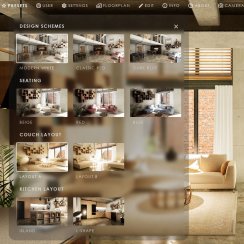
F. w. Preview
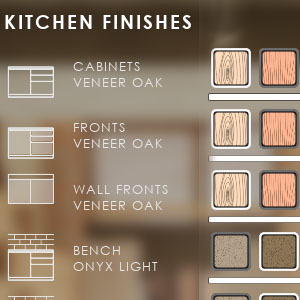
Designer
Variation Actor
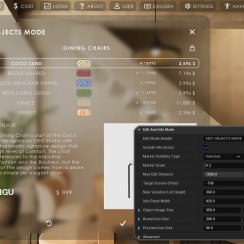
Widget Panels
Scene Settings

Gamemode

VR projects
Connect BP

Cost Tracking

FAQ + TIPS
Fix Known Bugs
Google Cloud And Sheets
Using Google Cloud and Google Sheets to store and receive data for multi-unit projects.
Useful for projects running on remote servers. Allows real-time updates from a spreadsheet in Google Sheets as well as export of user choices to a Google sheet
Third party plug-ins are required for this to work.
Content:
Google Cloud Project and Service Account
YouTube Quick Guide
Part 3 of the quick guide tutorials.How to switch from local data tables to remote google sheet as data source for a multi-unit project.
2026 version
The video was
recorded in 2025. It's still useful to watch but check the written
tutorial below for more up to date information.
Necessary Plugins
Last updated for version 2026-04.1 (2026-04-15)
Unreal 5.5 (or later)
Runtime Datatable
Plugin needed to connect Unreal Engine to the Google Cloud Service. Available on FAB.
Blueprint FileSDK
Allows to save lists from the UI3 onto the hard drive. (free on FAB)
 Runtime Datatable on FAB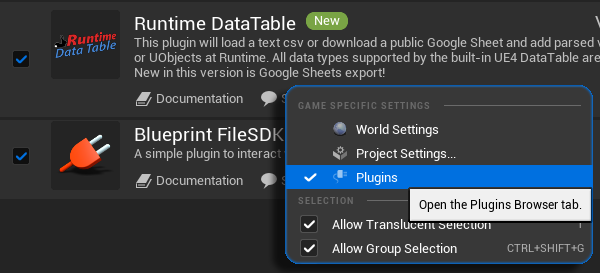
Rename uasset files
The blueprints and widget versions using nodes from the above plugins are renamed so that the engine doesn't recognize them. Otherwise, Unreal would crash if it can't find its plugins.File name extensions need to be set visible in the View options of the Windows File Explorer
Enable the plugins before you rename the files or the project won't work anymore.
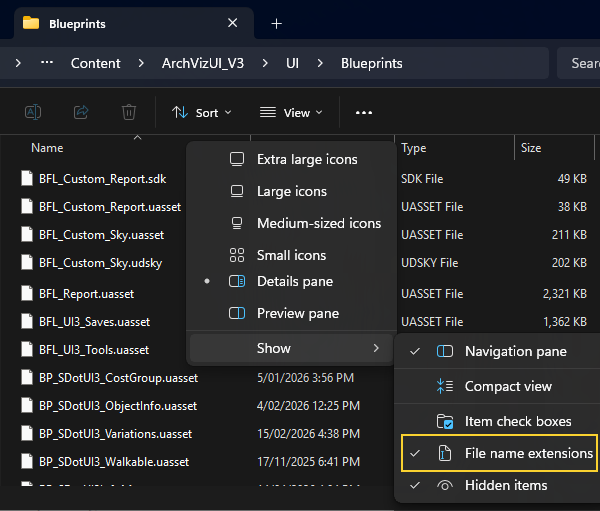
- Rename the existing filename.uasset to filename.old
- Rename the 2nd file filename.xxx to filename.uasset
The files that need to be renamed depend on the UI3 version:
UI3 Version 2026
| BFL_Custom_Report | This file enables the Blueprint File SDK plugin. |
| BFL_Custom_Sky | This file enables the Ultra Dynamic Sky. |
| UI3_MainMenu_GS | This widget enables the Runtime Datatable plugin. |
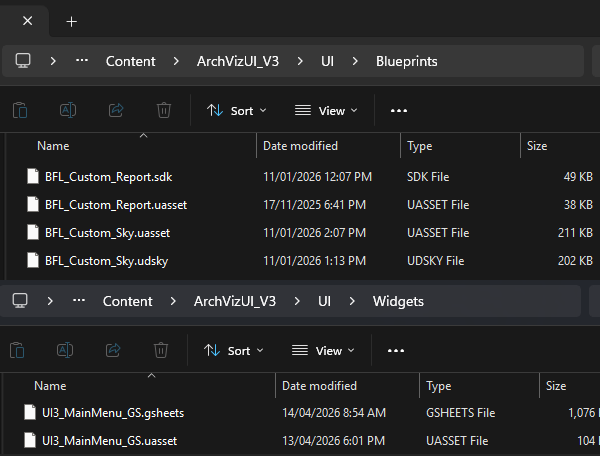
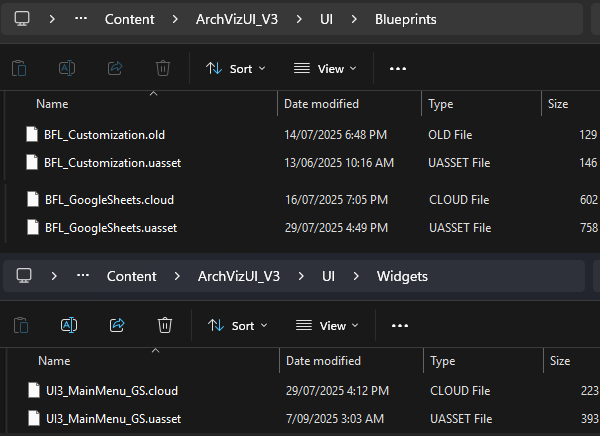
UI3 Version 2025
| BFL_Customization | This file enables the File SDK plugin and the Ultra Dynamic Sky. |
| BFL_GoogleSheets | This file enables the Runtime Datatable plugin. |
| UI3_MainMenu_GS | This widget enables the Runtime Datatable plugin. |
Older 2025 Versions
- Before 2025-07-25 rename UI3_MainMenu
- 2025-07-25 to 08-03 rename the existing file to UI3_MainMenu.old. Then download file link below.
Google Cloud Project and Service Account
A project needs to be created in the cloud. You should be able to use a standard google gmail account to create it. It can then be used for multiple Unreal projects.
The Runtime Datatable plugin's documentation has a more in- depth tutorial.
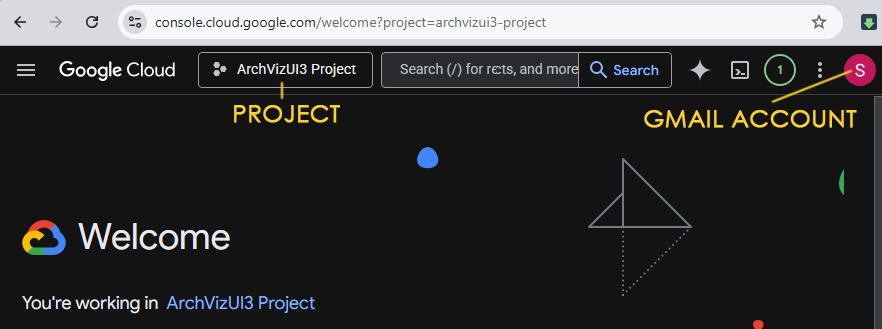
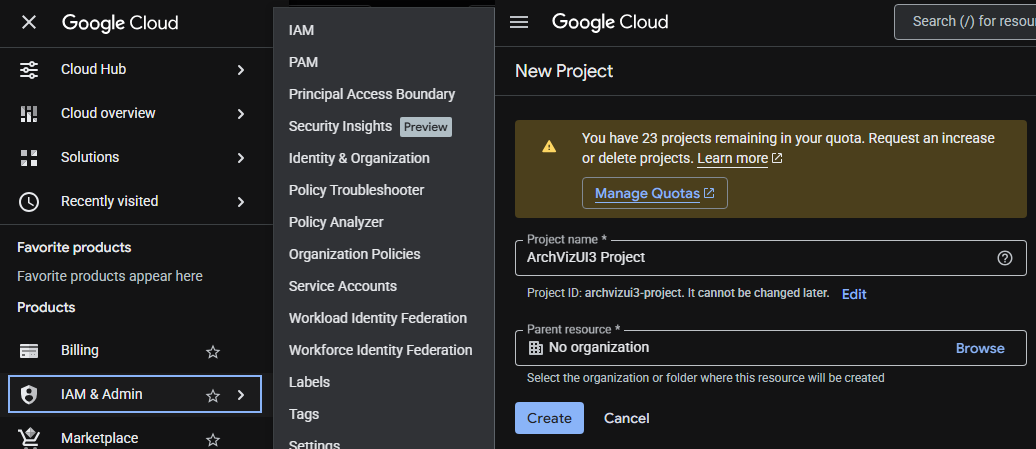
Create a cloud project
In the left panel go to IAM & Admin > Service Accounts and create a new project.
There is nothing special to set up here so you can just click through most options.
Create a Service Account
+ CREATE SERVICE ACCOUNT inside the new project.
Set the role to Owner. Everything can be left alone and you should be able to just click through.
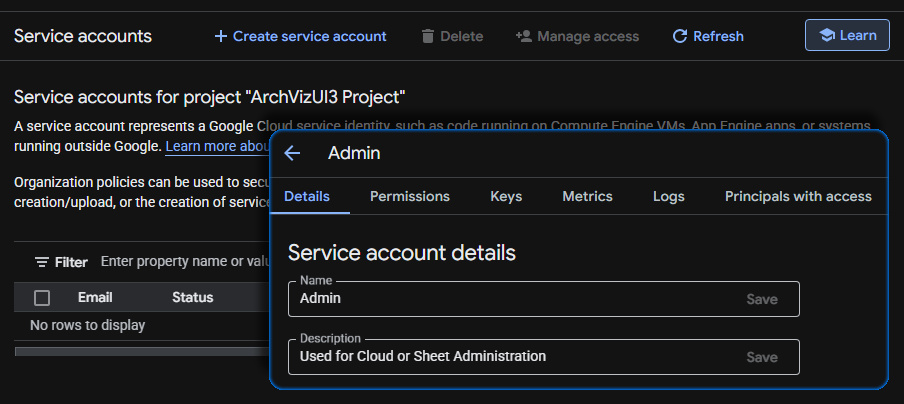
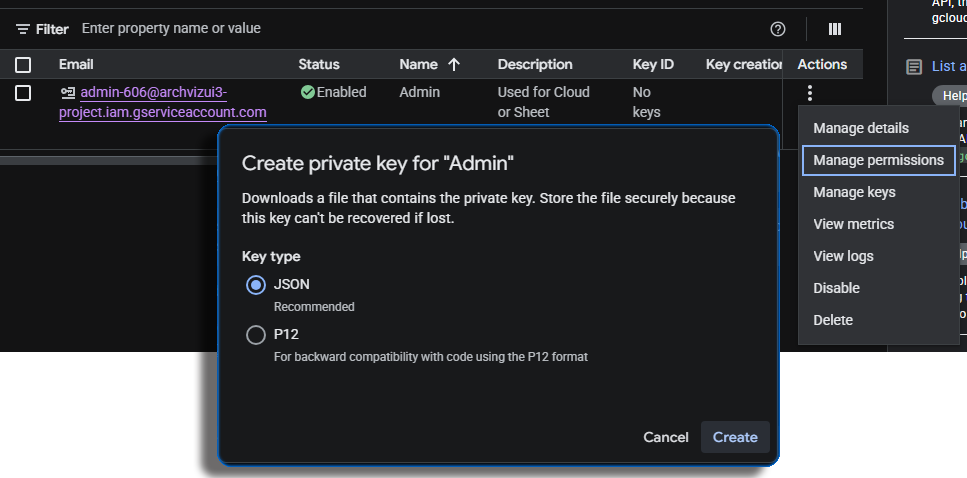
The new service account should show up in the list. Click on the three dot menu at the right side for Actions.
Choose Manage Permissions and create a Private Key with key type JSON.
Save the key somewhere you can find it as you won't be able to download the key again.
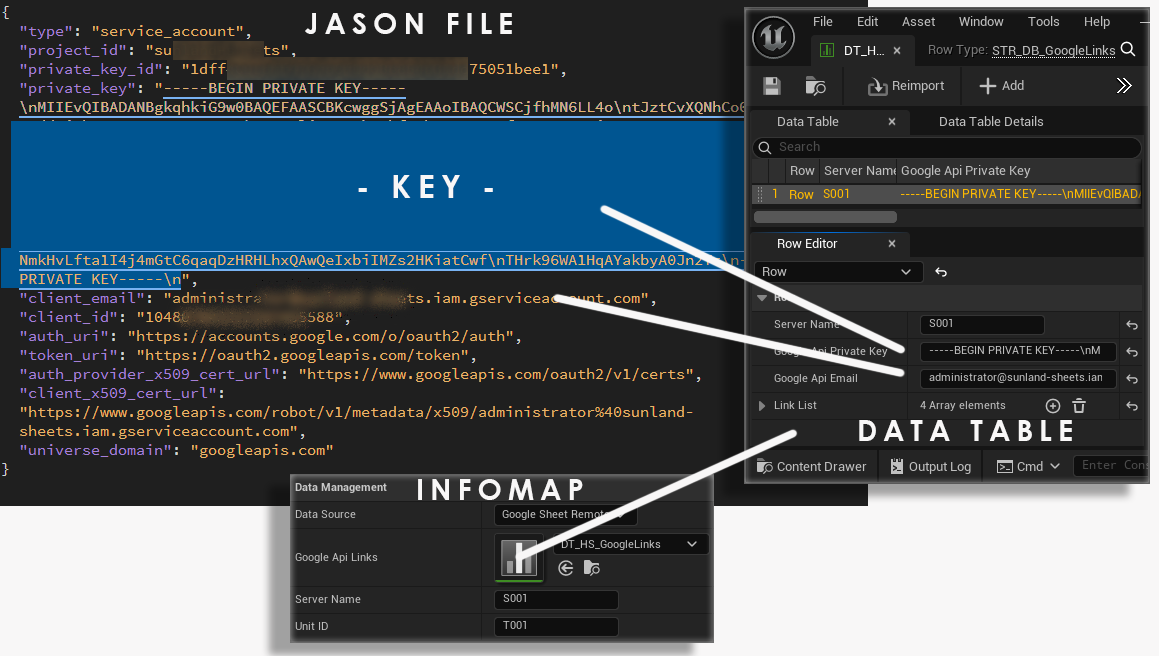
Private Key Data
The key comes as a JSON file and can be opened with Notepad, Visual Studio, or web developing software.
Used are only the
- Private Key - the long cryptic string.
- Client Email - the service account email.
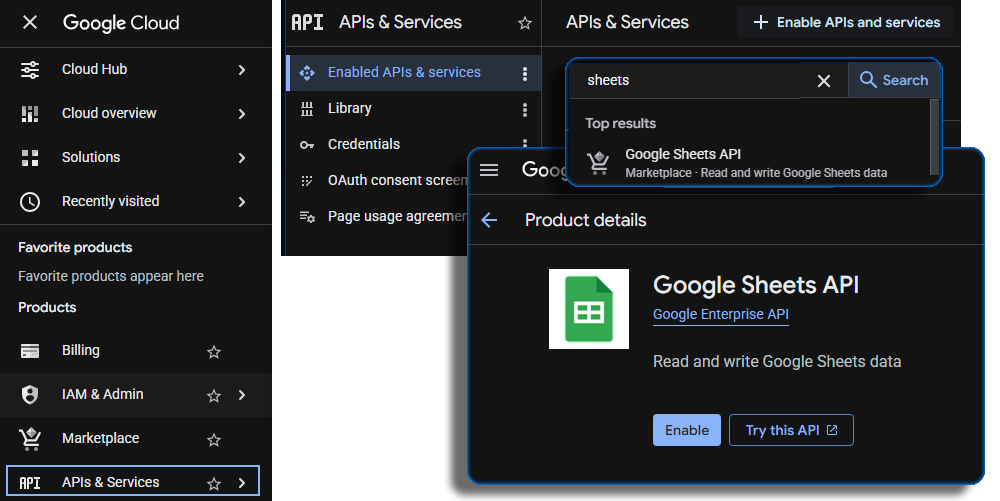
Enable Google Sheets Api
As a final step, the Google Sheets API needs to be enable for the project.
- Navigate to API & Services.
- Search for Sheets
- Enable Google Sheets API
Google Drive
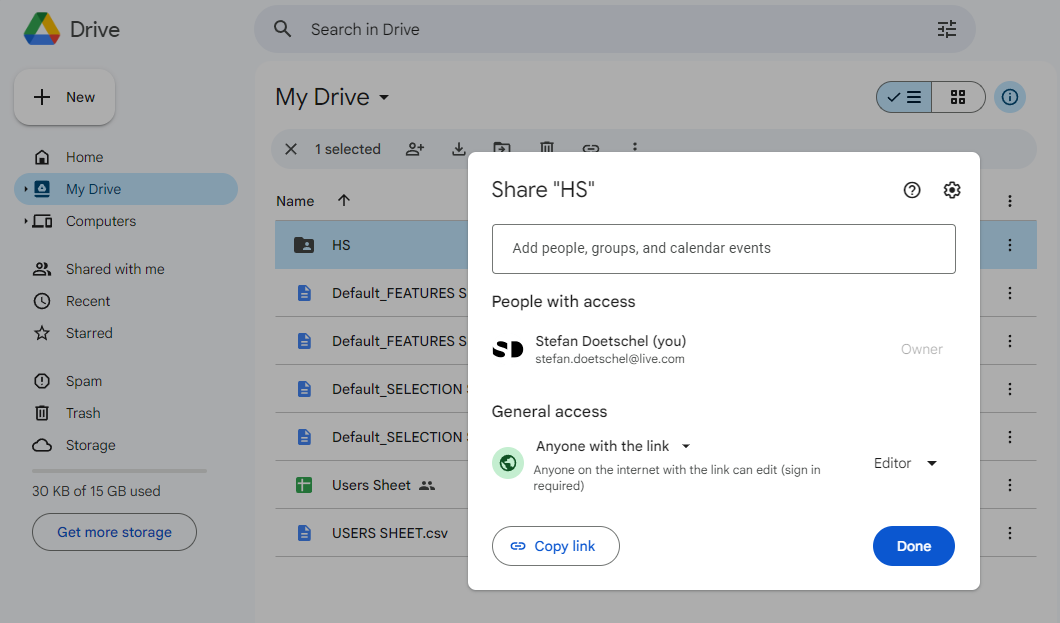
Create a FolderBest to create a folder for the current Unreal project. Any Gmail address's drive can be used. It doesn't need to be the one used to create the cloud services.
Folder Permissions
Folder permissions need to be set and will apply to all files in the folder.
I am struggling to understand what permissions are necessary. I could only get it working by giving Editor access Everyone with the link.
Reading data seems to work by giving the email created as owner for the Cloud Project full access.
Create Data Sheets
Export Local Datatable
Local datatables were used in the first part of the tutorial. The data entered into the datatables can be exported and used in the google sheets.
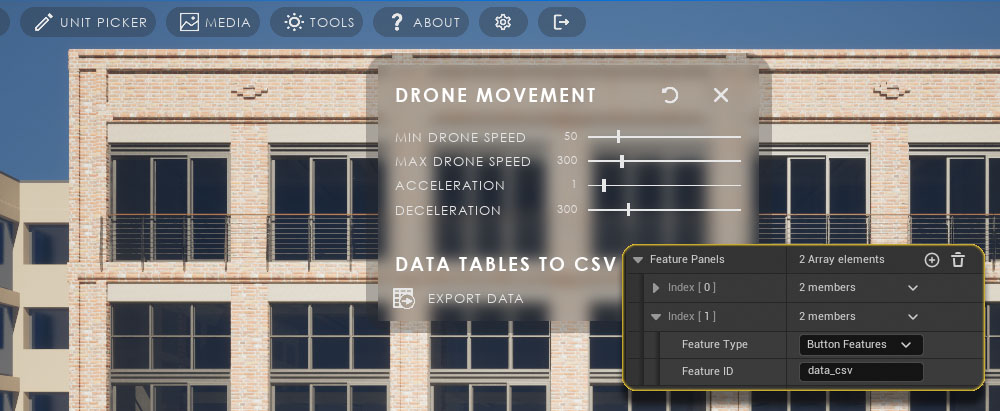
Add Data Export Widget
Add a new item to any of the Feature Panels.
- Feature Type: Button Feature
- Feature ID: data_csv
Export CSV files
Run the scene and click the button to Export Data. This will save 4 files into the MyProject/Saved/Reports folder.
Import CSV Files
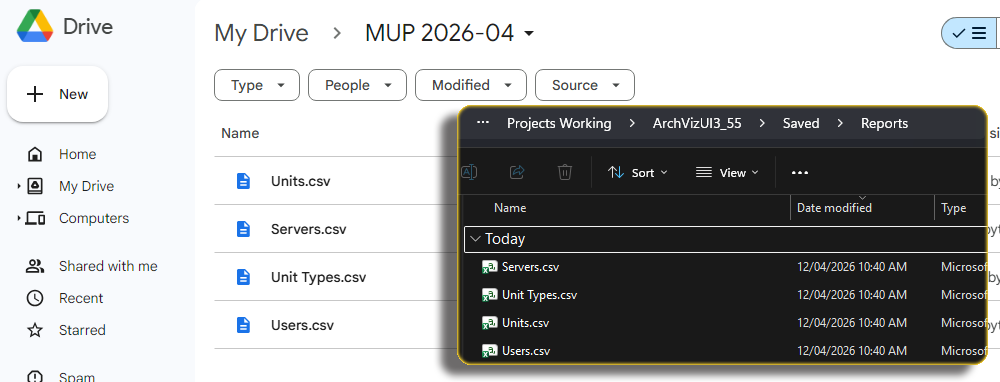
In Google Drive
- Open the project folder
- click on [ + NEW ]
- choose File Upload
- Import the 4 previously created CSV files
Convert CSV files to Sheets
The files need to be converted to Google Sheets.
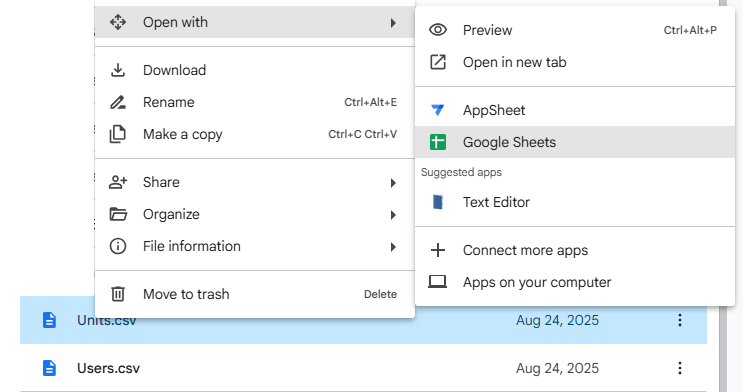
- Right click the file
- Choose Open With
- Choose Google Sheets
The file will open after a short while. The files should be ready to use but make sure that the Column Names are spelled correctly.
Google Data Sheets
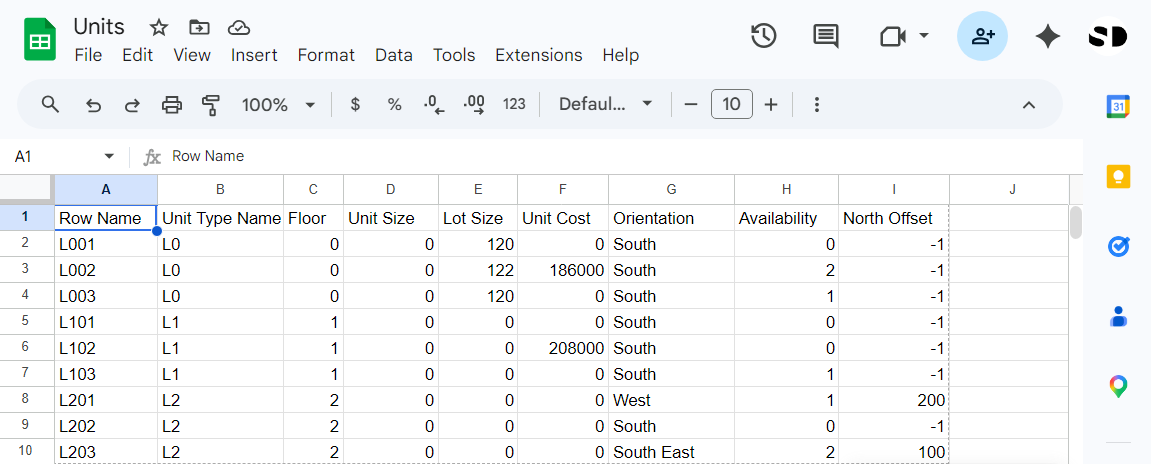
The following 4 Google Sheets contain the data for the units and the users. UI3 only reads these files.
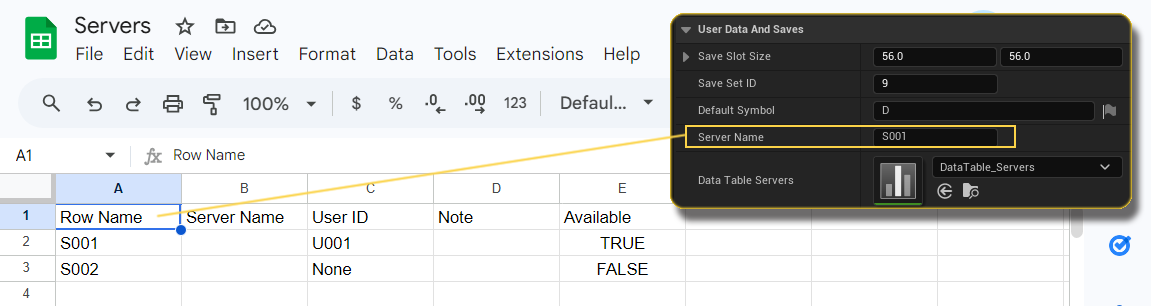
UI3 Server
- The Row Name or server ID is almost always S001 and doesn't need to be touched. It needs to be the same as set in the Info Map.
- The User ID needs to be set in the Google Sheet before a level is loaded. UI3 will pick the user data with the ID from the Users sheet.
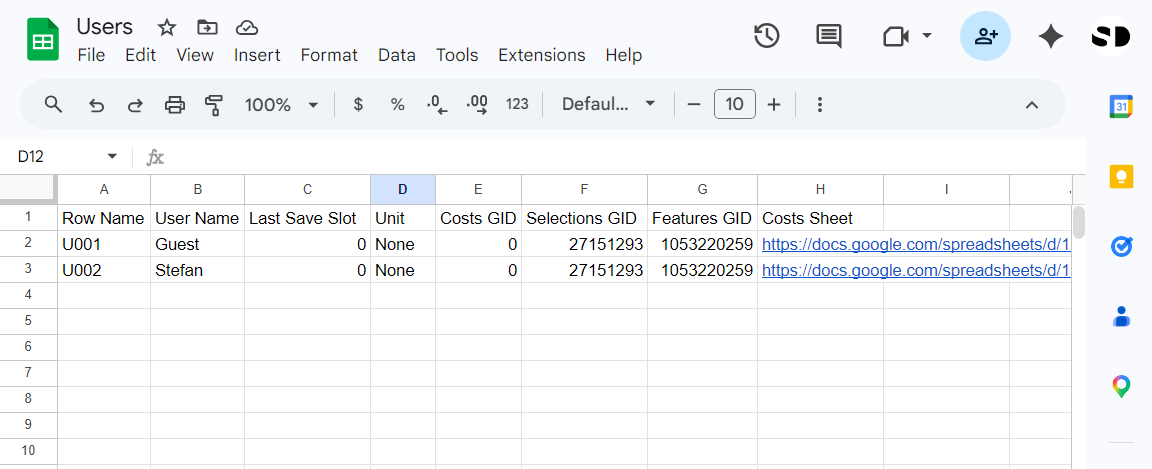
UI3 Users
- Row Name or User ID as entered in the Servers sheet
- User Name The real name of the user displayed in the UI.
The User with the ID set in the Server Sheet will be loaded in the Overview Level. The user will be saved in a save game file and any chosen Unit Level will pick the user from the save game (Previous Level).
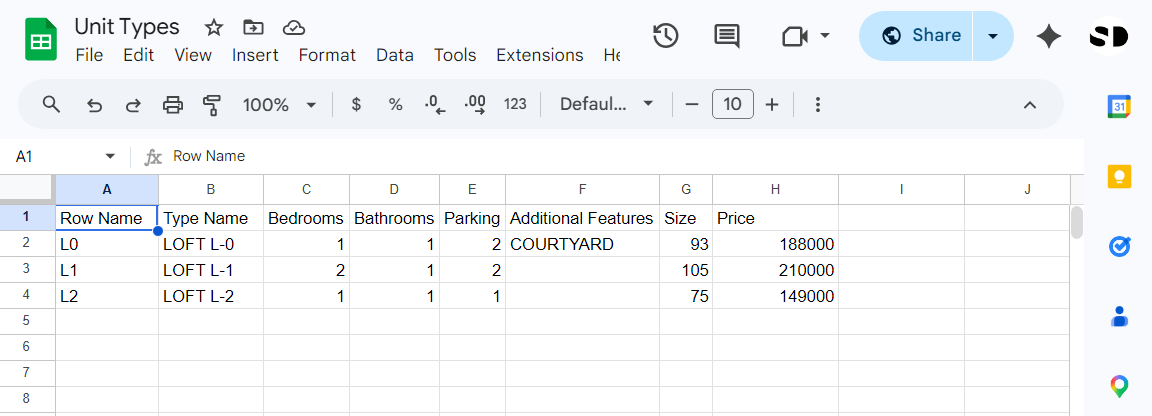
UI3 Unit Types
The details for the unit types (Units with the same layout).
- Row Name The type ID or Unit Type Name
- Type Name User friendly name
- Bedroom, Bathroom, Parking typical features
- Additional Features any additional text to be displayed
- Size, Price can be overwritten per unit
UI3 Units
Contains specific data for each unit.
- Row Name The Unit ID
- Unit Type Name The ID of the unit type
- Floor The building floor, where '0' is the ground floor
- Unit / Lot Size Sizes for this unit, overwrites type sizes
- Unit Cost The cost of this unit, overwrites type cost
- Availability ID of the availability array located in the Info Map
User Choices Export Files
Create User Choices Files
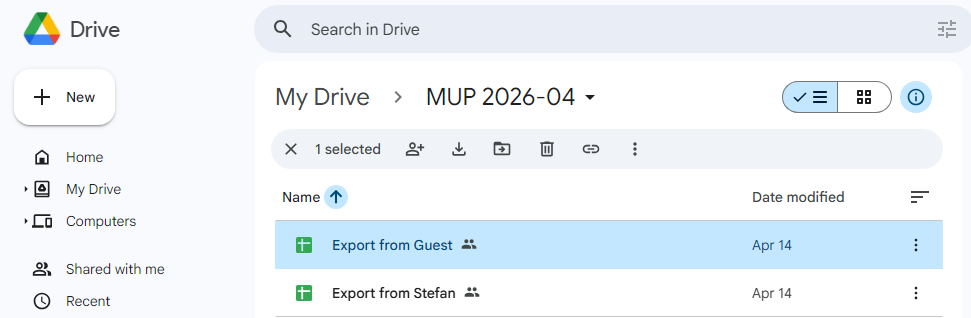
Every User needs a google sheet file to export to. Create a new empty sheet file for each active user. The name doesn't really matter.
Prepare the Google Sheet file
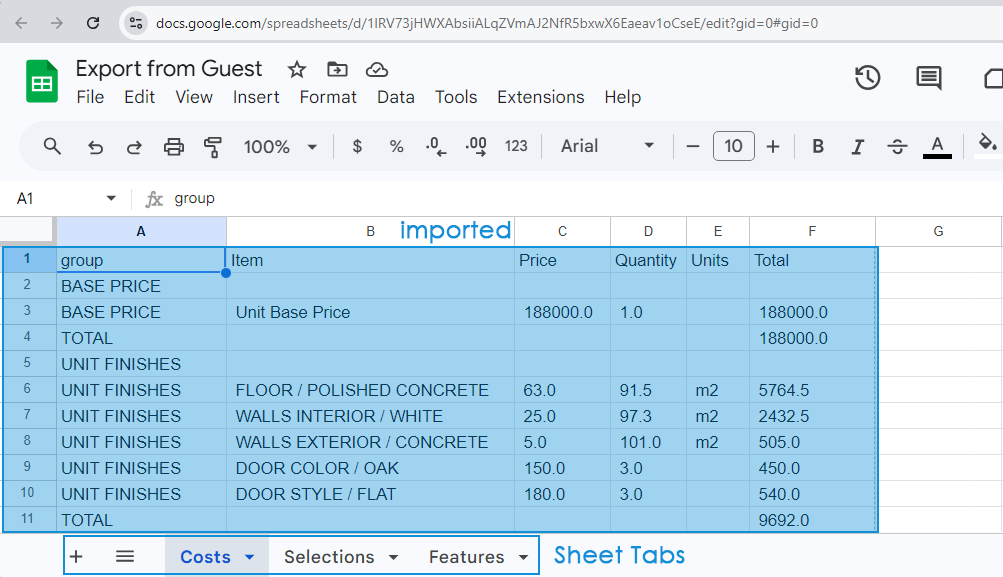
The file will be empty initially. Add 2 additional sheet tabs at the bottom of the file. The file should have 3 sheets:
- Costs
- Selections, or user choices
- Features, or user preset choices
The names of the tabs don't really matter.
User Choices Export Links
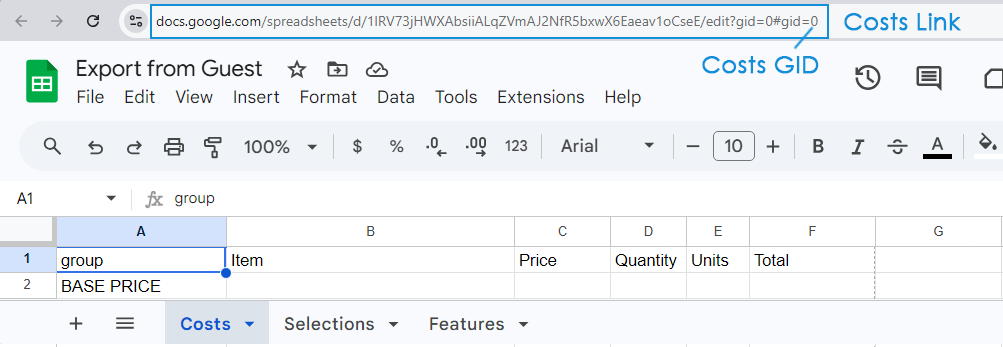
Copy the links for the Export Sheet file into the Row for the user in the Users sheet.
Select the Costs sheet tab at the bottom of the sheet page.
Costs Sheet
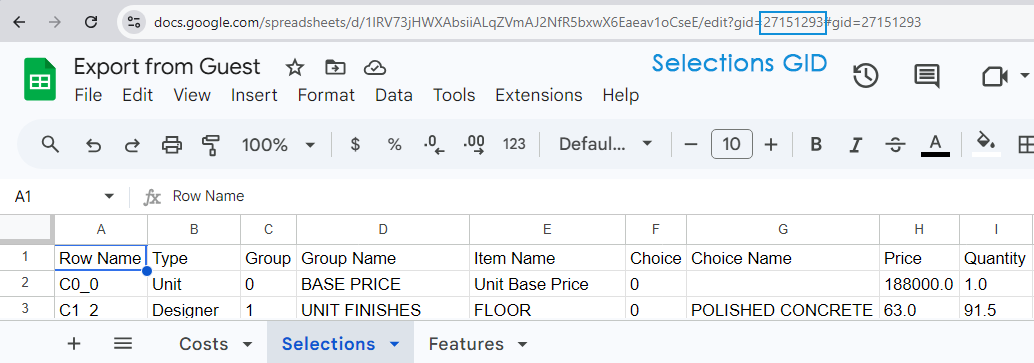
The link copied from the web browser as seen in the image.
Costs GID
The number displayed at the end of the browser link. In this case it is 0.
Selections GID
Select the Selections sheet tab at the bottom of the sheet page and copy the number displayed at the end of the browser link.
Features GID
Select the Features sheet tab at the bottom of the sheet page and copy the number displayed at the end of the browser link.
Setting up the Unreal Project
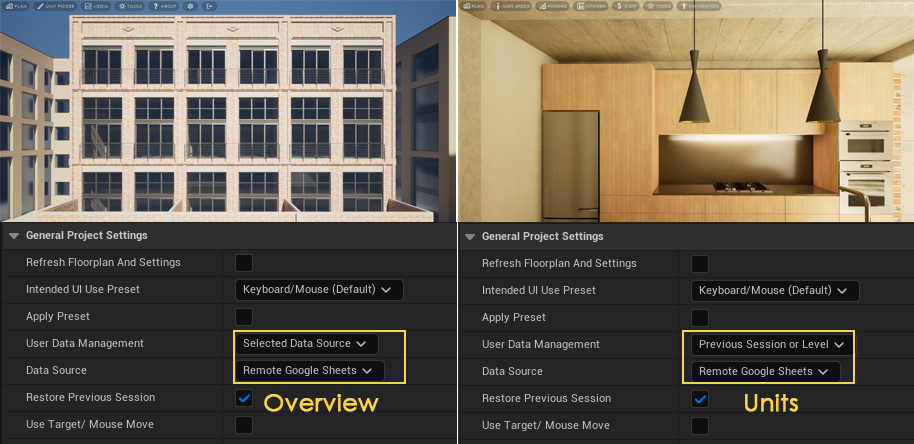
Overview Level
General Settings:
- User Data Manager: Selected Data Source
- Data Source: Remote Google Sheets
Unit Levels
General Settings:
- User Data Manager: Previous Session or Level
- Data Source: Remote Google Sheets
(all levels)
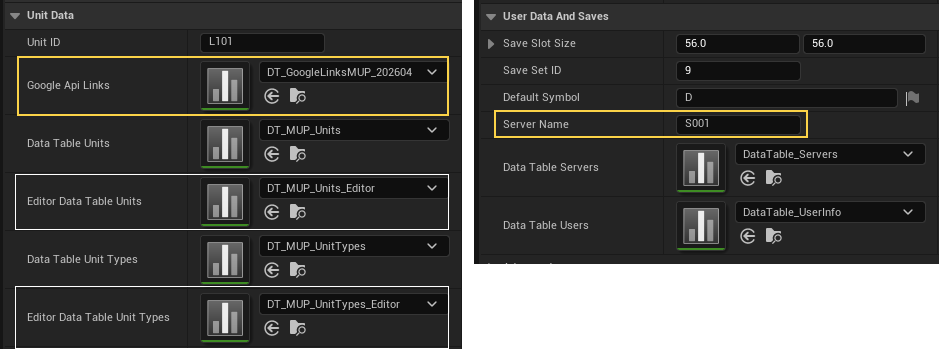
Unit Data
- Google Api links: Holds the links for the google sheets (more further down).
- Editor Data Table Units: Holds Editor related data.
- Editor Data Table Unit Types: Holds Editor related data
User Data And Saves
- Server Name: The Server ID from the servers sheet where the this instance of the app is running. Default S001 should be fine if there is only one instance of the app running.
Google Sheet Links and Private Key
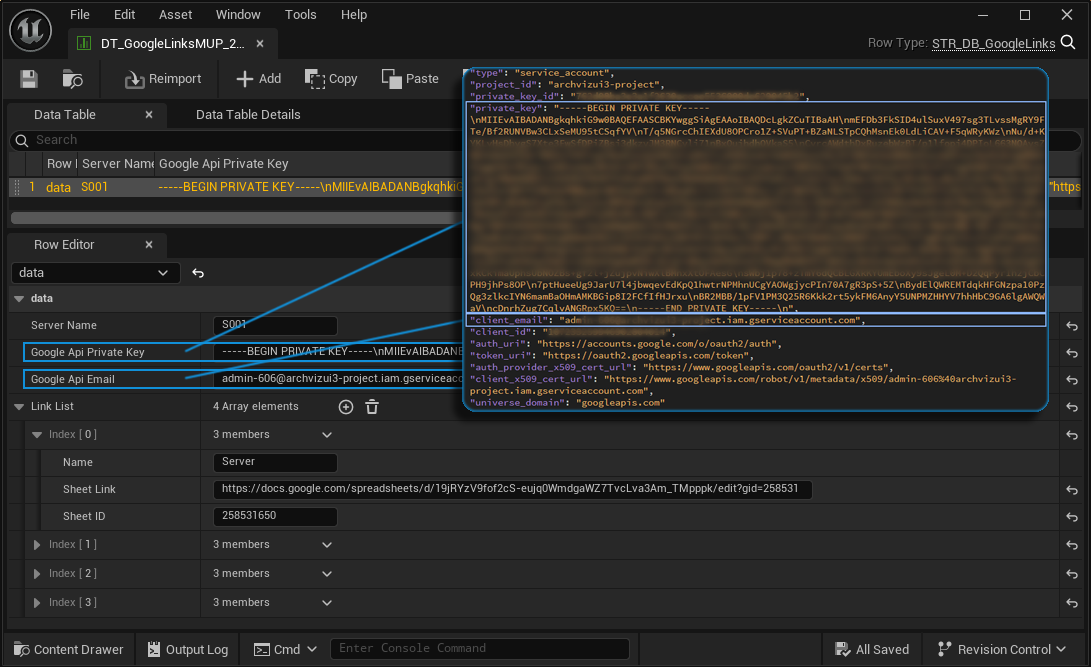
Google Api Links Datatable
Create a copy of the default datatable and use it instead of the default datatable. This will avoid data loss in case you have to update the UI3.
Open the assigned datatable
Google Api Private Key
Copy the entire string, but without the quotes, like ----BEGIN PRIVATE KEY-----\nMIIEv...5KK0==\n-----END PRIVATE KEY-----\n
Google Api Email
Copy the client email, but without the quotes
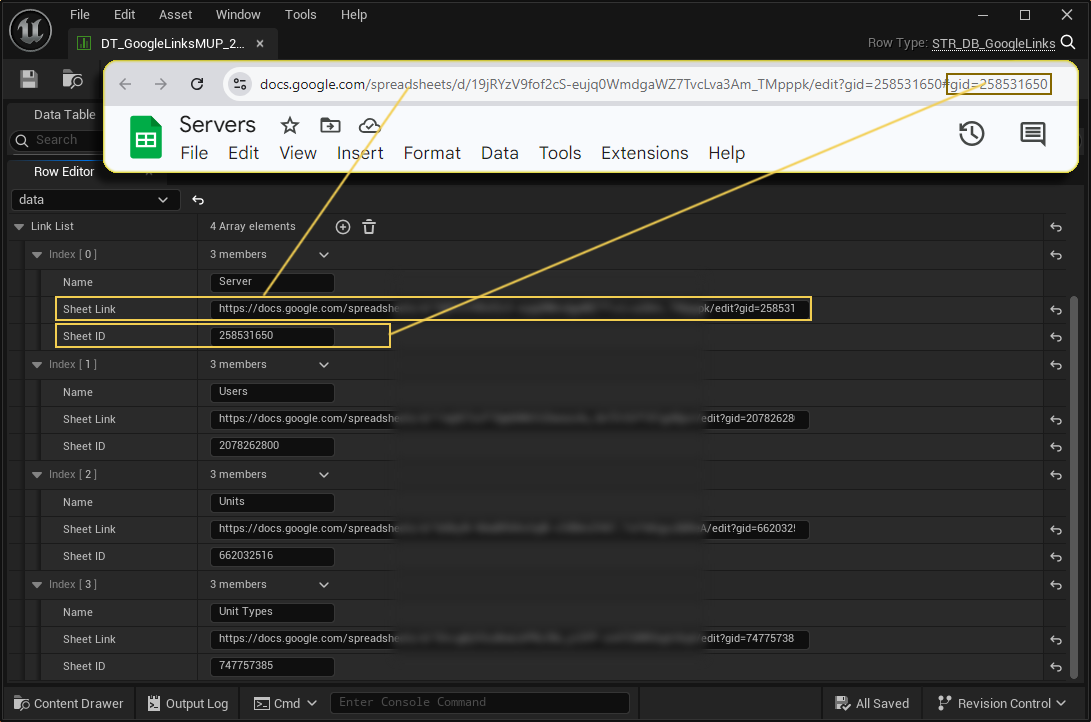
Link List
The Link List array should contain 4 array elements. The Name is just a hint. The link will be pulled by the array id. The Server Sheet link will always be pulled from ID [0], and so on.
Sheet Link
Copy the browser link (URL) from the Google Sheet. Do NOT create a link with the sharing feature.
Sheet ID
The GID can be found at the end of the browser URL. Copy the number or use 0 if there is no GID in the link.
Exporting Cost and Selection Data
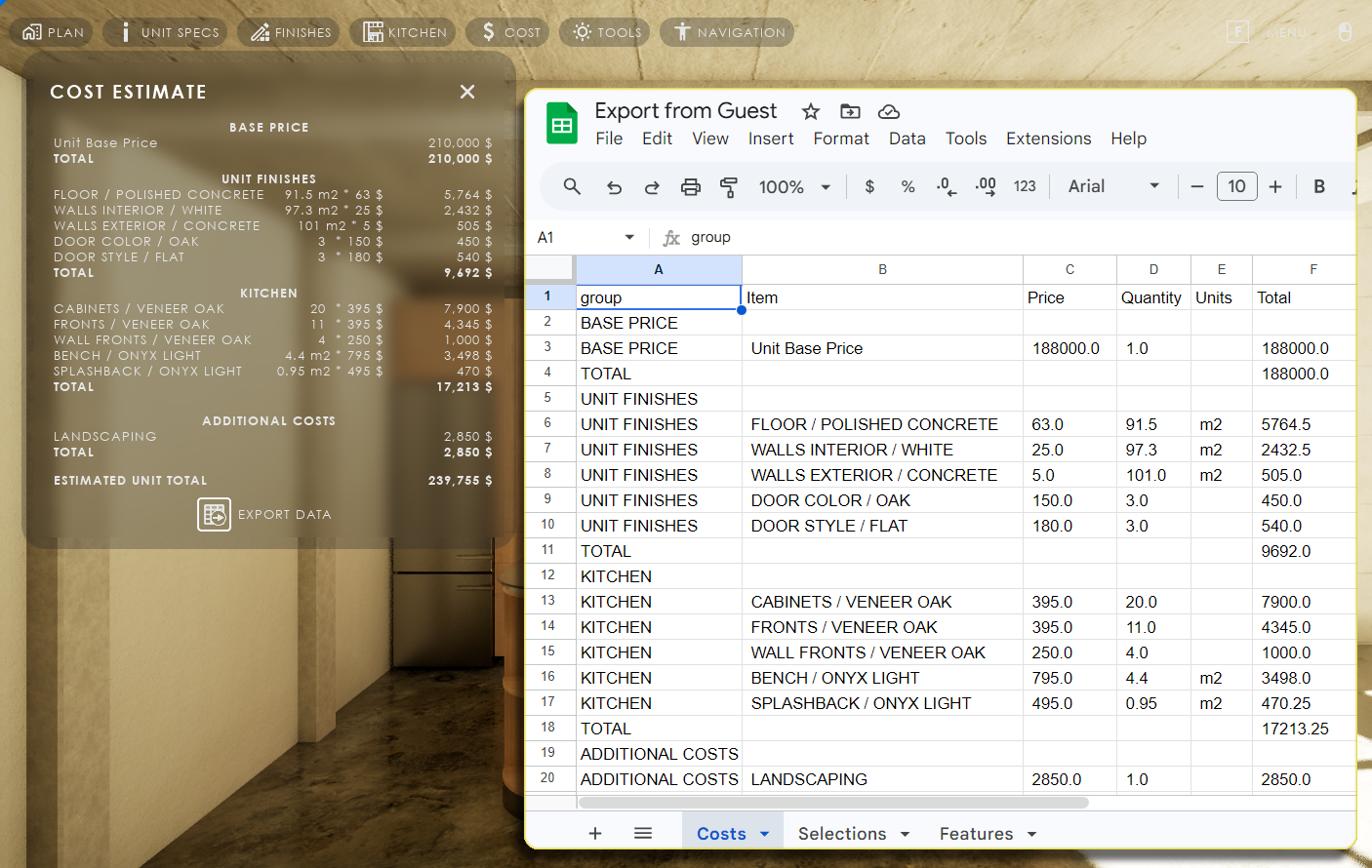
The Cost Widget will automatically display a single Export Data button when the scene is set to use Google Sheets.
Clicking the button will export 3 reports to the Google Sheet for the current user.
- Costs contains the same data as displayed in the cost widget.
- Selections or user choices displays all choices the user has selected at that time of the walkthrough. This includes choices that do not have a price assigned. It also gives the default option for the choice to compare the price difference.
- Features or presets displays the last selected presets at the time of the button click. Some preset choices could have been modified by the user.
 Top of page