Table Of Content
User Guide
Custom Assets
Swap Actor
Additional Assets
FAQ + TIPS
Doors UE4 (V1)
Interactive Doors - Swap Actor
The swap actor is the bridge between a user interface and the interactive doors. It allows to change materials and door parts during a walkthrough.
Content:
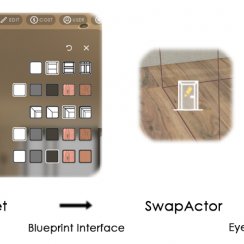
Connection using a Blueprint Interface (UI3)
Collecting Swap Actors in a Widget
Link Between Actors
The BP_Doors_SwapActor is the link between a widget and the door blueprints. The widget sends the Choice ID and a Tag name to the Swap Actor when a button in the widget is clicked.The swap actor can be connected with a Blueprint Interface or the actor in the level can be called directly from the widget.
The Swap Actor itself can be connected directly to one or more doors blueprints.

Connection using a Blueprint Interface (UI3)
A Blueprint Interface is a very simple actor that passes on variables from one blueprint to another. This is the prefered method when using the ArchViz_UI3 user interface.
BPI_UI3_Interaction
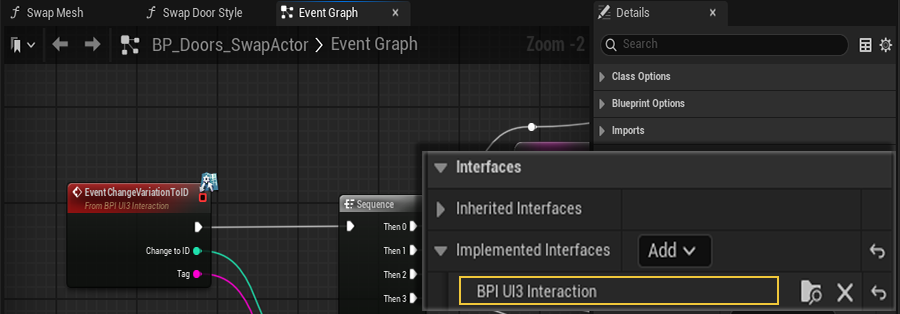
This interface is part of the UI3 and will be available when the UI3 is present in the project. It needs to be added in the Class Settings of the BP_Doors_Swap_Actor.
Implement Interface Function
The Interface's function ChangeVariationToID needs to be implemented in the Swap Actor.
- Expand the Interfaces section in the My Blueprint panel on the left side.
- Right click and choose to Implement event.
- The function will appear in the Graph.
- Replace the existing function with the implemented one.
Compile and Save the Swap Actor to complete the connection.

Collecting Swap Actors in a Widget
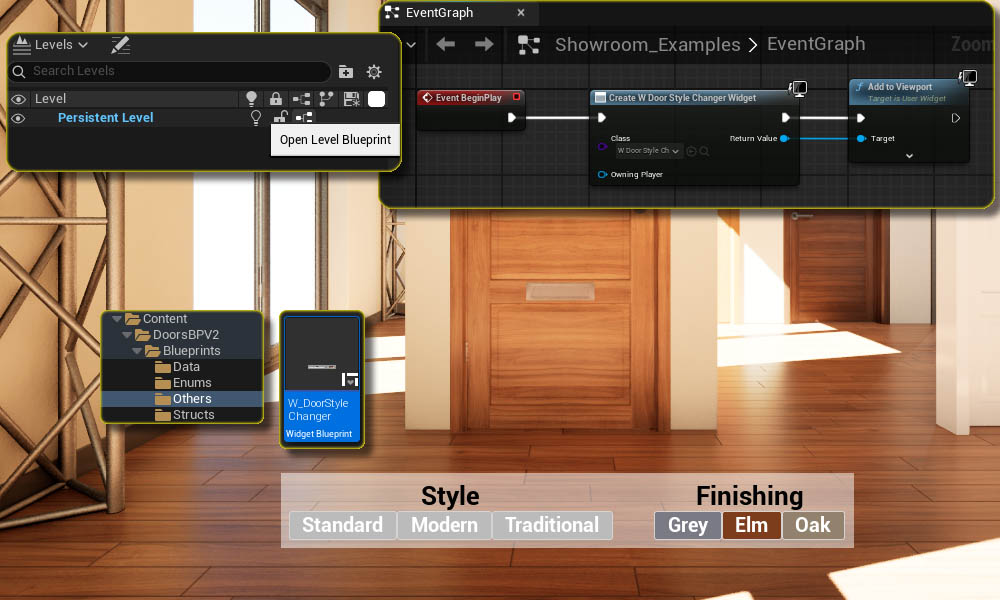
The Widget can collect all Swap Actors and then connect to them directly. The widget in the showroom level does that.W_DoorStyleChanger
Hitting Play in the showroom will open this very simple widget to change some settings in one of the doors.
The widget is added in the Level Blueprint which can be opened from the Level Browser.
Collecting the Swap Actors
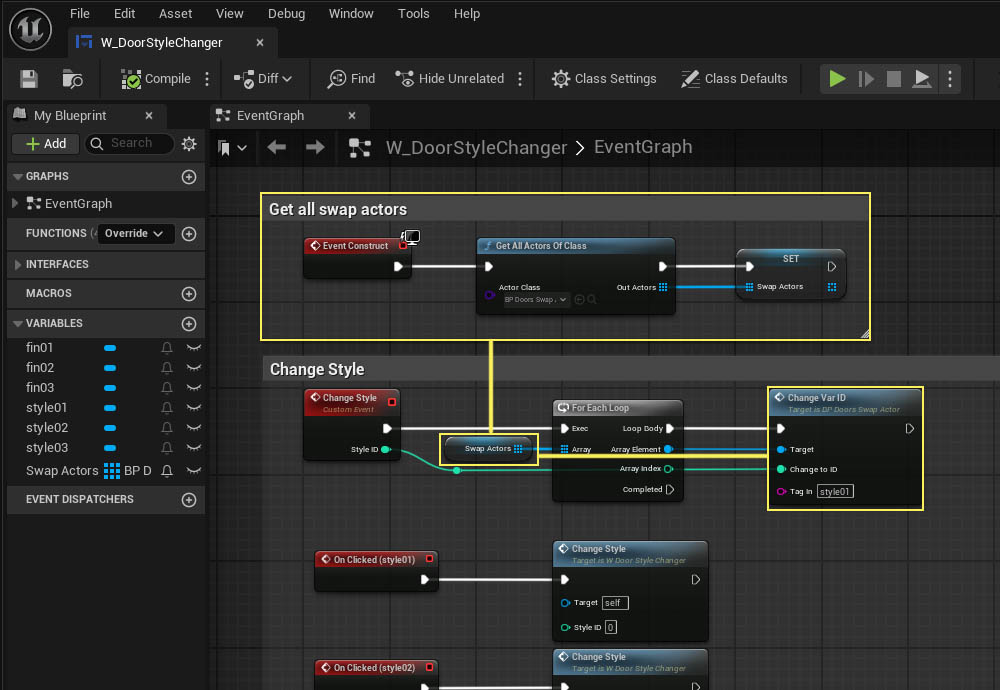
All actors of class Swap Actors are collected in the Event Construct. This happens only once when the app starts. The actors are stored in an array element.
Connecting the Swap Actors
The function Change Var ID in the Swap Actor can now be called directly from the widget. The widget loops through all swap actors and sends the Tag and ID to this function.
Connecting Swap Actor and Door
MyProject / Content / DoorsBPV2 / Blueprints / BP_Doors_SwapActor
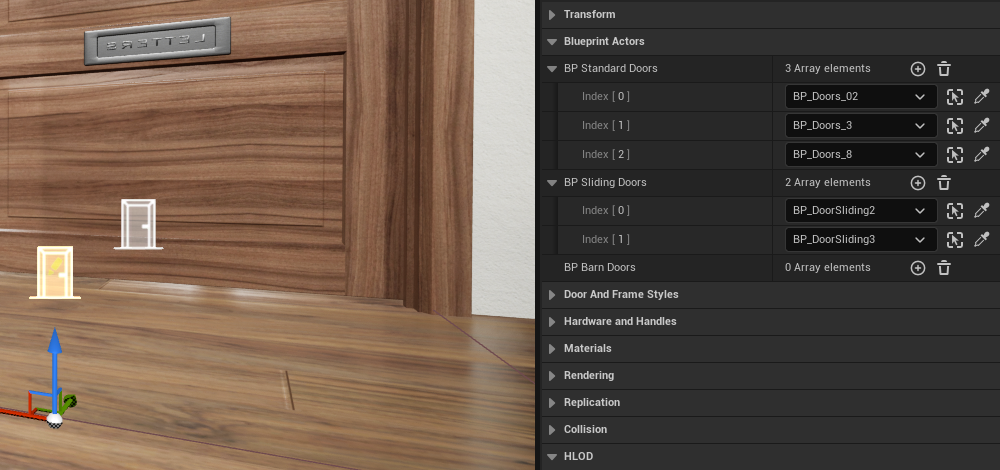
Place the Swap Actor next to the door and then use the eyedropper to connect one or more door blueprint actors.
Both Swap Actor and Door need to be in the same level.
Set up Swap Actor
Style Variations
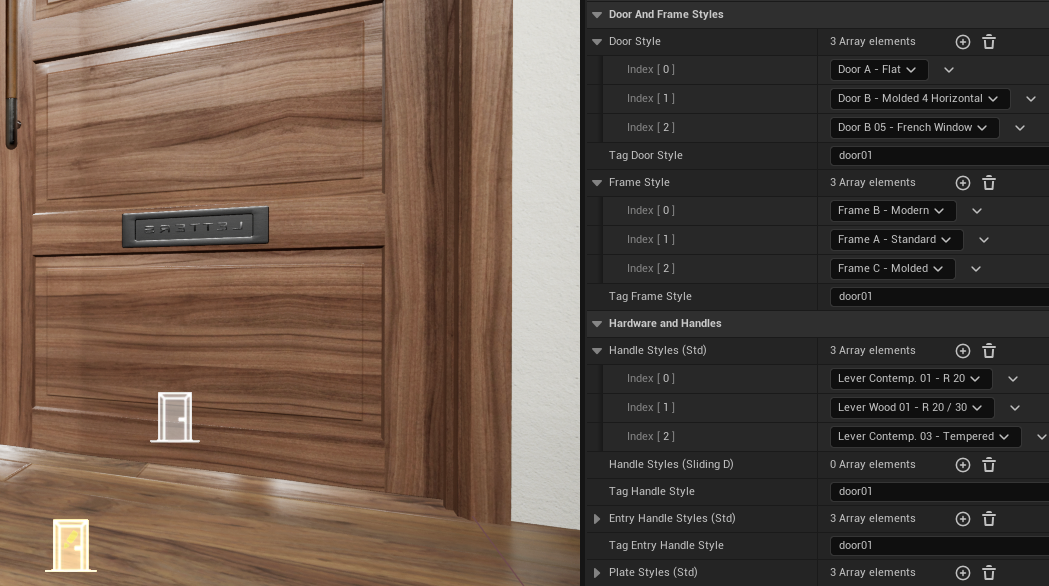
- Click the relevant (+) icon next to the style's name for each variation choice.
- Then select the choice from the dropdown list.
- Give the style a Tag name.
The Tag and the variation ID will be sent from the widget. Every option with the same tag name will change. All options will change at once if they have the same tag name or individually if they have unique names.
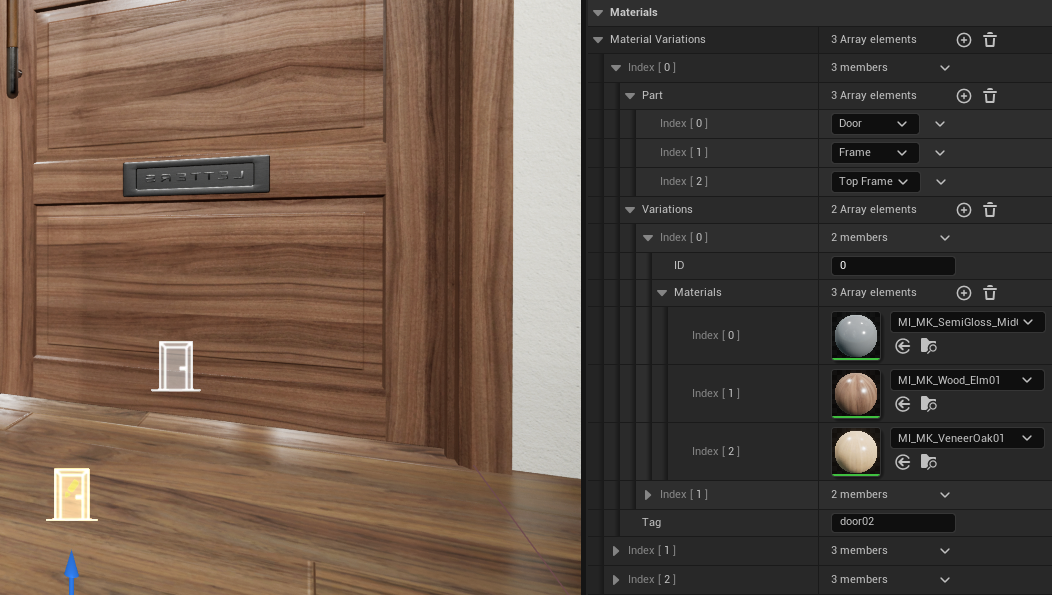
Material Variations
- Click the (+) icon to add a Material Variation
- Add one or more Parts that should change to the new material
- Click the (+) icon next to Variations for each material ID that should be changed
- Enter the material ID number
- Add the Materials per Choice ID.
- Add a Tag name as described for style changes.
Controller Connection
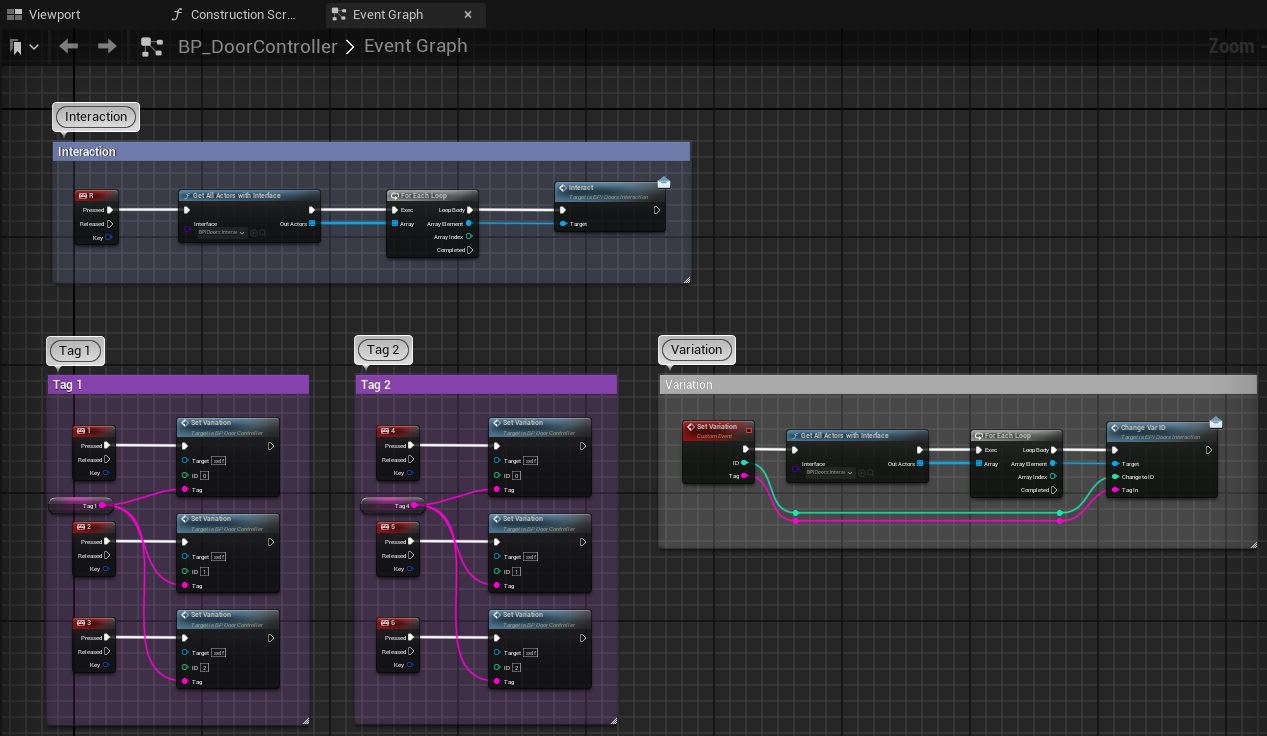
The Doors and the Player Controller are connected through the BPI_Doors_Interaction blueprint interface.
Interaction
The controller calls the Interact function in the doors to manually open them with the [R] key.
Style Changes
Only used in versions before 2026-05.
The keys [1] to [6] will call the Set Variation function to change the style or materials. This is a simple example how to use the blueprint interface.

 Top of page