Table Of Content
User Guide
Custom Assets
Swap Actor
Additional Assets
FAQ + TIPS
Doors UE4 (V1)
Custom Meshes And Materials
Custom Meshes that are not part of the list can be added to the doors blueprint. This page explains the process.
A selection of usable Materials can be found in the project. The second part on this page explains how to use materials and create new ones for the project.
Content:
Custom - Door and Frame
Door or Frame Style
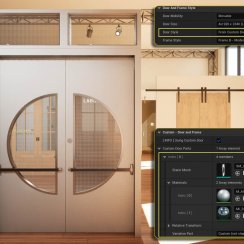
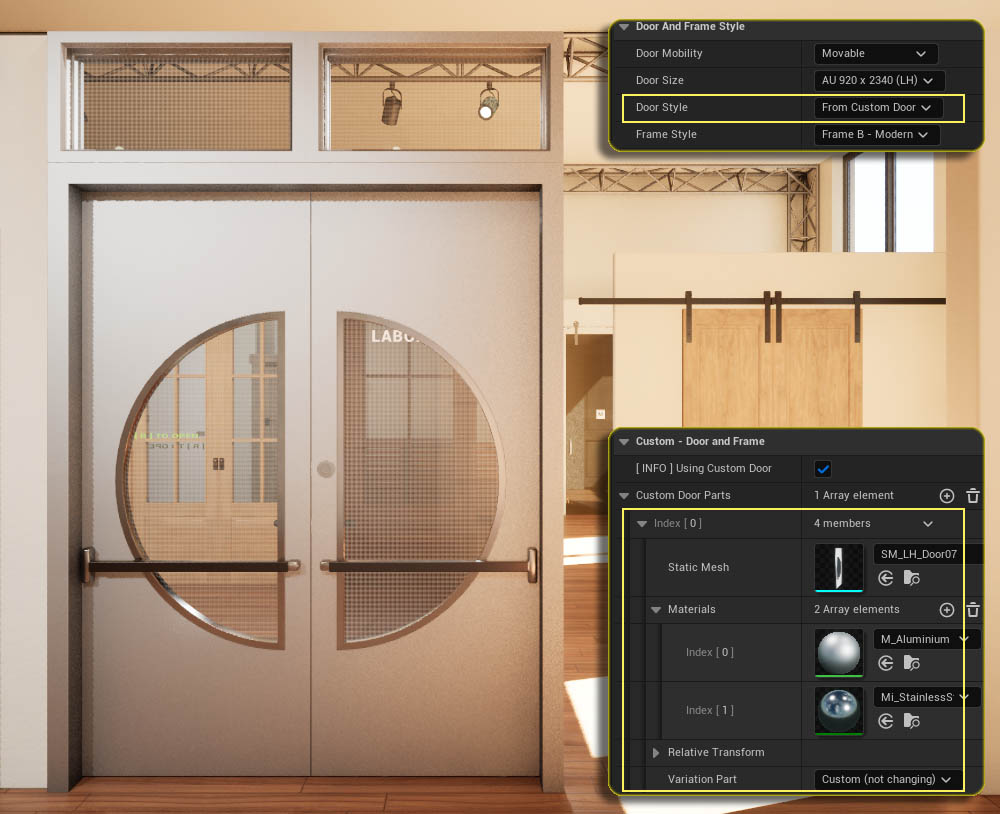
Custom door or frame meshes that are not part of the product can be used by setting the style From Custom Door (Frame). The door or frame meshes can then be added in the Custom - Door and Frame section.
Below is an example of how to add a custom door mesh. Frames can be added the same way.
Custom Door Parts
Door or door part meshes are added as an array element. Materials can be changed for the mesh and the mesh can be transformed.
A few custom doors are available in the project.
Variation Part
Set the part type of the custom mesh if planning to use the Swap Actor to make changes during run-time.
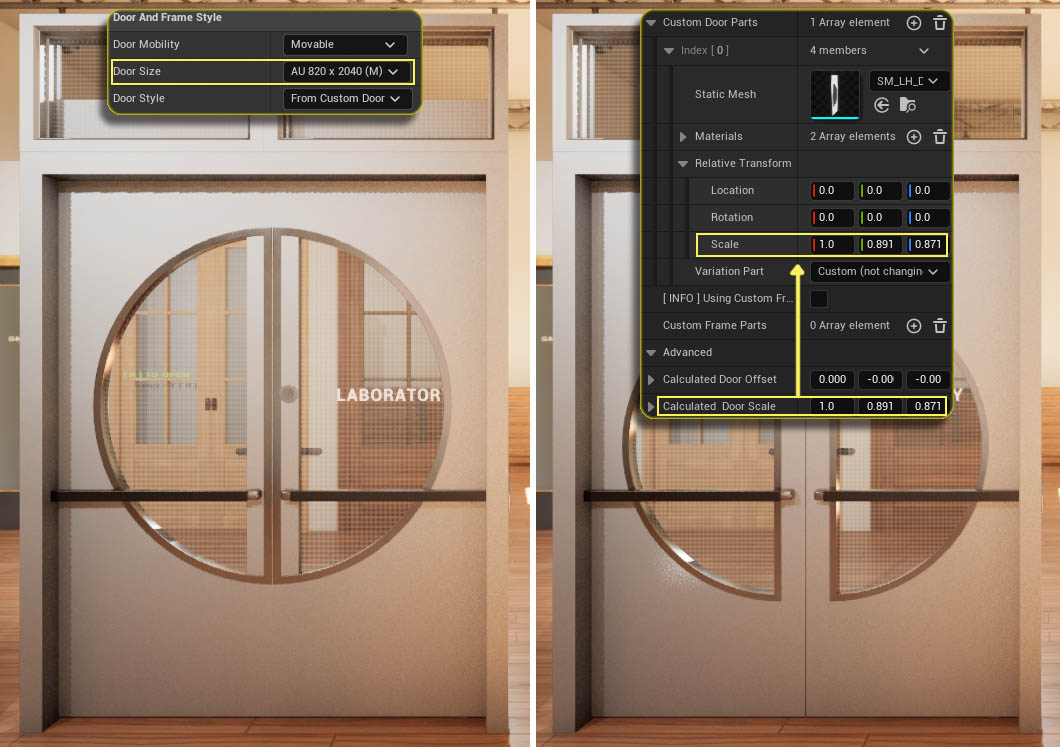
Auto Adjust Door Size
The custom door mesh size can be adjusted to fit the selected Door Size.
Calculated Door Scale
The scale is always calculated in the Advanced section. It can be copied into the Scale of the Relative Transform to adjust the door mesh to the selected size.
The first value of the scale is always set to 1.0. This value represents the door depth. It can be manually adjusted if necessary. The door blade is 4.0 cm thick by default.
Calculated Door Offset
In most cases the Offset in the Relative Transform doesn't need to be adjusted.
The values will be wrong if door handles or other parts are attached to the custom door
Custom Handles and Hardware
Handle Style
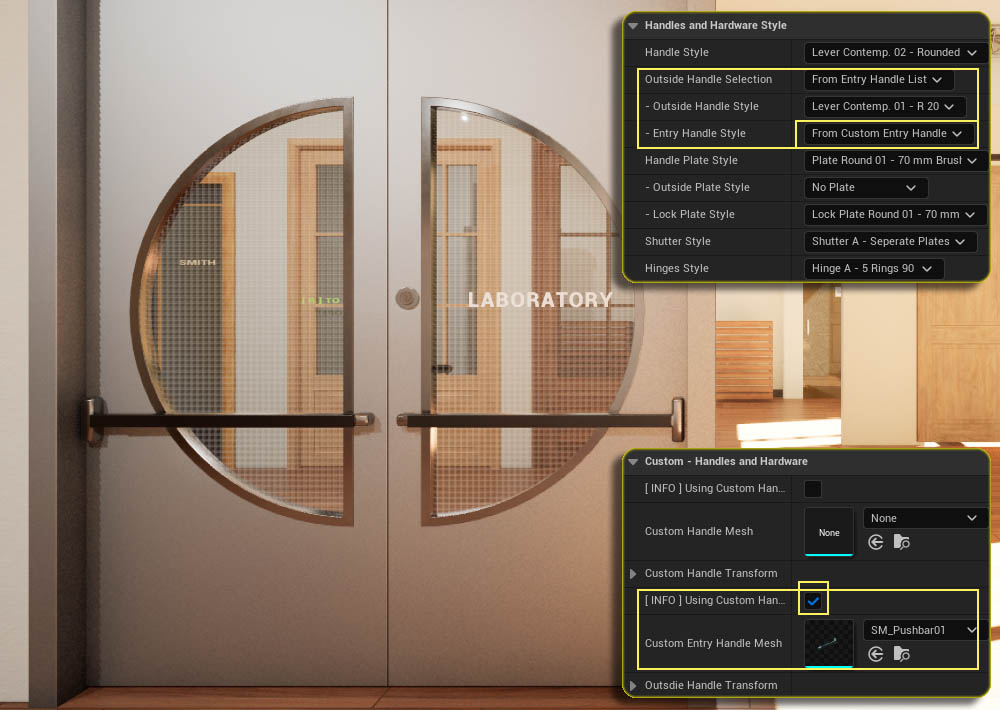
Set the style to From Custom Handle
For a custom entry handle
- Set Outside Handle Selection to From Entry Handle List
- Set Entry Handle Style to From Custom Entry Handle
Custom (Entry) Handle Mesh
Add the custom handle mesh. The mesh can be transformed. Materials can be changed in the Handles and Hardware Details section.
[ Info ] Using Custom {...}
There are tick boxes indicating that using custom mesh is currently selected.
Custom Door Hardware
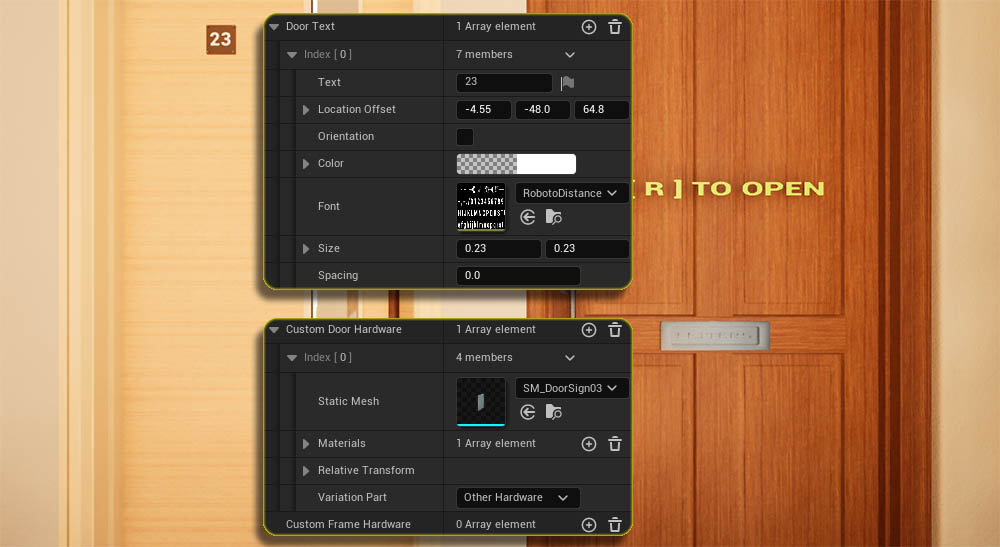
Other Custom Hardware that moves with the door when the door opens can be added to this array. A simple letter box and a few simple signs are available as an example.
Custom Frame Hardware
Other Custom Hardware that does not move with the door when the door opens can be added to this array.
Door Text
Text can be generated and added to the door. This could be a sign with text for the street number or a name.
Metal Color Material
Metal Paint Colors are meant for painted hardware. For the door and frame use the Semi Gloss materials.
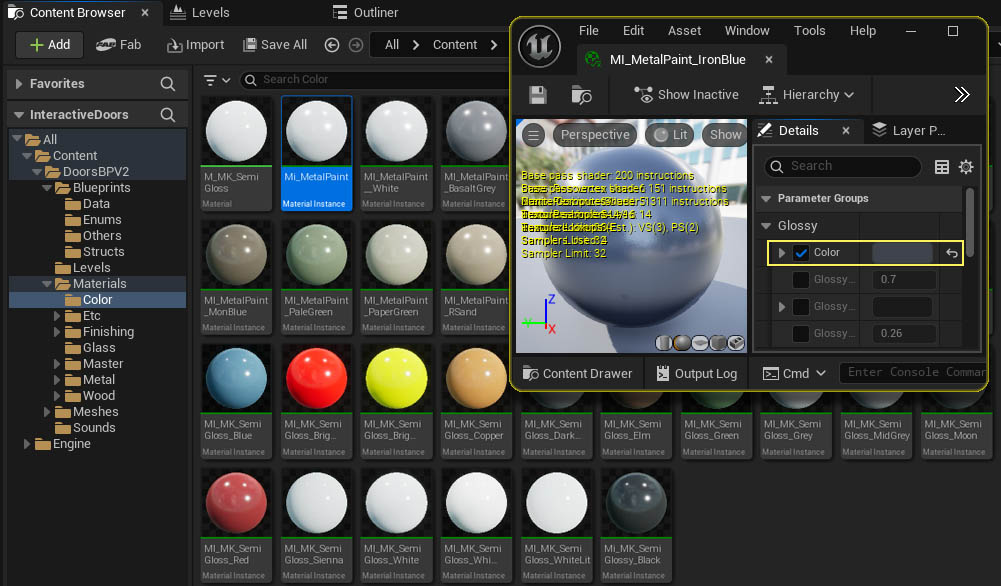
Duplicate one of the existing Metal Paint Color Material Instance and rename the copy. Then open it to change the color.
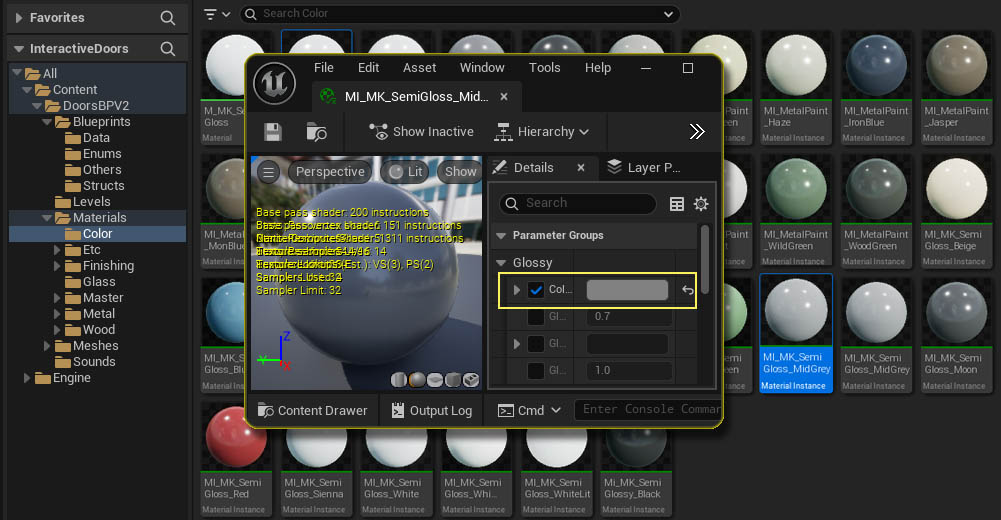
Color
This is the only value that needs to be changed for a new color material instance.
Semi Gloss Color Material
Semi Gloss Colors are meant for a painted door and frame. For hardware and handles use the Metal Paint materials.
Duplicate one of the existing Semi Gloss Color Material Instance and rename the copy.
Color
This is the only value that needs to be changed for a new color material instance.
Wood Material
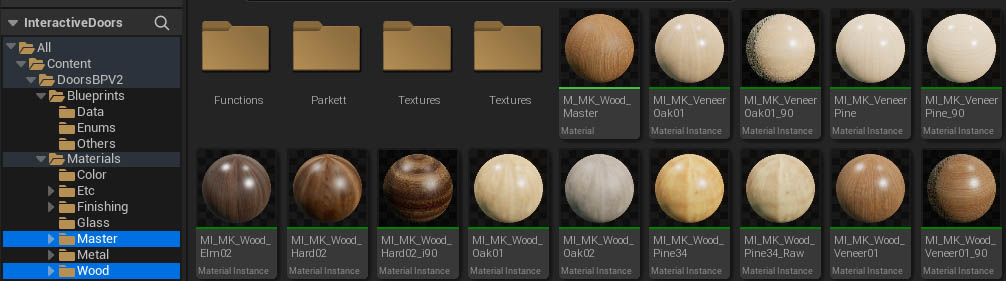
Wood Materials are available in the folder:
Content/DoorBPV2/Materials/Wood
Duplicate one of the existing Wood Material Instances and rename the copy.
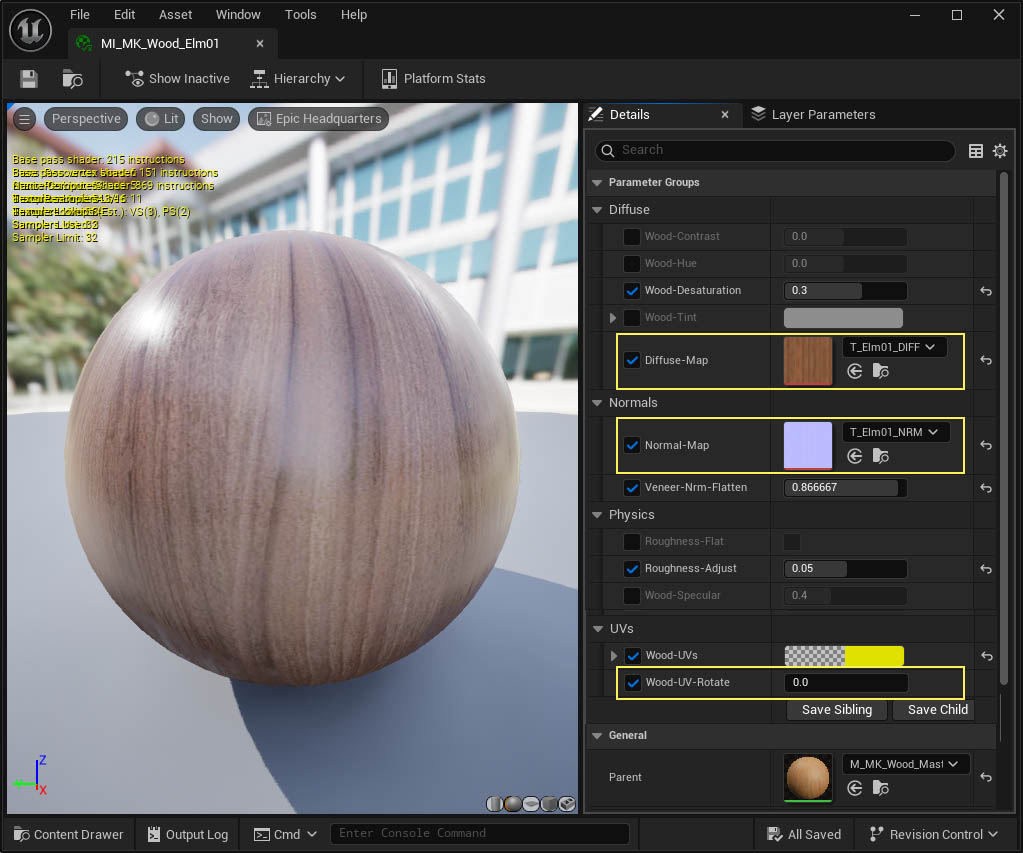
Diffuse Map
Set the wood texture here. Acquired sets name this texture often color or similar.
Normal Map
Set the normal map here. You can leave the existing normal if you do not have one or set the Veneer-Nrm-Flatten value to 1.0 which disables the normal map.
Roughness Adjust
The roughness is taken from the red channel of the diffuse map and can be adjusted with this value.
Wood UV Rotate
Setting this to 90 will rotate the wood texture by 90 degrees. The texture should align upright.
 Top of page