Table Of Content
Quick Guide 2026
System Drawings
Custom Assets
Swap 2025
Ver History
Swap Actor 2025
The blueprint actor BP_KitchenBuilder_Swap2025 connects the kitchen to a user interface. This allows changing most materials and the general style of the kitchen in run-time.
NOTE: the kitchen cannot be constructed in run-time, only in the editor.
Content:
KitchenBuilder_Examples
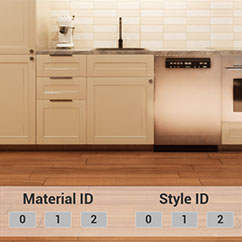
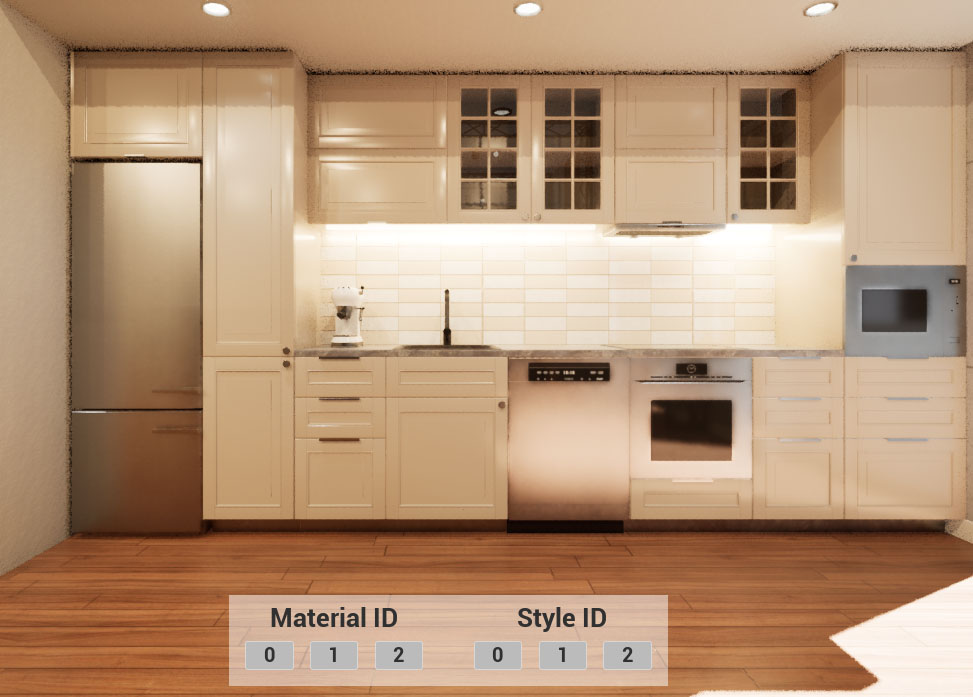
Hit play in the examples level and a simple interface with a few choices will appear.
 Documentation Archive 2024
Blueprint Interface
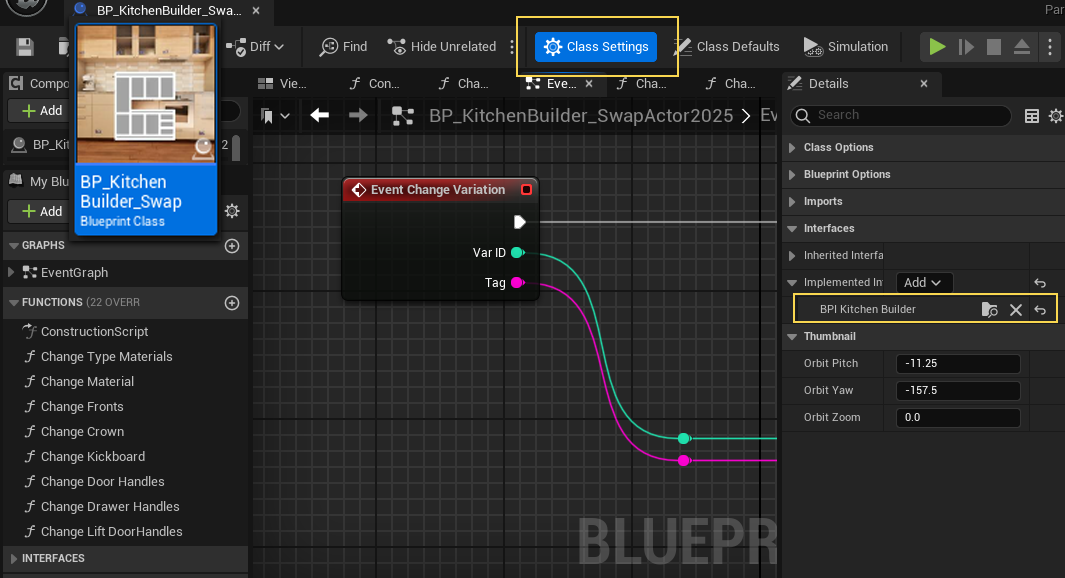
A Blueprint Interface can connect the Swap Actor to an external blueprint or widget. In the example the blueprint interfaceBPI_KitchenBuilder
has been added to the Swap Actors Class Settings.
Any interface with the function Change Variation and the variables
- Var ID (integer)
- Tag (string)
will do. The Swap Actor is listening to the function with these 2 variables.
Widget
W_KitchenSwapsMenu
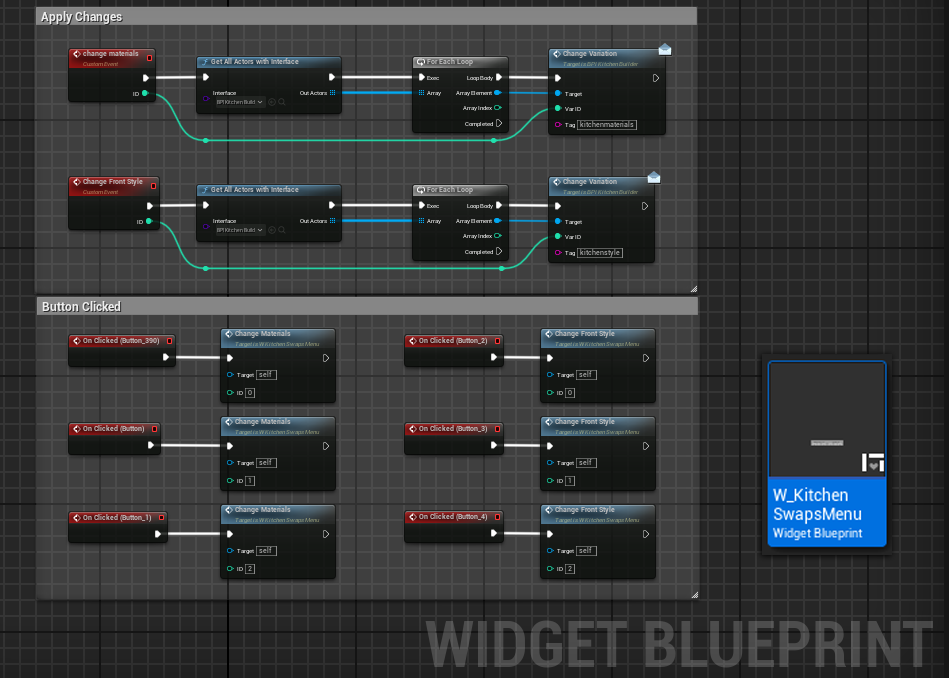
The widget has two groups of 3 buttons. One group for changing materials and the other group for changing the style.
All actors with the interface are collected when a button is clicked and the widget sends a specific Tag (eg. kitchenmaterials) with the ID number to all the collected actors.
The function from the blueprint interface is executed if its tag name matches the received tag name and the element in the kitchen will be changed to the variation with the sent ID.
Connect Kitchen and Swap Actor
BP_KitchenSwapActor2025
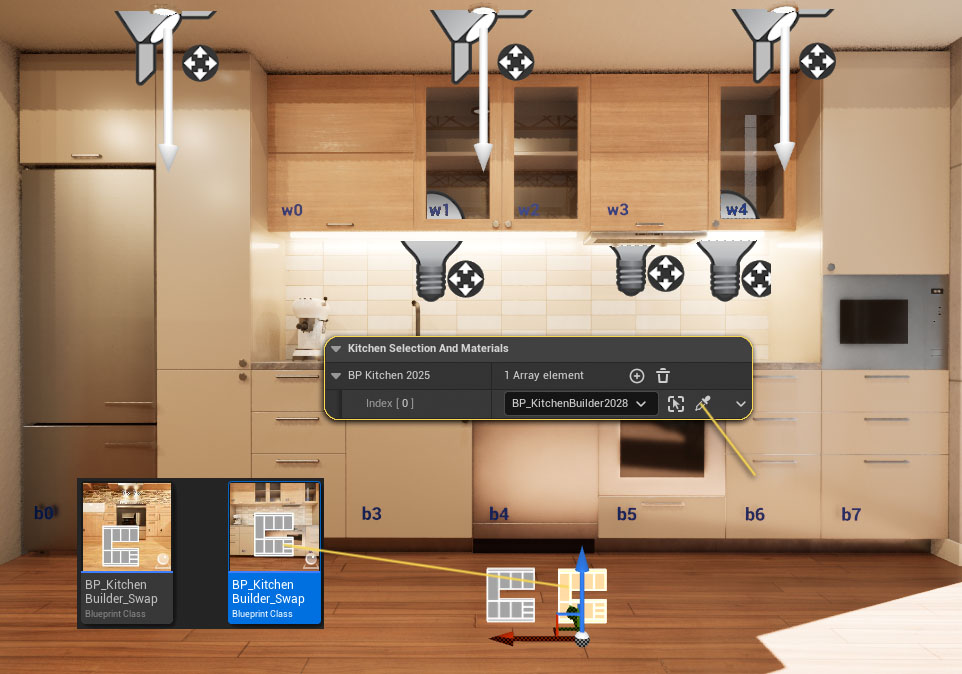
There are 2 different swap actors in the content browser. Make sure you use the 2025 version.
Place the actor near the kitchen blueprint.
NOTE: Two actors are used in the example, one for materials and one for styles. This could also be done with just one actor.
Kitchen Selection
Add an array element for each kitchen that should be connected to the swap actor.
Then use the eye dropper to connect the kitchen to the swap actor. Both actors need to be in the same level, or the link won't work.
Set Variations
Material Variations
Add an array element for every unique material set. The example set changes all the box cabinets and the fronts of the base cabinets
Material Type
Add array elements for the type of material the set should be used for and choose the type from the list.
Materials
Add materials for the set
Tag
give the set a Tag Name.

Front, Crown, and Kick Styles
This works a bit different than the materials above.
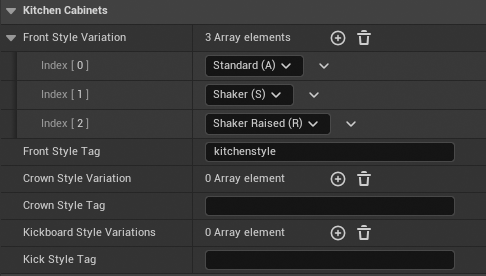
Style Variations
Add an array element for each style variation and select the style from the list.
Style Tag
Add a Tag Name for the set.
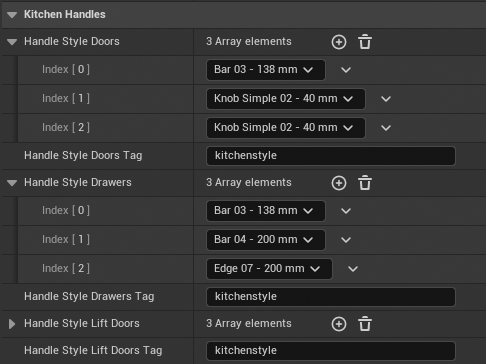
Handle Variations
Handles can be changed separately for
- Door Handles
- Drawer Handles
- Lift Door Handles (doors that open upwards)
Otherwise it works the same way as explained for the kitchen styles above.
Using the same Tag will make the sets change at the same time with one button.
 Top of page