Table Of Content
New in 2026
Quick Guide
Video Guides
Getting Started
UI Design
Var Actor
Edit Scene
Designer
Feat. w. Preview
Other Features
Modes
Blueprints

Cost Reports
Multi-Unit-Prj
Google Sheets
FAQ & Tips
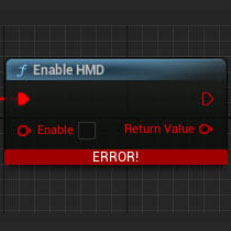
Fix Bugs
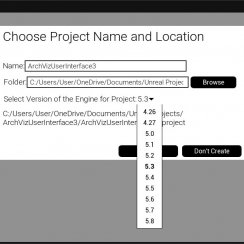
Updating
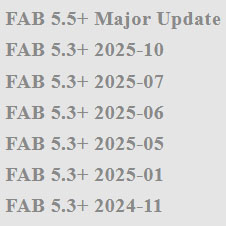
Version History
UI3 Quick Guide
Quick Guide for the Arch Viz UI3 User Interface available on FAB and the Unreal Marketplace.
Content:
Quick Start Video
YouTube video accompanying this guide.This is a bit out of date but overall still valid.
Installation
Before mid 2026
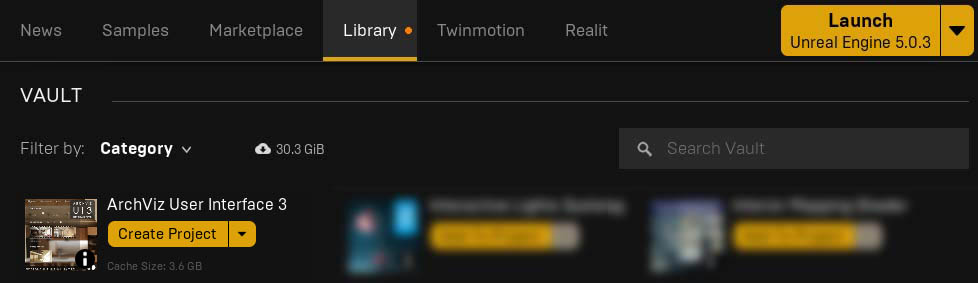
Open the Unreal Engine section in the Epic Games Launcher where you will find the ArchViz User Interface 3 after buying in on FAB
Click Create Project to download the latest version and install it. This may take a while.
Try below method if you are stuck in an [Update Project] loop that doesn't let you create a project. There seem to be conflicts between FAB and the Games Launcher.
From mid 2026
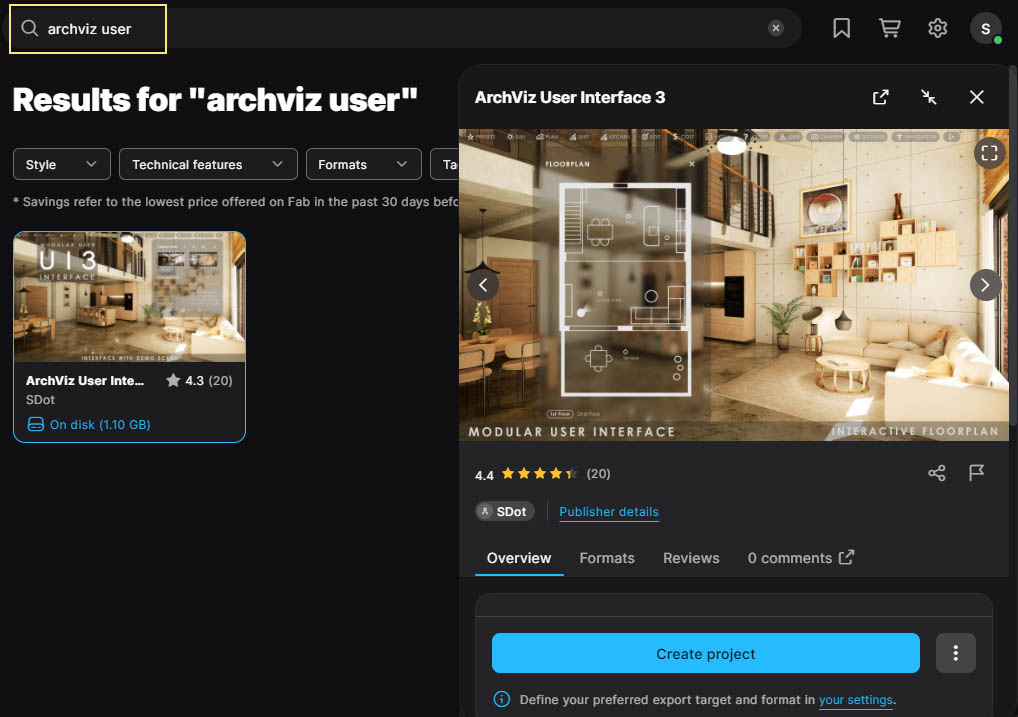
Open the FAB section in the Epic Games Launcher where you can find the ArchViz User Interface 3 by searching for ArchViz User
Click Create Project to download and install the latest version and. This may take a while.
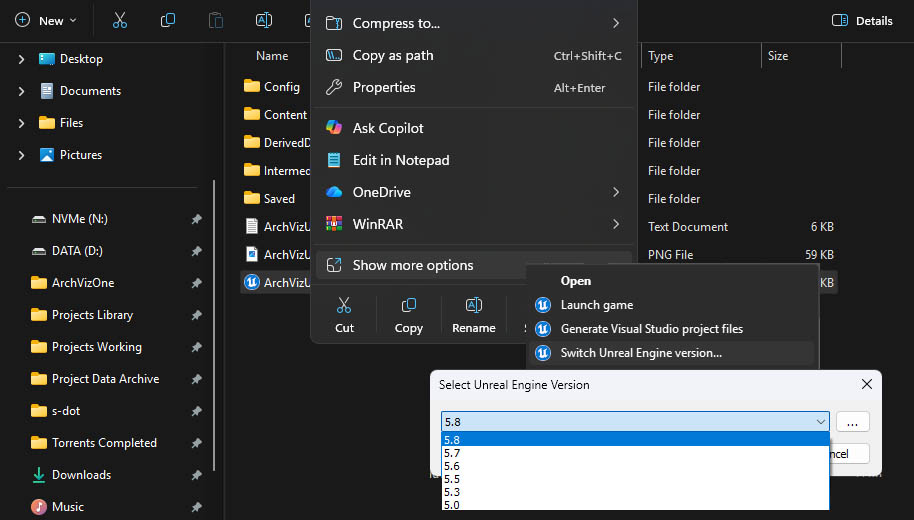
Check Engine Version
As of mid 2026 you have to check if FAB has actually installed the project with the engine version that you selected.
- Close the editor
- Open the Windows Explorer and navigate to your project folder
- Right click the *.uproject file
- Select More Options
- Select Switch Unreal Engine Version
- Change the version if necessary
You may not be able to go back to an older version once you made any changes in the project.
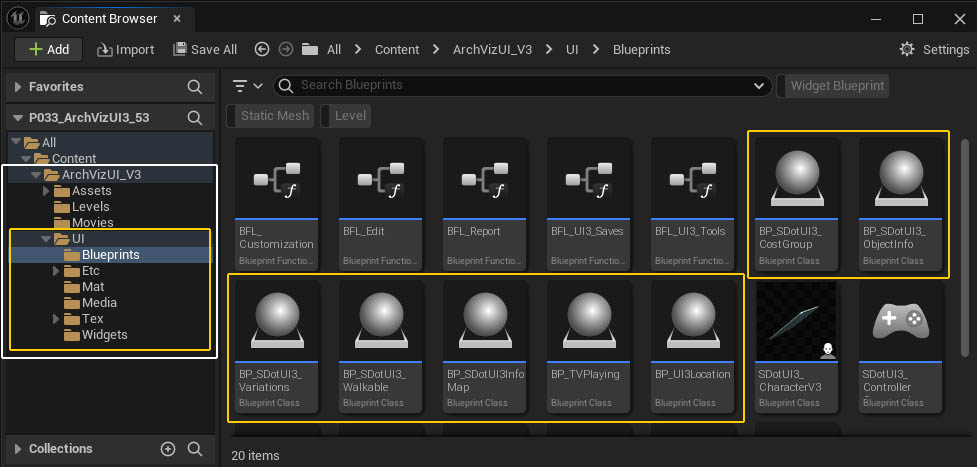
Migrate To Your Project
Open the UI3 project and use the Migrate function in the content browser to copy the UI3 to your own project.The UI folder contains all the blueprints and widgets for the interface to function.
Or you can migrate the entire ArchVizUI_V3 project to use the assets coming with it.
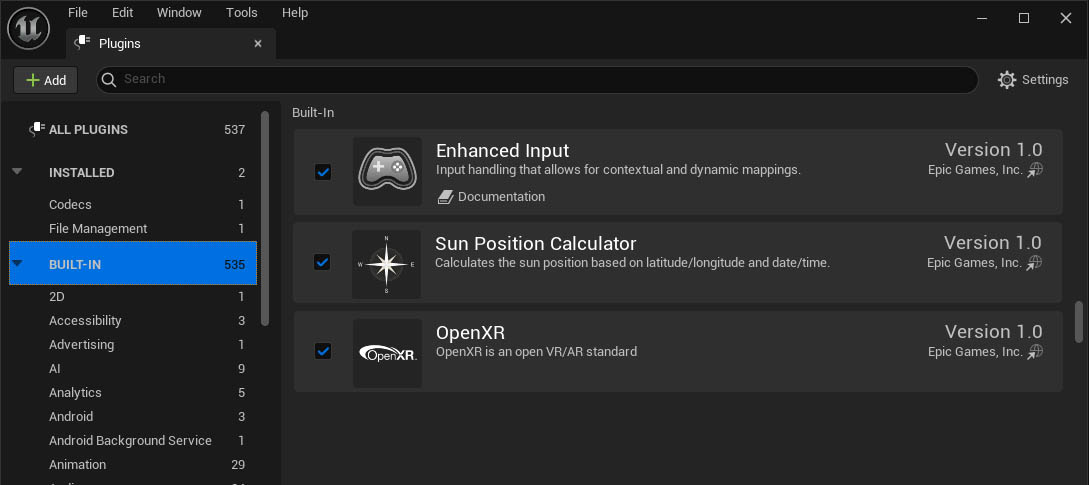
Plugins
The following plugins should be installed in your project even if you don't intend to use them:- Enhanced Input* - controls input actions from keyboard or gamepad
- Sun Position Calculator - Accurate sun positioning for geo location
- OpenXR - standard used for VR headsets. - You may need a different one.
Packaging will fail if these plugins are missing.
* Pre installed already most likely.
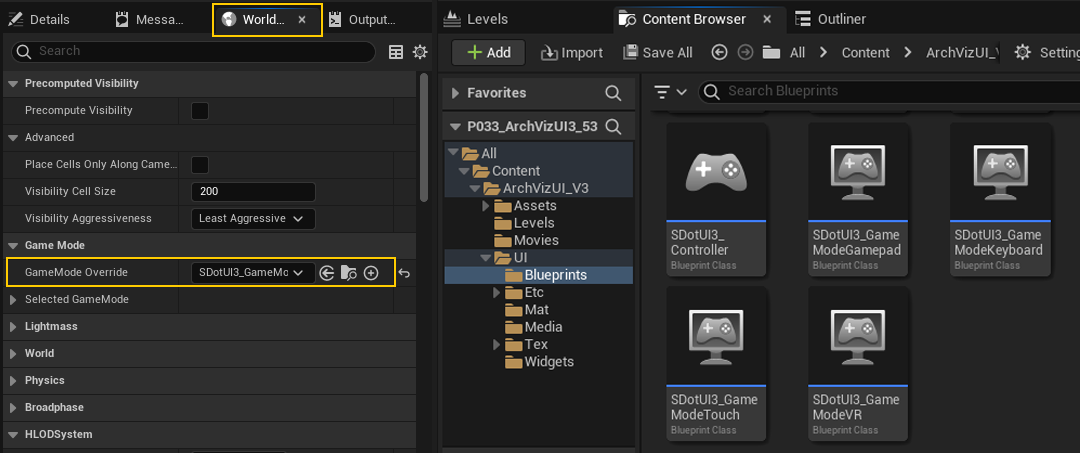
World Settings - Game Mode
Set the Game Mode Override in the World Settings. Choose one of the four SDot UI3 Game Modes from the list based on your project's control method.Best to start with SDotUI3_GameModeKeyboard for keyboard and mouse input. This can be switched to another input mode at any time later.
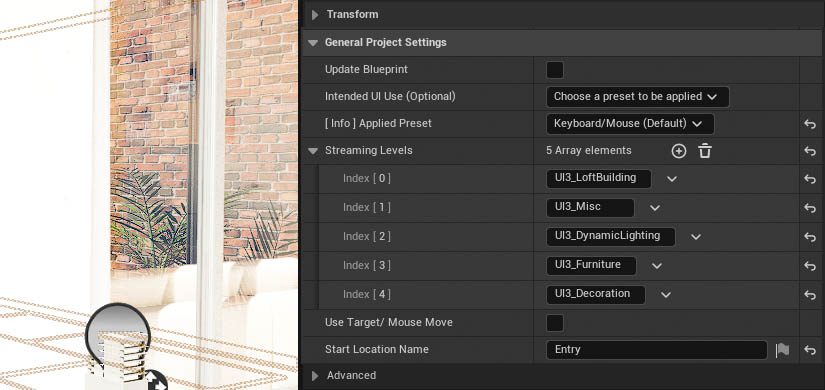
Info Map - General Settings
The blueprint BP_SDOTUI3_InfoMap needs to be placed in the main (non-streaming) level of your scene. It contains most of the data to run the UI.Floorplan
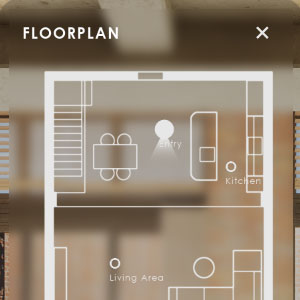
Add a floorplan in the floorplan section, use the Floorplan Scale to adjust its size. Then align it to the building. Use a white texture if no floorplan is available.
UI Preset
Choose a preset from the list and click the Apply Preset to apply some use-specific settings to the project.
Streaming Levels
Add the exact names of streaming levels to this list.
It's recommended to split the scene content into sub levels, like 'furniture' or 'decoration' for trouble shooting and more.
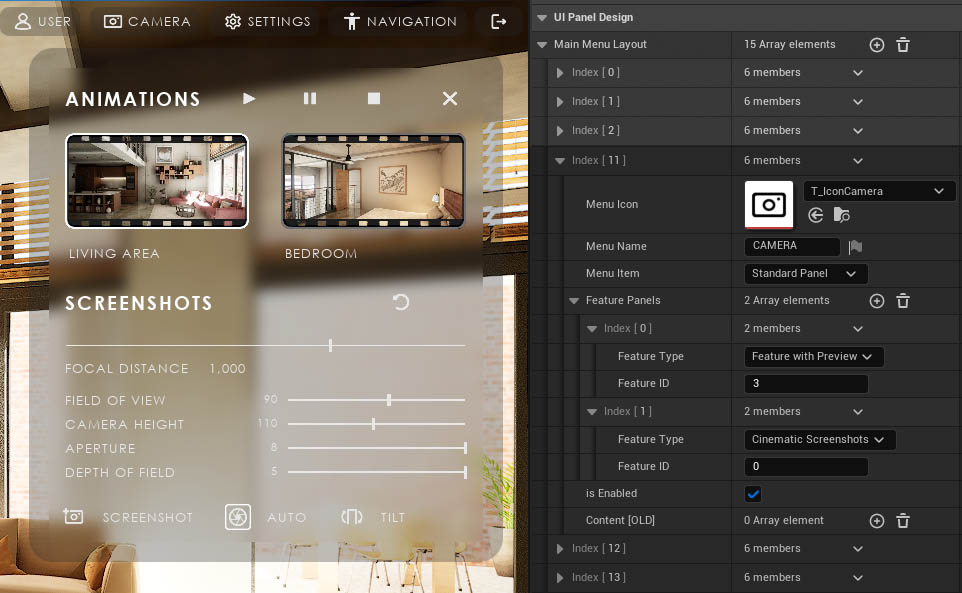
Interface Layout
The data table assigned to Main Menu Layout is where the interface layout is defined.Each row represents one main menu button.
In older version the layout is stored in the Main Menu Layout array
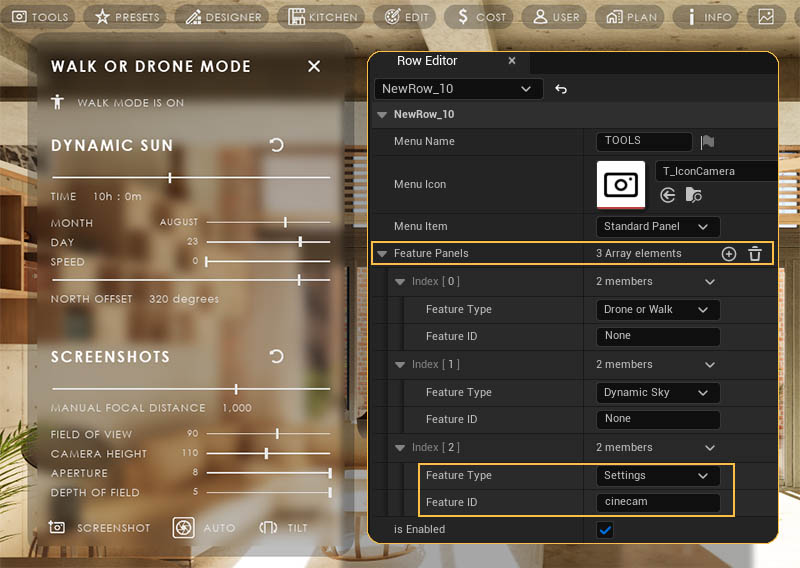
UI Features
UI features are added in the Feature Panels array.
Some features can be placed more than once and need the Feature ID to identify them. The ID is usually the Row Name of the feature's data table.
In older version features were defined in arrays and not data tables. In that case the Feature ID is the array ID.
Scene Settings
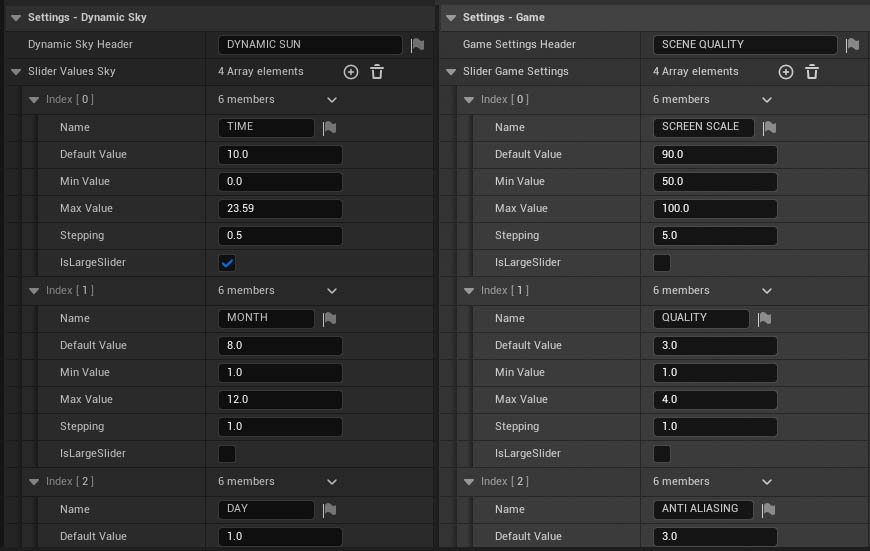
Most App Settings can be changed with a slider during the walkthrough. The slider values are stored in the datatable assigned to DT Settings.The Default Value will be applied at app start if the box for Load Default is ticked.
In earlier versions the slider values are stored in Slider Value arrays and the default is always loaded.
Object Interaction
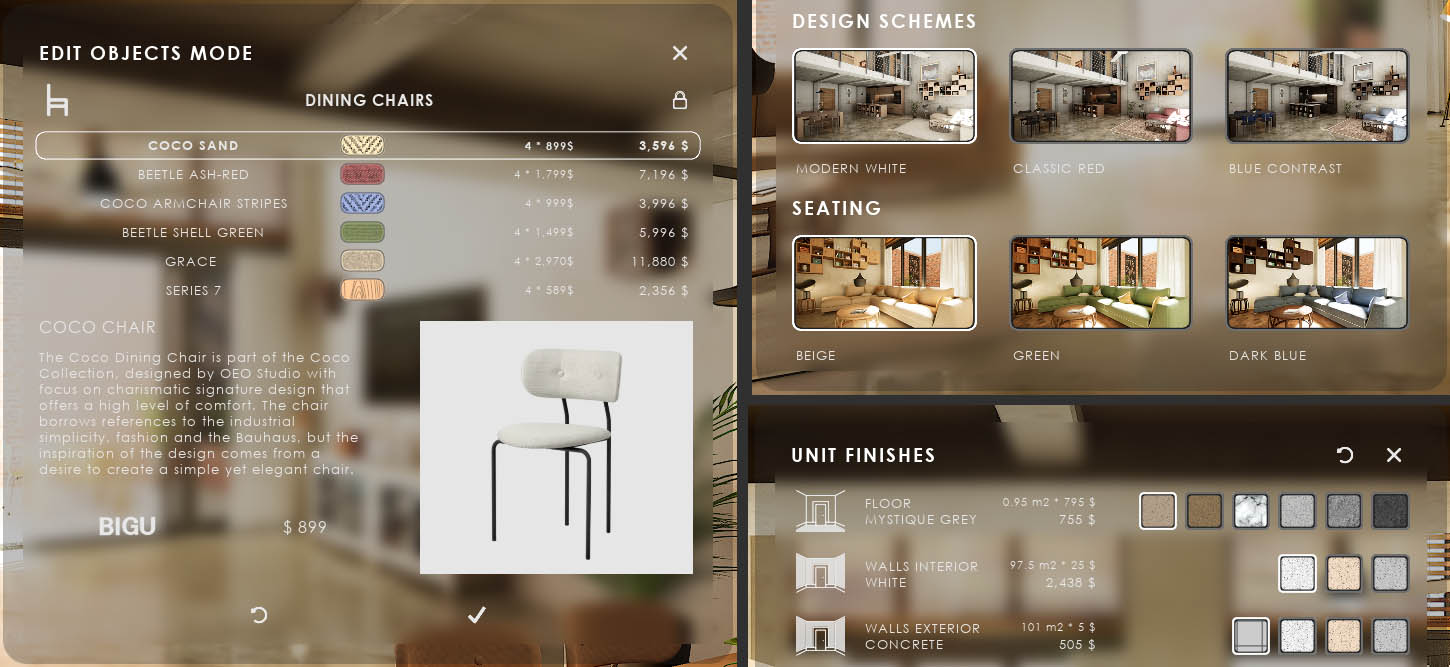
PresetsPresets can change multiple objects at once in the scene
- Design Schemes change all connected assets at once to a new ID
- Variation Groups change a limited group of assets
- Scenarios can swap sub levels for layout changes.
Edit Mode
Individual assets can be edited one by one.
The latest version allows to change materials and meshes independently from each other in the same widget.
In older versions, the mesh and material can only be changed together as one choice
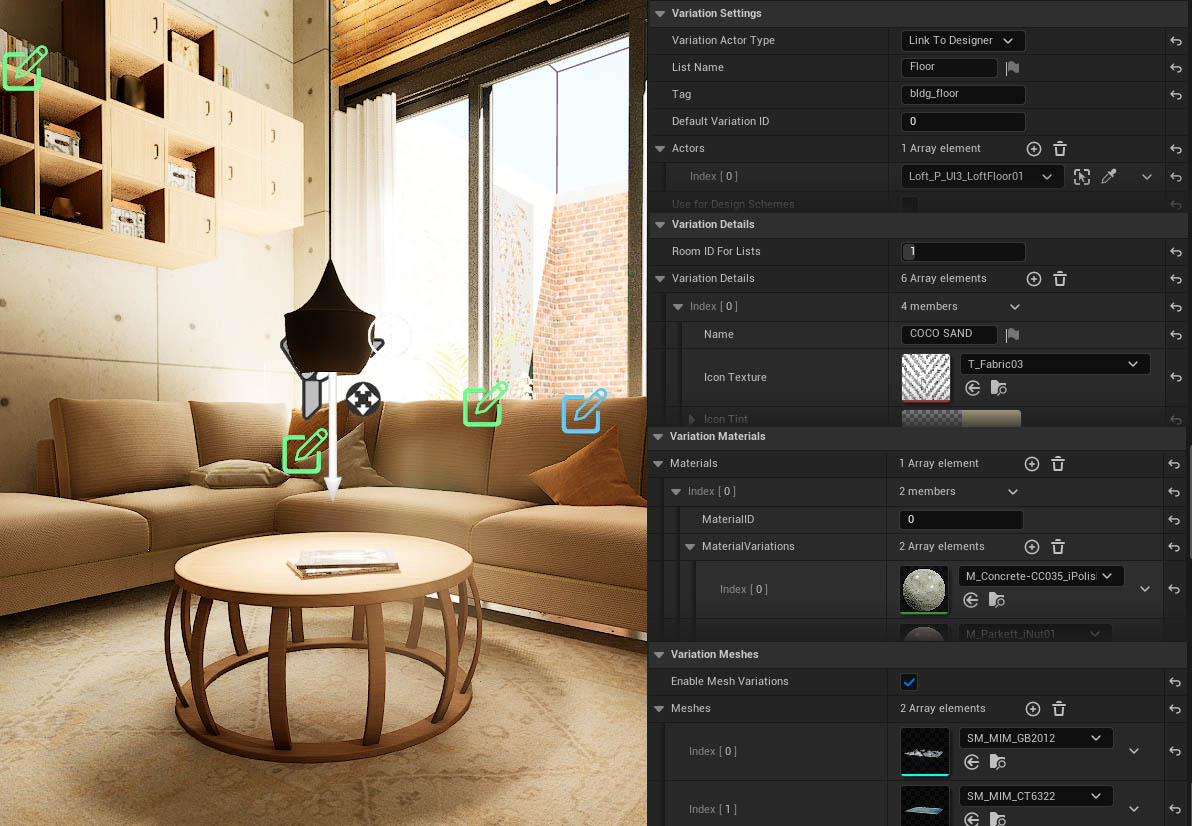
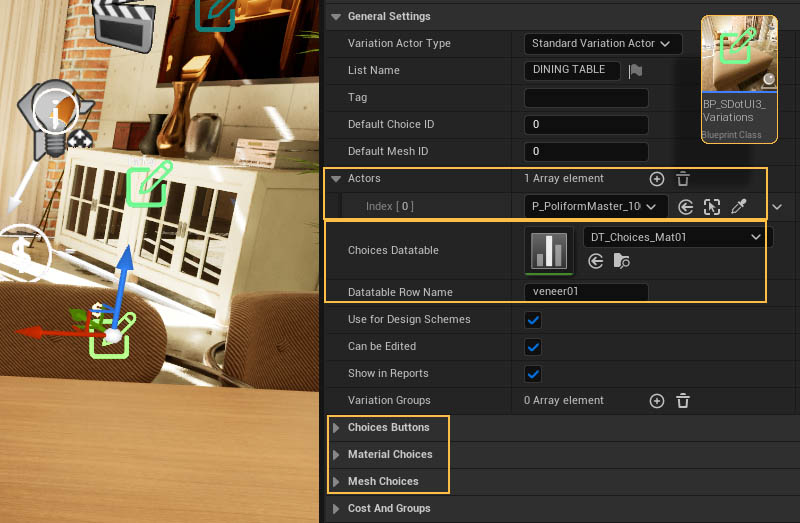
This blueprint actor is the link between the interface and the object in the scene. Object and Blueprint need to be in the same level.
Actors
Connect the objects to the Actors array
Choices
Choices can be set from a datatable row, or manually in each Variation actor in arrays.
Packaging
Run the editor on its own first, without loading a project. This seems to install any missing "pre-requisite" applications.Visual Studio
Install the free Visual Studio Community version from the Microsoft website. The VS version depends on the UE engine version. This can be tricky. If packaging stops after a short while the version was incorrect.
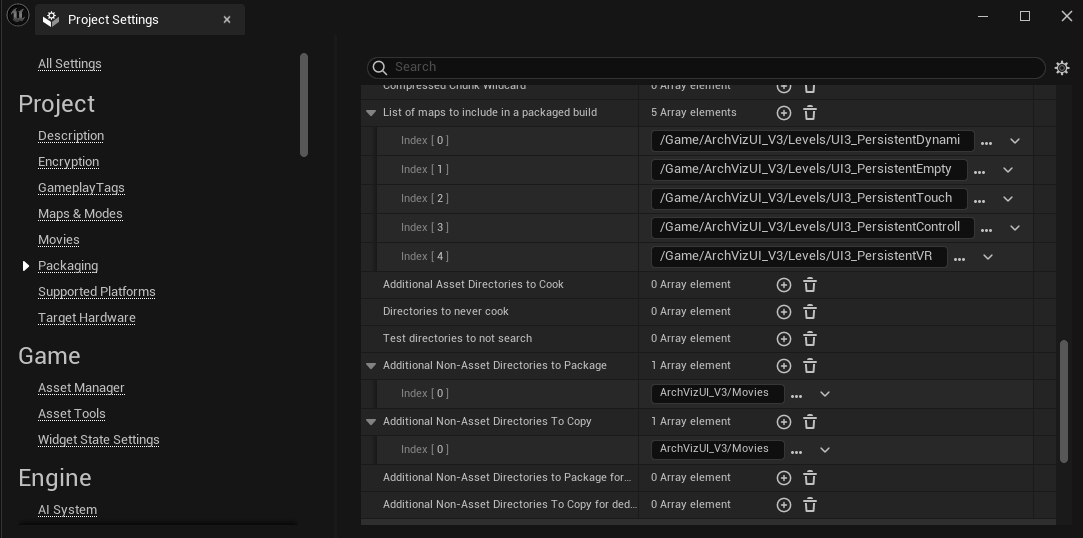
Project Settings / Packaging / Advanced
- List of Maps to include in a packaged built: Add your main level(s) to the list (not the sub levels)
- Additional Non-Asset Directories to Package: Add the movies directory to the list.
Start Packaging from the Platform Menu
 Top of page