Table Of Content
New in 2026
Quick Guide
Video Guides
Getting Started
UI Design
Var Actor
Edit Scene
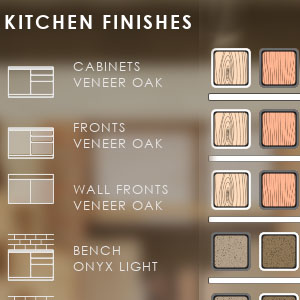
Designer
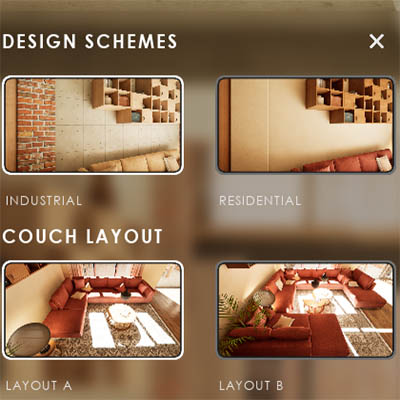
Feat. w. Preview
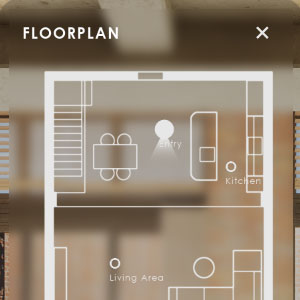
Other Features
Modes
Blueprints
Cost Reports
Multi-Unit-Prj
Google Sheets
FAQ & Tips
Fix Bugs
Updating
Version History
New In UI3 Version 2026
The 2026 updates in a nutshell:
- Optimizing and clean up of blueprints to be better to understand
- Using data tables to input data to declutter the info map
- Using data tables for mesh and material choices to avoid having to enter the same data multiple times
- Engine Version 5.5 is the minimum version for this update to be able to make use newer engine features
Some data and settings have to be re-entered due to the use of data tables when updating from older UI3 versions
Content:
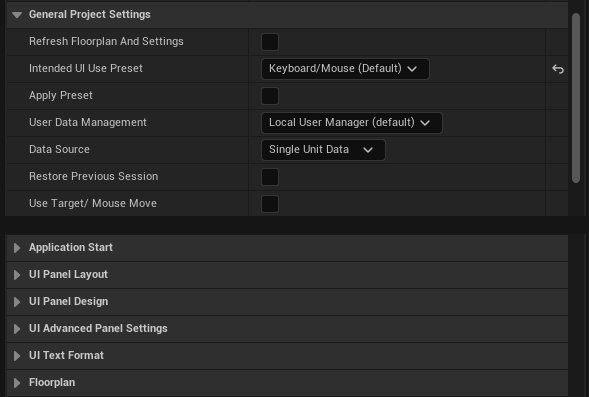
Info Map and Data
CategoriesVariables and categories have been repositioned to navigate the info map a bit easier.
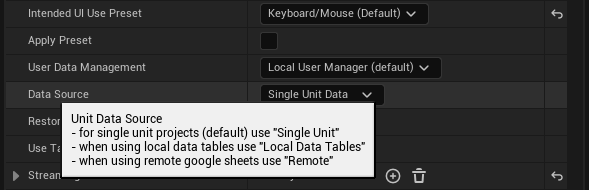
Pop Up Hint
A pop up will show an explanation of the selected variable or setting.
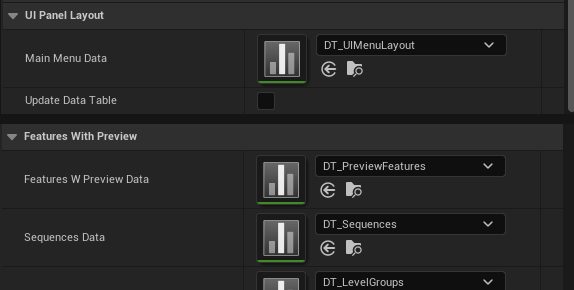
Data Tables
Are used to store the data necessary to build and run the user interface.
Double click on the data table icon to open it in the Data Table Editor.
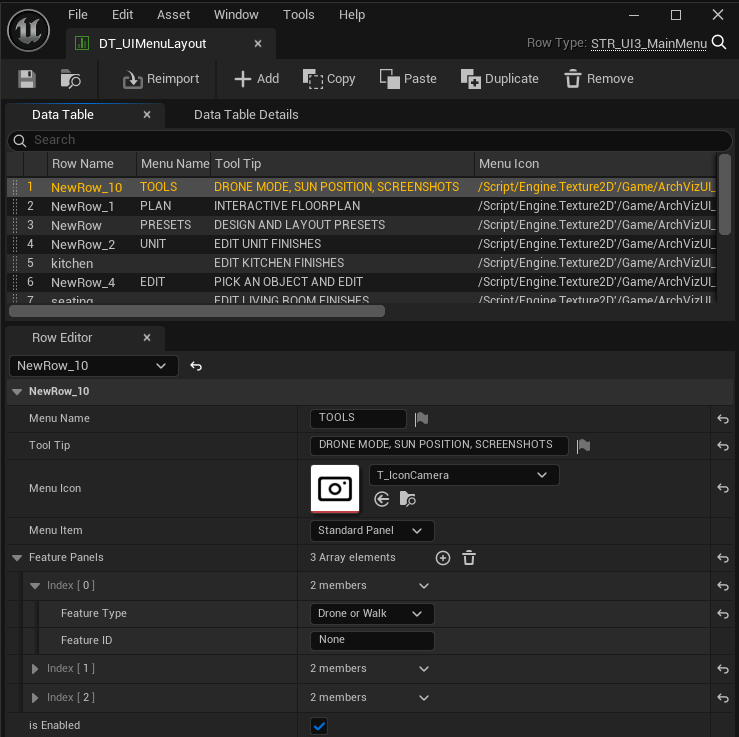
Data Table Editor
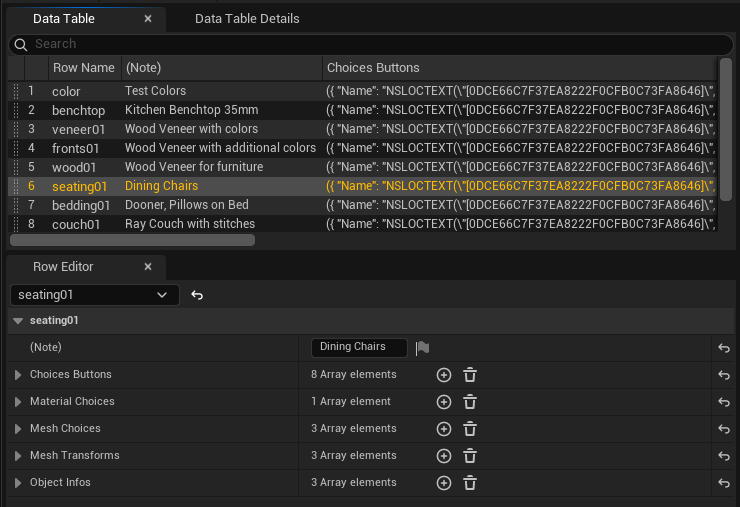
Data can be added or modified in the Data Table Editor. The upper part shows all rows.
The lower part is the Row Editor where the row data can be modified.
Row Name
Row Names identify the data row and must be unique. It can be used as the Feature ID or simple to make it easier to find the data row.
Copy, Move, or Delete Rows
Data rows can be copied or duplicated with the context menu.
Data rows can be moved by clicking the 6 dors and holding the mouse button down.
Some Row Names can not be changed, like in the button data table or text translation data table. Read the documentation for the specific feature before you change row names.
Main Menu Position
Main Menu Position can now be set to all 4 sides of the screen.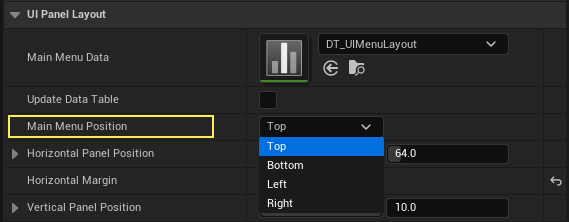
UI3_PersistentLeftMenu
This level has its menu placed on the left side of the screen.
Tool Tips
Tool tips can now be added for menu buttons that don't have a name.
Panel Scrolling
Menu panels can now be larger than the screen height. A vertical scroll bar will appear if this is the case.
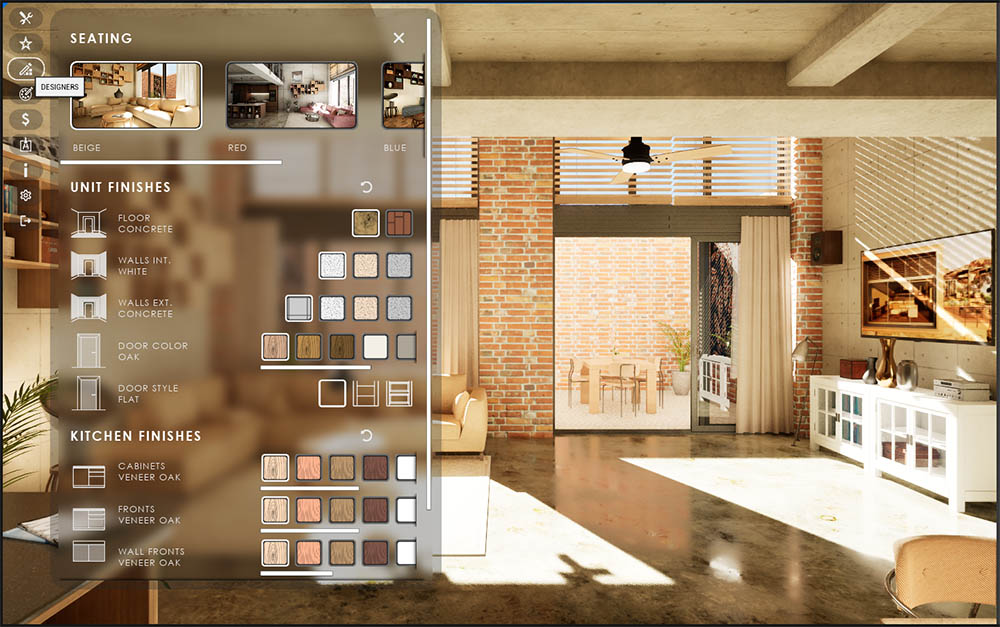
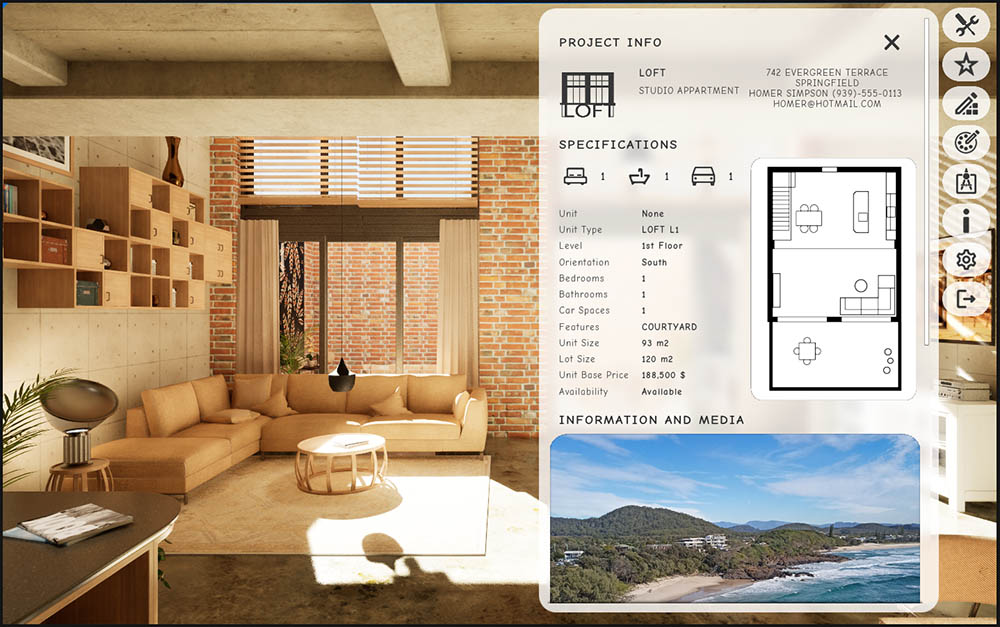
UI3_PersistentTouch
This level is an example for placing the menu on the right side of the screen.
You can click on the menu buttons but you cannot move around without a touch screen in this level.
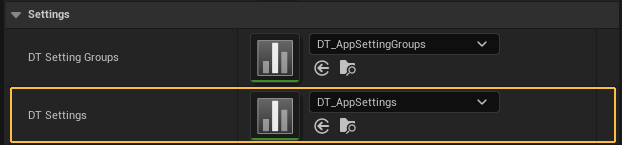
Project Settings
DT SettingsSettings for the run time up are stored in the data table assigned to DT Settings.
This data table controls the sliders. Most settings in the app can be modified by a slider in a settings widget.
Sliders Data Table
The slider Name should point you to the relevant slider.
Default Value
will be loaded when the app starts if the tick box for Load Default is ticked. No matter if the slider is used in the menu or not.
Exception are the settings for Time, Date, and North Offset which depend on what is set in the General Settings.
 Read more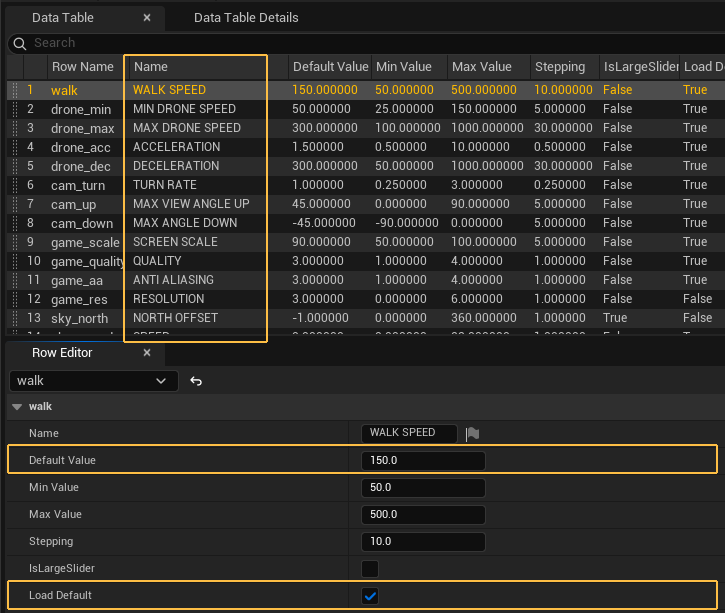
DT Settings Group
The data table assigned to DT Settings Group holds all the data for the settings widgets.
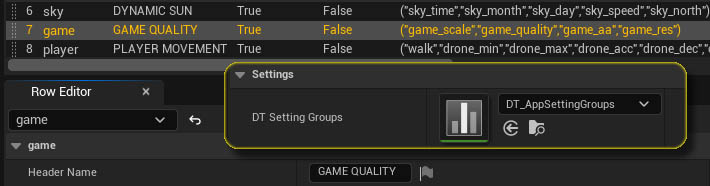
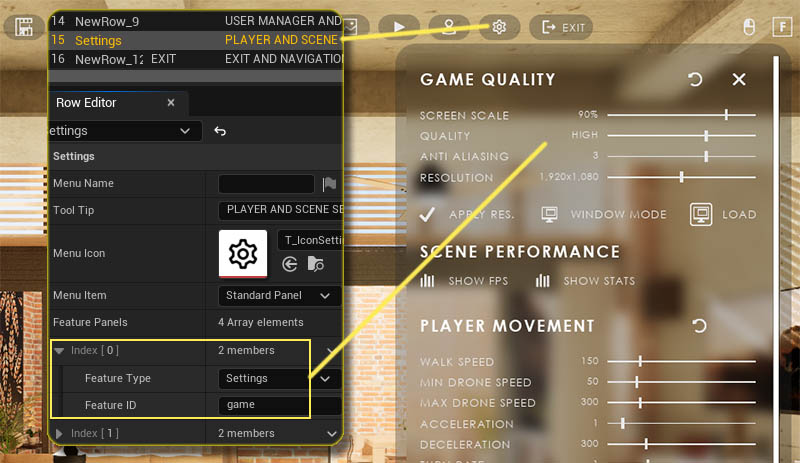
Settings - Feature Type
All Settings Widgets now use Settings as the Feature Type.
Feature ID
is the Row Name from the DT Settings Group data table.
Custom Widgets
Adding a new row to the data table will create a new settings widget which then can be customized by adding sliders or buttons to the row name arrays.
Edit Mode
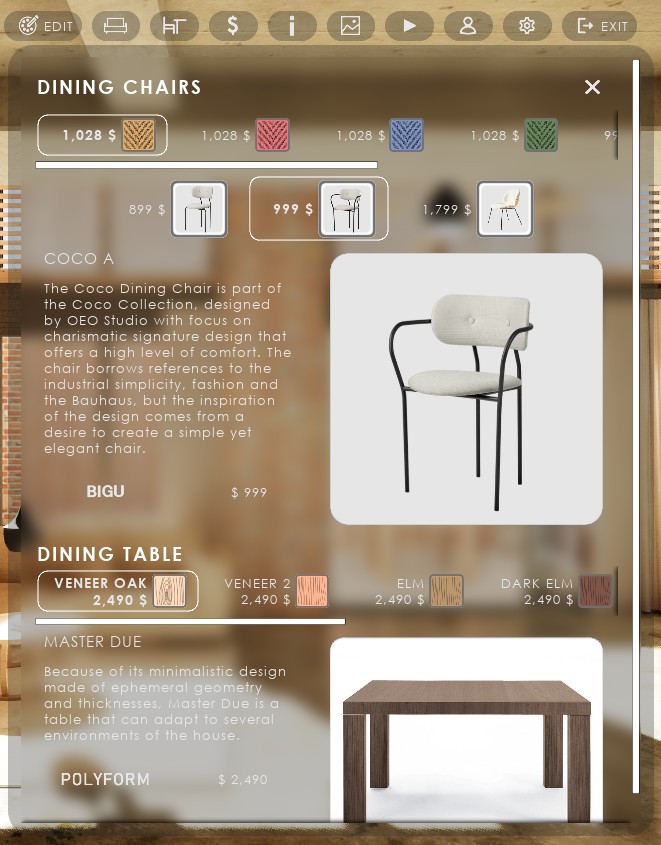
Mesh ChoicesEdit Mode can now have choice buttons for both material changes and mesh changes in the same widget. This only works if all mesh choices use the same materials in the same material slot IDs
Multiple Editing Widgets
Edit mode can now be permanently linked by setting the Feature ID to a Tag name of a Variation Actor placed in the scene. The user doesn't need to pick the object in the scene. Multiple of these widgets can be added to the UI.
The standard Edit Mode will appear in the UI if the Feature ID is left as None.
Choices Data
A data table can now be assigned in an Variation Actors, or for a Designer in the Info Map.
Row Name
The Row Name defines which row will be taken from the data table. Mesh choices have their own Row Name.
Data Table
A row in the data table can hold the arrays for
- Button Appearance
- Material Choices
- Mesh Choices
- Object Information
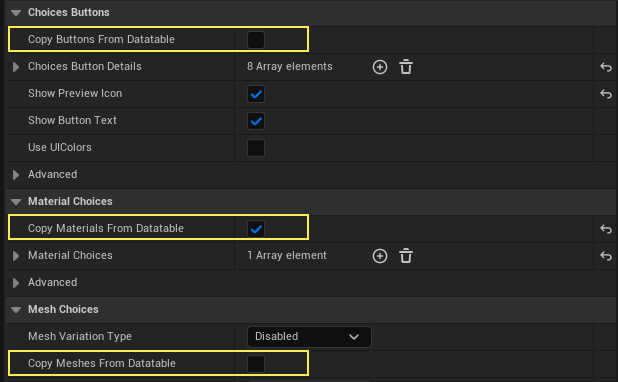
Copy Data From Data Table
Tick the box to actually copy the data from the data table.
Leaving the box ticked will link the actor to the data table and changes can only be made in the data table.
Unticking the box will allow to make changes in the actor's array only applied to this asset.
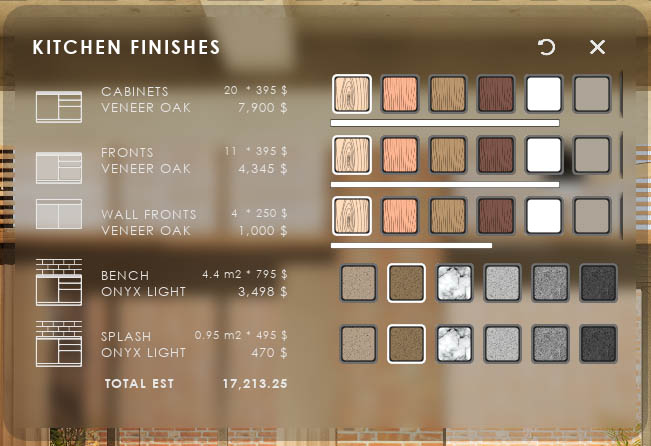
Designer
Designers can use the same data table as Variation Actors.Elements with the same choices can now share the same data.
Cost Tracking
Cost and Quantity can be overridden (optional) in each element and for each choice.
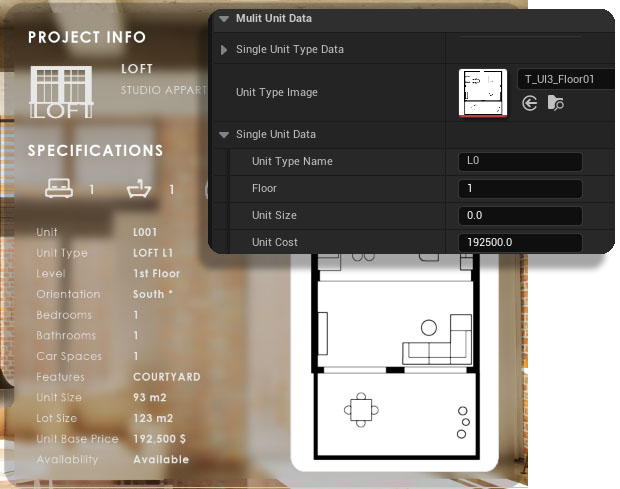
Unit Info Widget
Single Unit DataThe data used for the Unit Info widget has been moved to the Unit Data section.
Single Unit (Type) Data can be added there for projects that don't require multi unit data tracking.
 Top of page