Table Of Content
New in 2026
Quick Guide
Video Guides
Getting Started
UI Design
Var Actor
Edit Scene
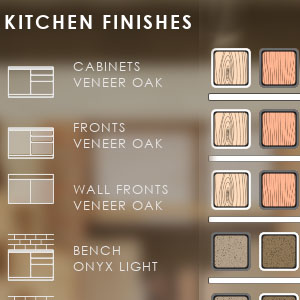
Designer
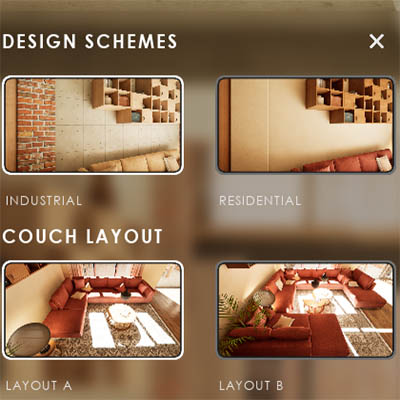
Feat. w. Preview
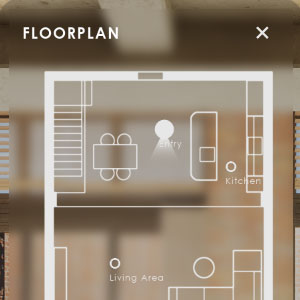
Other Features
Modes
Blueprints

Cost Reports
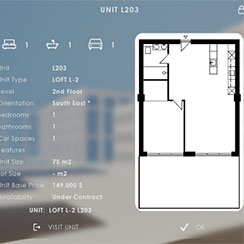
Multi-Unit-Prj
Google Sheets
FAQ & Tips
Fix Bugs
Updating
Version History
Getting Started With UI3
How to get started with the UI3 in your own project:
Content:
Video Tutorials (UE 5.3)
The Video Tutorials are a bit out of date but may still have useful information, especially for people who are new to Unreal.Video 1 and 2 are about creating a project and migrating the interface to it.
The editor is changing over time but the way things work does not fundamentally change that much.
The Input.ini file is obsolete now, please ignore this section.
 Video Tutorial Playlist
Purchase and Installation
The ArchVizUI3 project can be purchased on FAB. It should show up when you search for UI3Create the ArchVizUI3 Project
Use the FAB Plugin to install the UI3 project. Follow the first steps from the UI3 Quick Guide
- Migrate the UI3 project to your project
- Enable the necessary Plugins
- Set the Game Mode in the World Properties of your main level.
Then continue with the first steps below.
The Epic Games Launcher Library doesn't seem to be able to install the project anymore. Use the FAB Tab in the launcher or the plugin in the Editor instead.
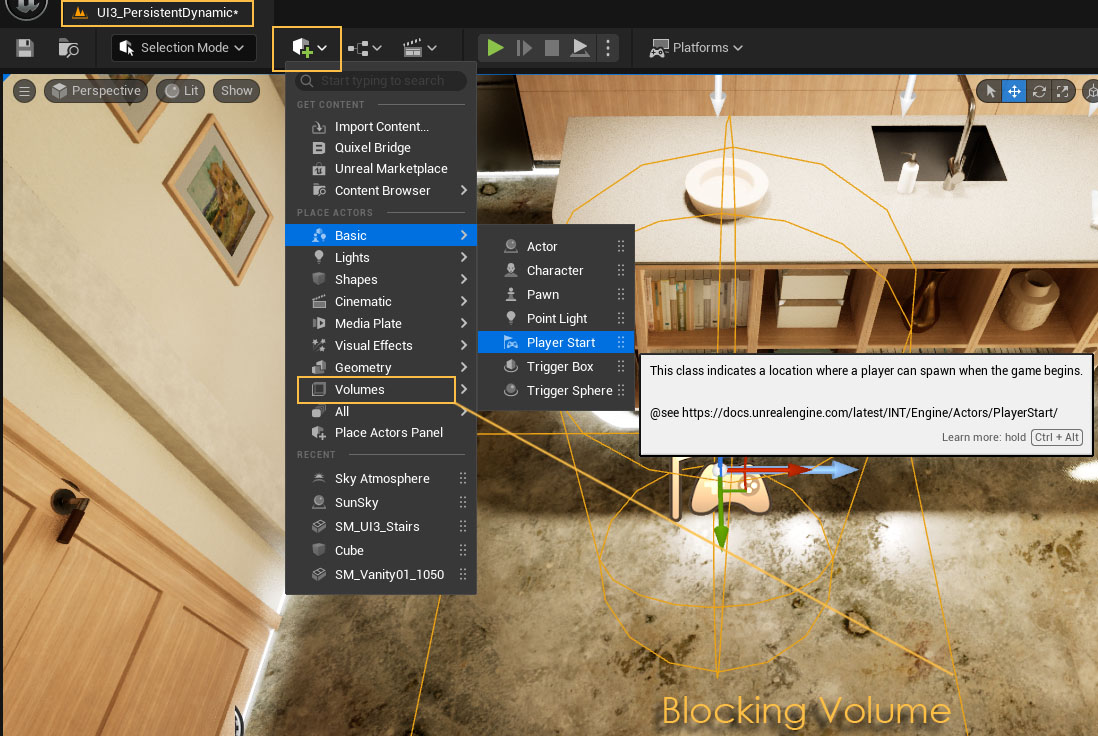
Place a Player Start
Add a player start to the main (persistent) level of the scene, at the position where the player should start when the app starts.Place a Blocking Volume under the player start so the player doesn't fall through the floor in case the level geometry isn't loaded yet.
Project Settings
Most project settings are already set the best way possible. Be careful changing anything, it can have unexpected effects.If bad comes to worse then delete the Config folder of your project. This will reset all settings.
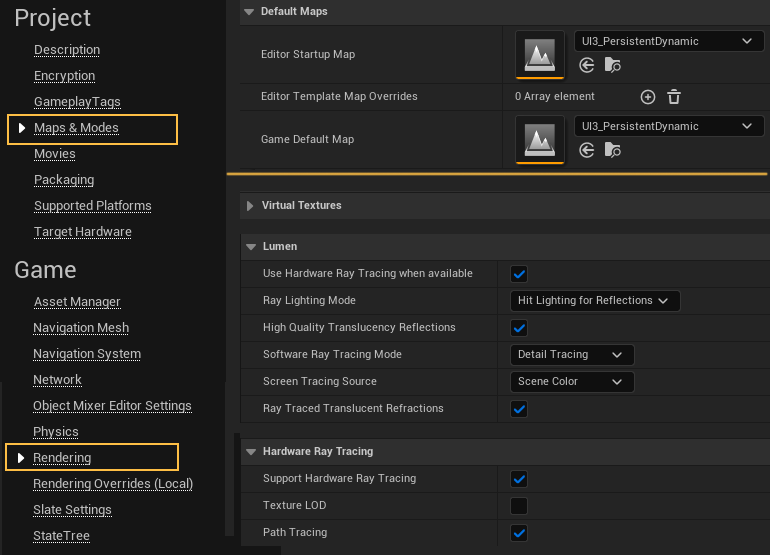
Maps and Modes
Set the start maps here.
Rendering
Most other relevant settings affecting the scene quality live here. Some settings need additional settings in the Post Process Volume
Plugins
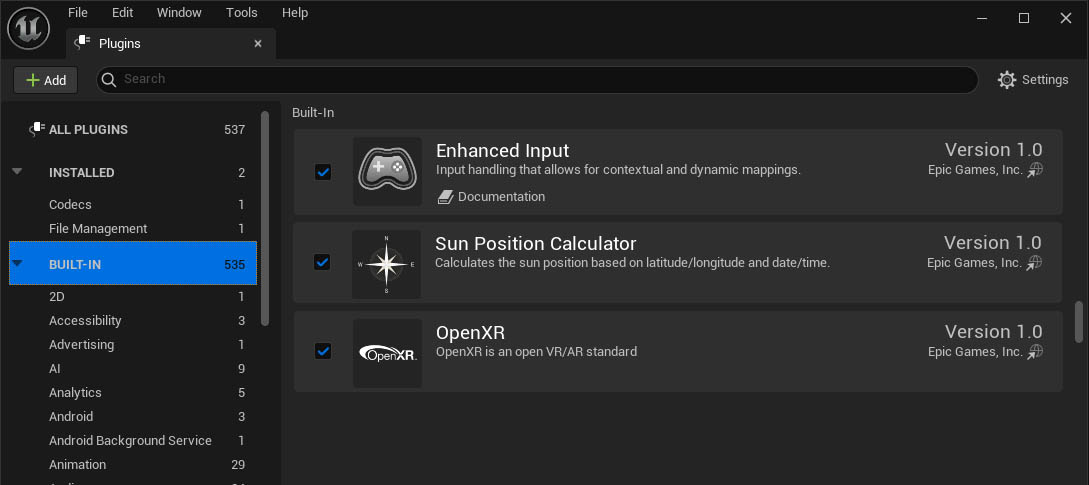
The following plugins should be installed in your project even if you don't intend to use them:- Enhanced Input - controls input actions from keyboard or gamepad
- Sun Position Calculator - Accurate sun positioning for geo location
- OpenXR - standard used for VR headsets. - You may need a different one.
Packaging will fail if these plugins are missing.
Ultra Dynamic Sky (optional)
UI3 supports the Ultra Dynamic Sky (UDSky). Check the UDSky documentation for more details.
Rename Blueprint Library
Close the Editor. Replace the blueprint library (ArchVizUI_V3/UI/Blueprints) for the Sun Sky with the one made for the UDSky by renaming:
- BFL_Custom_Sky.uasset to BFL_Custom_Sky.old
- BFL_Custom_Sky.udsky to BFL_Custom_Sky.uasset
Ultra Dynamic Sky Settings
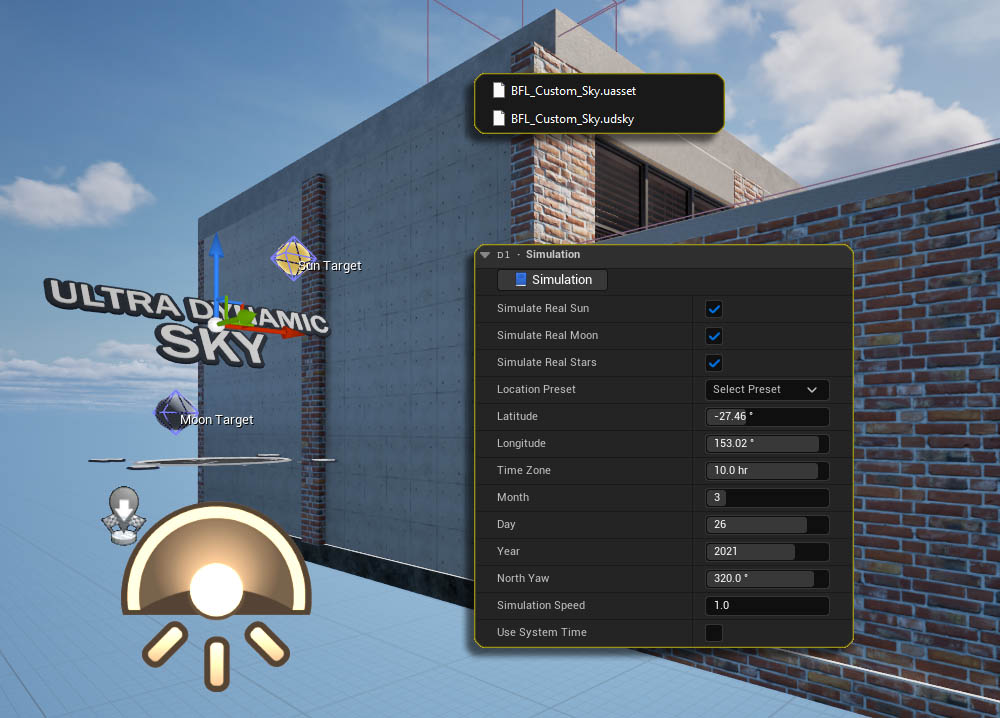
Remove all sky related actors like Sun Positioning, Fog, Clouds, or Sky Sphere so the level is completely black. Then place the Ultra Dynamic Sky blueprint into the sub level UI3_DynamicLighting.
| >D1 - Simulation | |
| Simulate Real Sun Simulate Real Moon Simulate Real Stars |
Tick all three simulation boxes |
| Location Preset | Set your project location from the Preset List, if available |
| Latitude Longitude |
Or set the location values manual here |
| Year | Month | Date | Set the current date as a starting point |
| North Yaw | This will rotate the sun to line up with the real sun position |
Post Process Volume
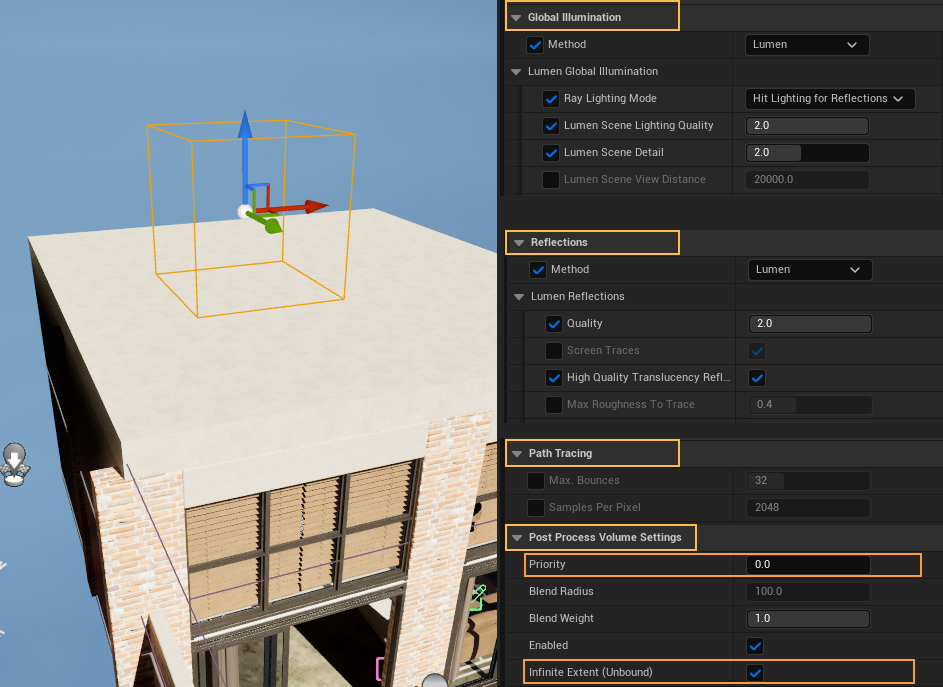
A Post Process Volume defines the final quality of the scene. It effects the player camera and not the objects in the scene. It only takes affect if the player is in the volume.Post Process Volume Settings
- Volumes with higher priority will overwrite ones with lower priority.
- One Volume can be set to Infinite Extend (Unbound) which then will effect the entire scene.
Global Illumination and Reflections
Should be Lumen in higher engine versions. It's recommended to increase some values a bit for better quality.
Path Tracing
Can be enabled for ultra high quality screenshots. This is a ray-tracing renderer and not suitable for real-time playing.
Different engine version may require different settings
World Settings
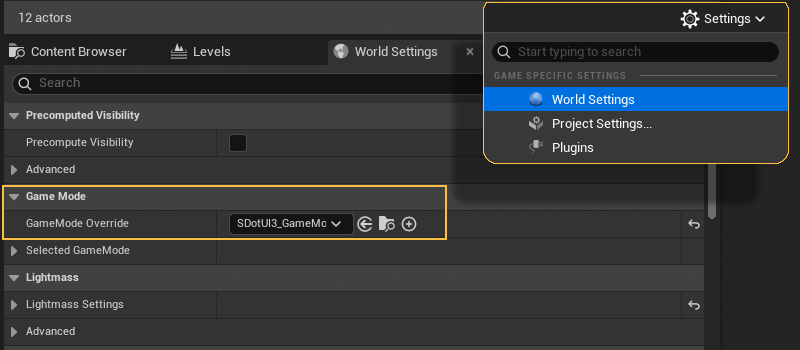
World Settings is are set in the main or persistent level. The game mode for the scene defines which input controller is used. Game modes exist for Keyboard/Mouse, Gamepad, Touch, and VR.Game Mode Overwrite
Choose from one of the 4 SDotUI3_GameModes.
This can be changed at any time. It can be easier to set the game mode to Keyboard/Mouse during development and then switch near the end to another mode.
Info Map Blueprint
Place an Info Map Blueprint
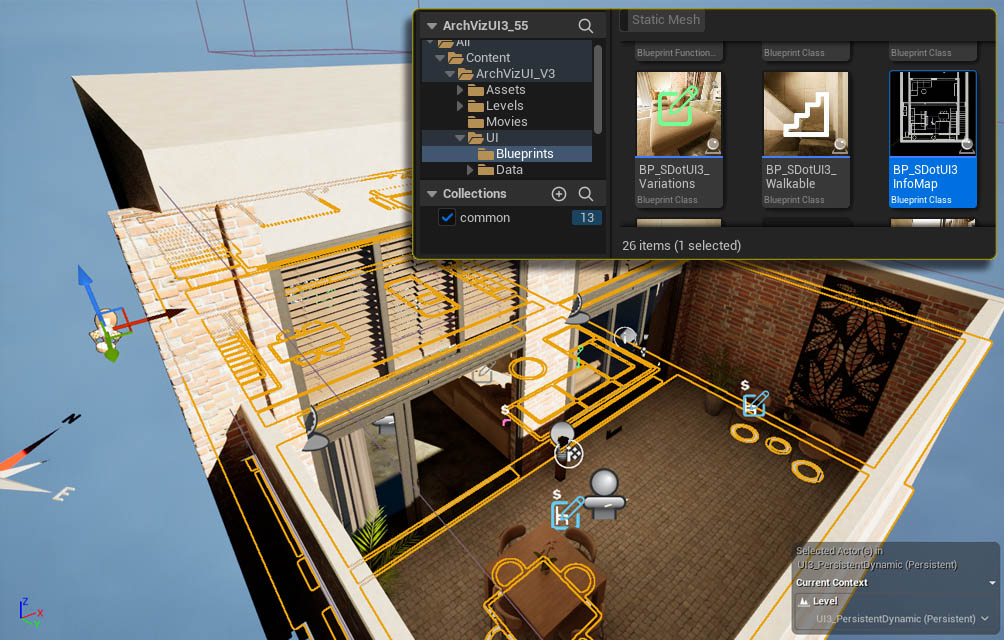
The blueprint BP_SDOTUI3_InfoMap needs to be placed in the main non-streaming/persistent level of your scene. It will contain most of the data to run the UI and its features.
Floorplan (optional)
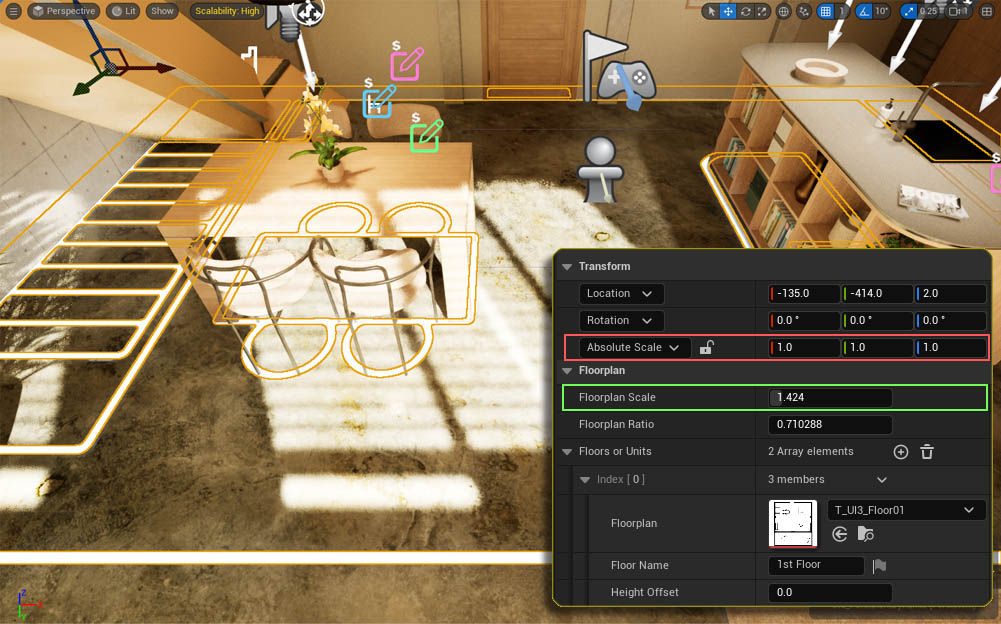
Add a floorplan in the floorplan section. Use a black drawing on a white background.
You can use a blank white texture if no drawing is available.
Floorplan Positioning
Use Floorplan Scale to adjust its size to the existing building and not the scaling in the Transform section. Then align the drawing to match the geometry.
Choose A Preset
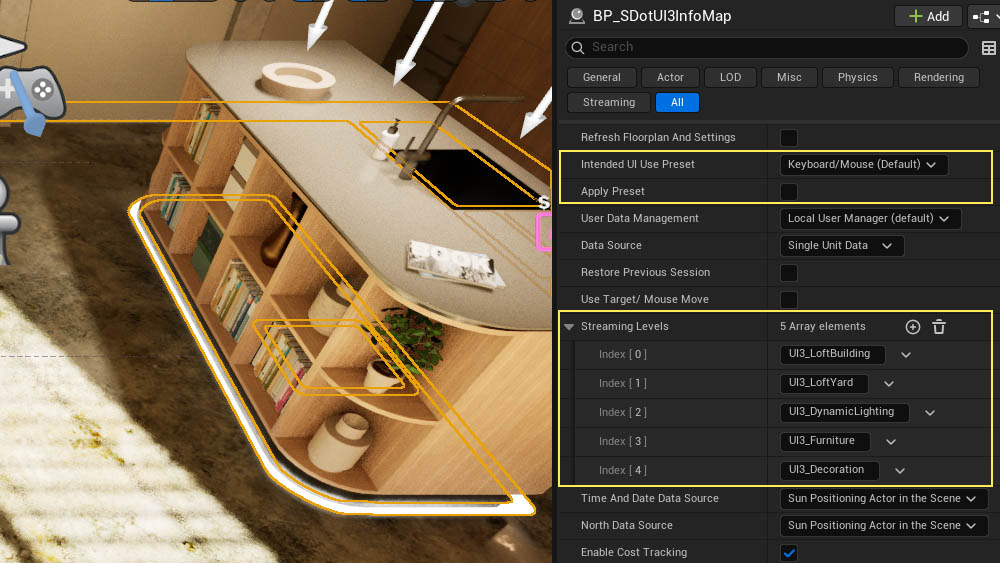
Choose a preset from the Intended Use Preset drop down list. This will change a few settings in the Info Map.
Click on Apply Preset to actually apply the preset. The tick box will immediately turn off again to allow manual changes.
Streaming Levels
Add levels that should stream to the list. Levels can be used like layers to keep the project organized.
It also allows the UI to load the splash screen first to hide the popping in of the level geometry.
Scenario levels are added in a separate section and should not be added to the list here.
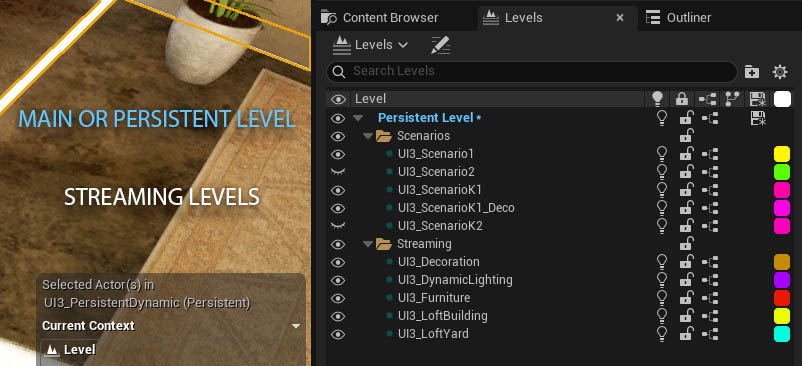
Level Browser
Persistent Level
The main level. Contains all sub-levels and the Game Mode is set in its world properties.
I recommend to have just the Info Map, Player Start, Post Process, and any other volumes in it.
Sub-Levels
are like layers that separate content from each other: furniture, building parts, details. They are added to the persistent level in the Level Browser and are used to organize the project. They can be set to
- Streaming from within the UI (green dot in front of name)
- Being always loaded (no dot)
Use the key [M] while an object is selected to make the level the object is in the current level.
 Top of page