Table Of Content
New in 2026
Quick Guide
Video Guides
Getting Started
UI Design
Var Actor
Edit Scene
Designer
Feat. w. Preview
Other Features
Modes
Blueprints

Cost Reports
Multi-Unit-Prj
Google Sheets
FAQ & Tips
Fix Bugs
Updating
Version History
Multi-Unit Projects (Part 1)
Setting up a multi unit project, like an appartement building. The project runs locally and uses datatables to store data defining the units.
It could be used in a showroom on site or in the real estate office.
Content:
Quick Guide for Multi Unit Projects
Part 1 - Overview or Building Level
The video guides are for the 2025 version. Some settings are in a different position in the info map or are slightly differently named in the 2026 versions.
Part 2 - Unit Levels
The video guides are for the 2025 version. Some settings are in a different position in the info map or are slightly differently named in the 2026 versions.
Introduction
ArchvizUI3 supports projects that contain multiple apartments or units, like an apartment block. A simple example is part of the UI3 project.This tutorial will be split in 2 parts:
- This part: Setting up a multi unit project which runs locally and uses datatables to store data defining the units
- Part 2 explains how to switch the project to use remote google sheets for the data. This could be used if the project runs remotely on a pixel server or similar.
Levels
The levels can be found at /Content/ArchVizUI_V3/Levels/mup
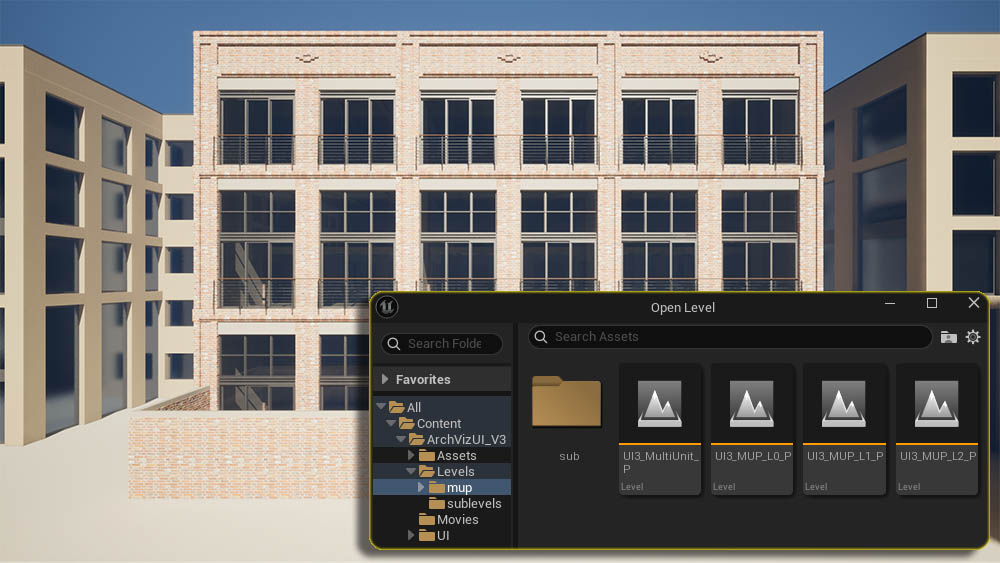
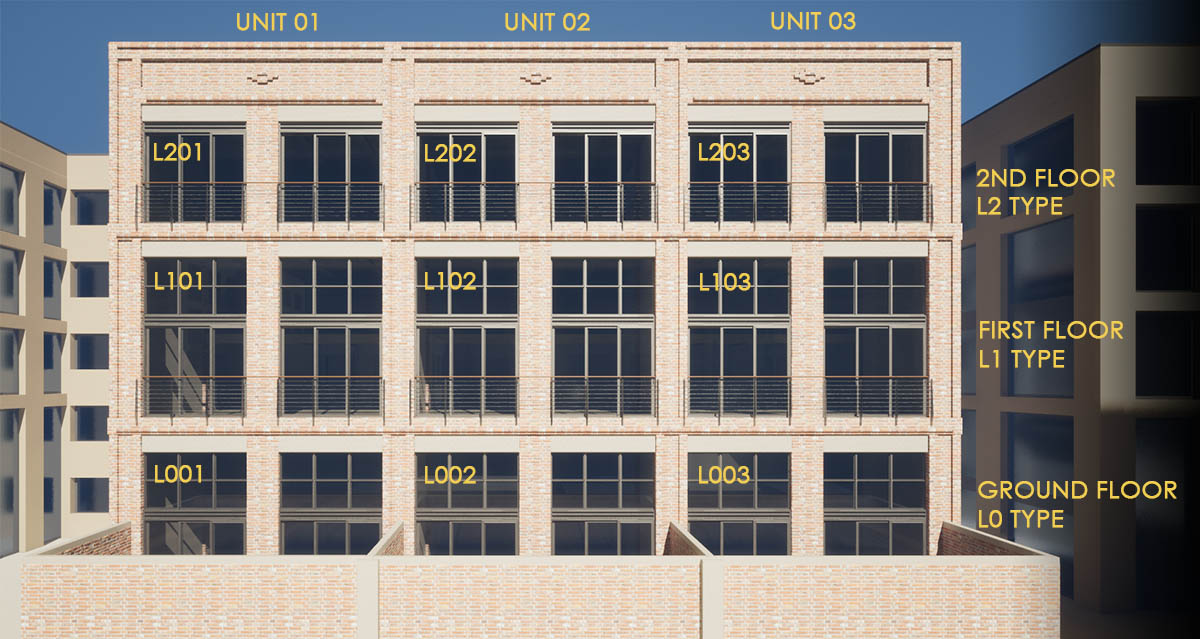
The projects fictive building is the industrial block where the initial demo loft apartment is in.
The original apartment is located on the ground floor marked as L001. There are 3 apartments with the same floor layout at the ground floor level. The block has 3 levels with three similar unit layouts each.
Unit (Apartment) Types
- Type L0 (ground floor) as demo scene
- Type L1 (first floor) similar to demo scene with extra bedroom
- Type L2 (top floor) no gallery level, only one level
There are 9 units but only 3 unit types. It would be not very efficient to create the same unit 3 times. The building is just the shell and the three unit types are separate levels.
Data Source Setup
There are 2 sorts of levels in the project:
1. Overview Level
- User Data Manager: Selected Data Source
- Data Source: Local Data Tables
2. Unit Levels
- User Data Manager: Previous Session or Level
- Data Source: Local Data Tables
In this example we will use local data tables to store the data. The 2nd part will show how to use Google Sheets to store data remotely.
 Part 2: Using Google Sheets Remote Data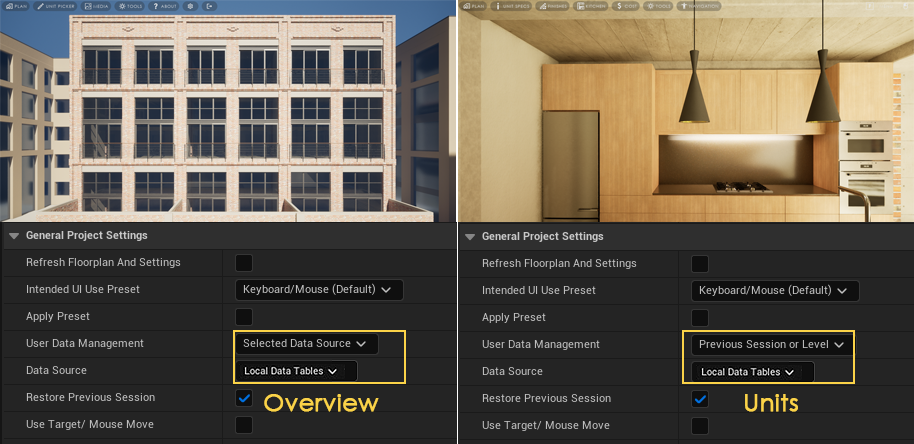
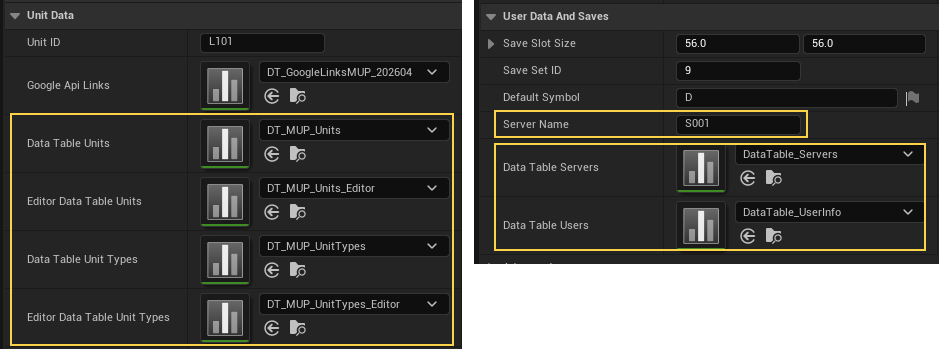
The data to manage the units and users is stored in the following data tables.
Unit Data
The 4 data tables store the unit and unit type data. Data is split into editor related data and other data that might be updated, like costs.
User Data And Saves
The user will be set in the server data table. Data tables are read only. The editor would be needed to change the user, which is not practical. It is to simulate remote Google Sheet use.
The Local User Manager could be used in the overview level instead.
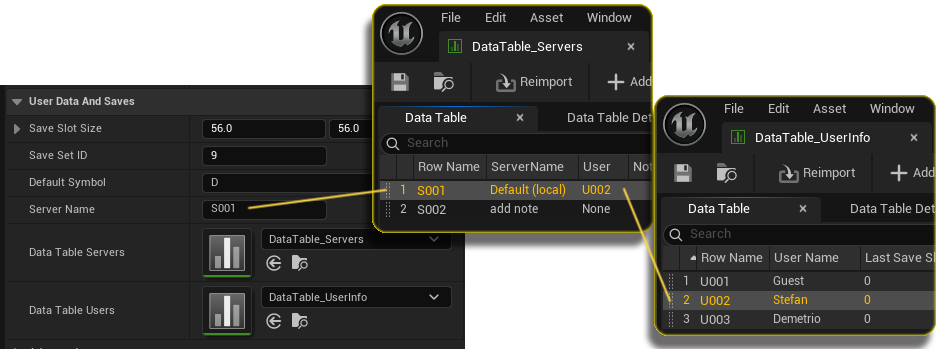
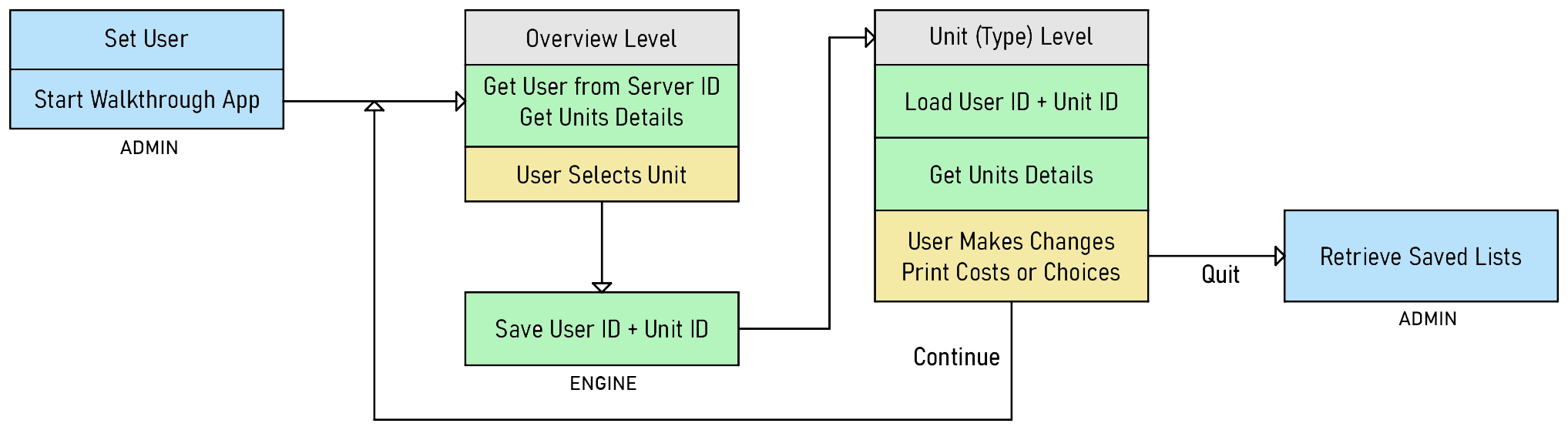
Setting a User
The User is set in the overview level and gets passed on to the unit levels.
- The app looks at the Server Name set in the Info Map
- The User ID is taken from the servers data table row with the Server ID row name
- The User Name and data is then taken from the users data table with the User ID row name
This may look overly complicated. But it avoids accidental or unauthorized changes to other users' data. A user can't be allowed to change the user within the app to someone else's when cost tracking is involved.
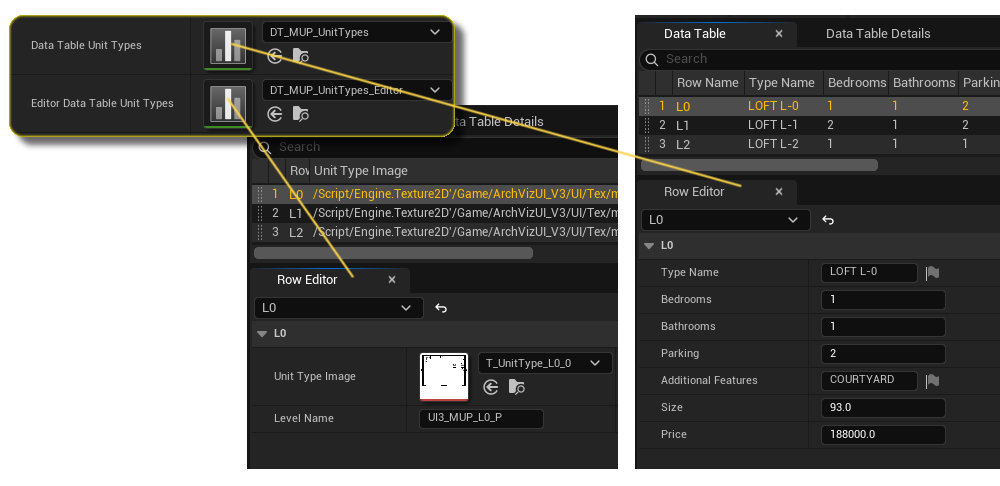
Setting up Unit Data
Data Table Unit Types
This data table contains the default data for each unit type.
- Row Name - Identifies the type
- Type Name - Name shows on the widget
- ... - Default specifications for the unit type
Editor Data Table Unit Types
This data table contains the data used within the editor.
- Unit Type Image - Floorplan for the widget
- Level Name - Exact name of the unit type level to be loaded
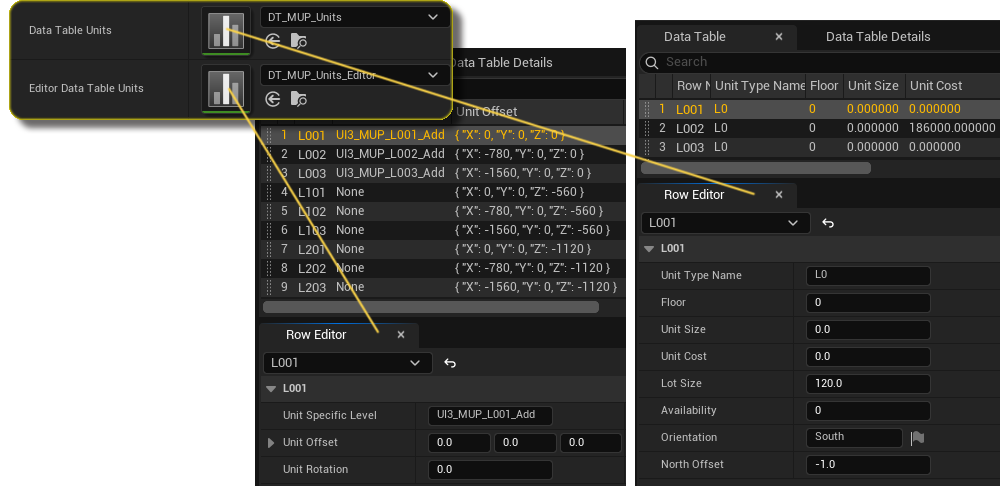
Data Table Units
This data table contains the specific data for each unit. It will override the Unit Type Data when specified.
- Unit Type Name - Row Name of the Unit Type
- Floor - Floor number starting with 0 for ground level
- Size, ... - Override specifications for the unit
- Availability - 0=available, 1=under contract, 2=not available
- North Offset - Offset (degrees) for units located on the side or back of the building
Editor Data Table Units
This data table contains the data used within the editor.
- Unit Specific Level - A level can be loaded for assets only visible in this specific unit. Example: Courtyard areas for ground floor units.
- Unit Offset / Rotation - Offset position for the unit relative to default unit position within the building
Overview Level (Scene)
The overview scene contains the building shell and a mockup of a surrounding area. It's build like a normal UI3 scene with an Info Map containing the data.
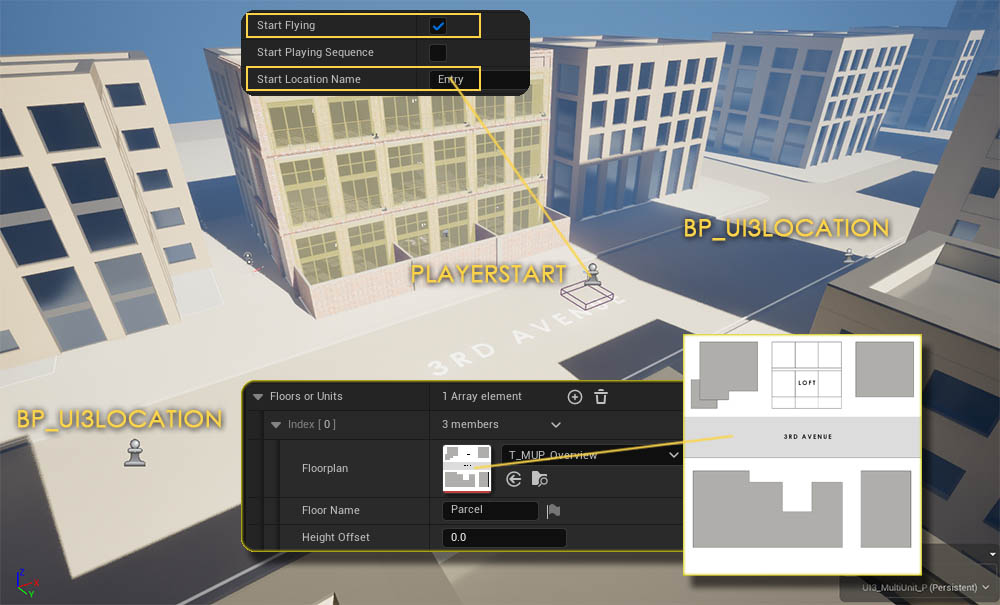
Floorplan
A simple Floorplan of the near surrounding is added. Where the user can select camera positions for different viewing angles.
Camera Locations
Camera locations can be placed with BP_UI3Location blueprints as in a normal scene.
Player Start
Start Flying is active in the General Settings. The Playerstart is placed with a central view of the building. A small blocking volume is placed underneath it. A location actor is placed in the same spot as the playerstart and the name is put into Start Location Name.
Unit Selection
Unit Picker
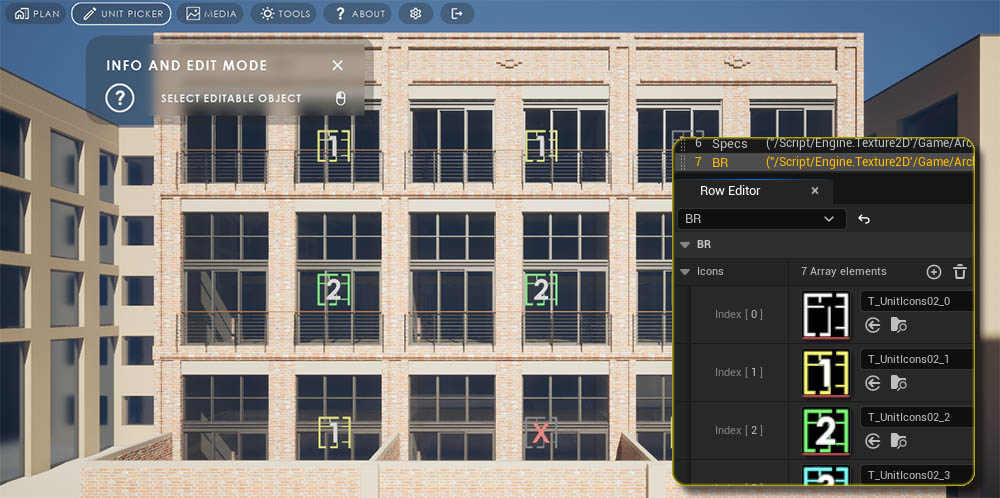
The unit picker widget is just a renamed version of the Edit Mode widget. Unit markers show up when the user chooses the Unit Picker in the menu.
Unit Markers
The marker color and the number in the marker indicate the number of bedrooms and the availability. Multiple markers can be placed for corner units.
The marker billboards can be changed in the Advanced Panel Settings in the info map (DT_UIIcons) Images need to have a transparency channel and be saved as 32bit TGA files.
Unit Info Widget
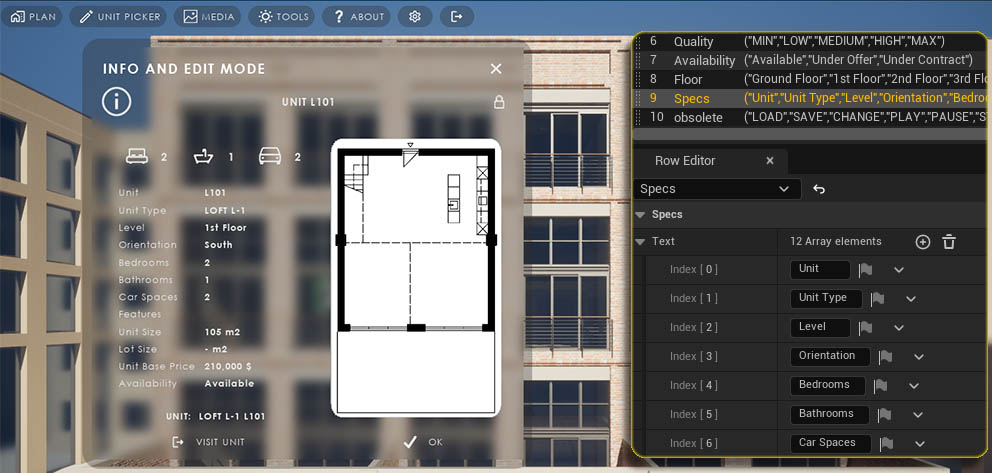
The Unit Picker will display the information for the selected unit taken from the data tables (source).
Discription text can be translated in the UI Text datatable assigned in the info map.
- Availability is the current state of the unit
- Floor shows the location within the building in a friendly way.
- Specs is the text on the left side of the widget
Visiting a Unit
The unit can be visited by clicking the button at the bottom. This will exit this scene and open another scene for the selected unit type.
Unit Marker Placement
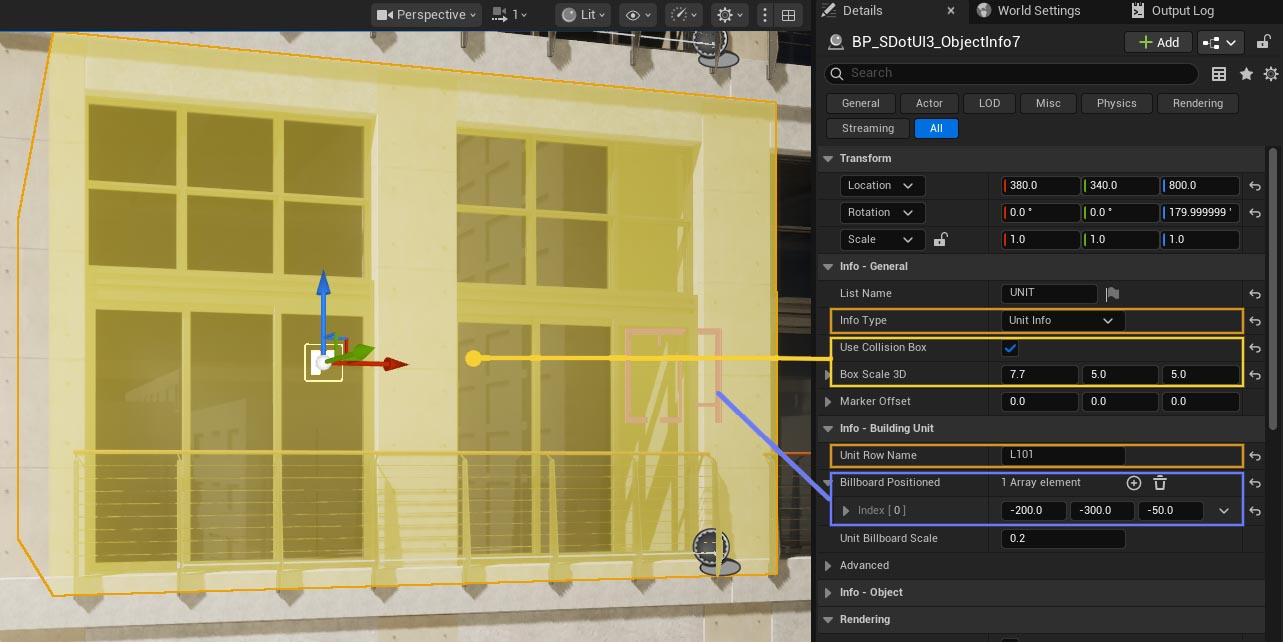
The Unit Markers are BP_SDotUI3_ObjectInfo blueprints with the following settings:
- Info Type - Set to 'Unit Info'
- Use Collision Box - True will add the yellow collision box. Scale the box to stick a bit out of the unit and be selectable.
- Unit Row Name - The Unit ID from the data source
- Billboard Positioned - Add billboards on each visible side of the unit. They first appear Grey and will be updated from the data source in runtime.
Debugging data
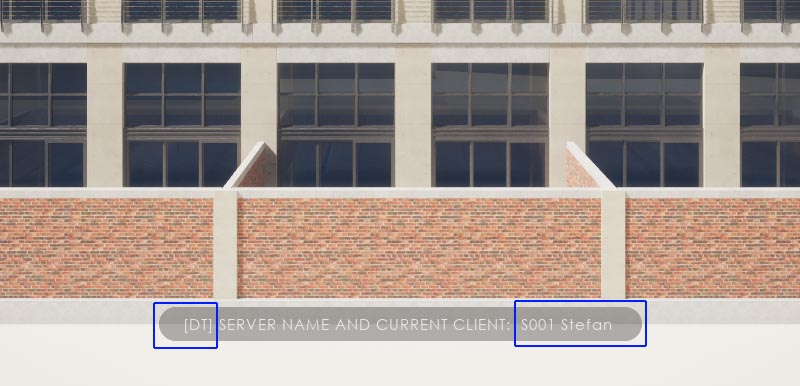
A message will briefly appear when starting the overview level.
The Data Source can be checked on the left
- [DT] = Data Tables
- [GS] = Google Sheets
Server ID and User Name can be seen on the right.
The output log is displaying additional information.
Unit Levels (Scenes)
The building has 9 units coming in 3 types. So, there are 3 Unit Type scenes:
- UI3_MUP_L0_P - ground floor with gallery
- UI3_MUP_L1_P - 2 bedrooms with gallery
- UI3_MUP_L2_P - 1 bedroom
There could be many more units but usually many of them have the same layout. A unit type scene is required for each different looking layout.
MUP Save Game
The exact unit and the user name are saved in a save game after the user did choose a unit to visit. The Unit Type level is then opened.
The Unit Type level will load the save game to retrieve the user name and the data from the Unit ID.
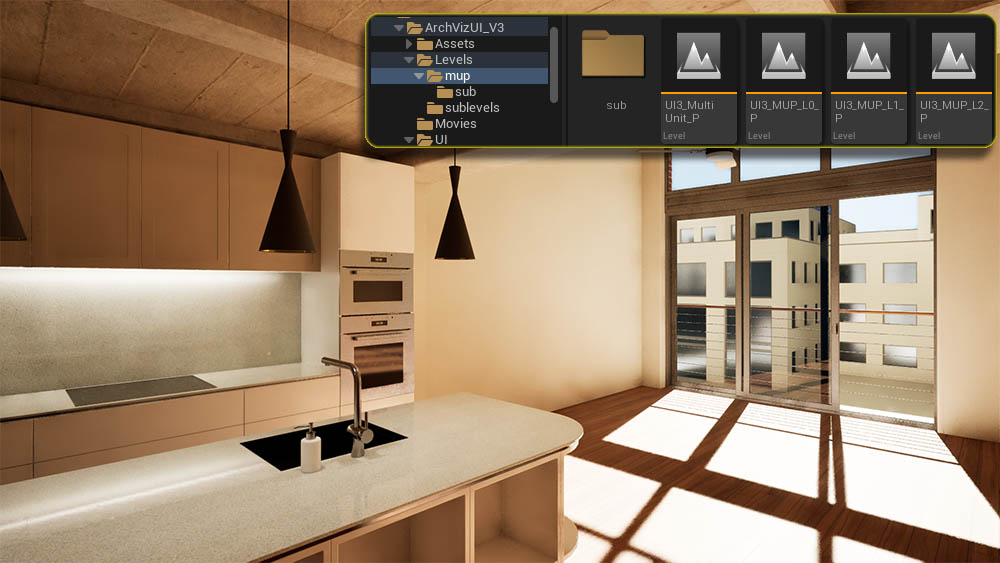
Unit Type Level in the Editor
User Data Management
Previous Session or Level - The level will take the user (and unit) from the MUP Save Game.
Streaming Levels
There are 2 types of streaming levels
- Streaming Levels are the usual sub levels containing assets as in standard single unit scenes.
- Levels with Transform are the environment (surrounding) levels that are streamed with an offset/rotation.
The surrounding buildings and environment will look different depending on the location of the selected unit. The Levels with Transform are transformed to simulate how they would look from the selected unit.
Main Menu Layout Data
The 3 unit type scene share the datatable for the menu layout.
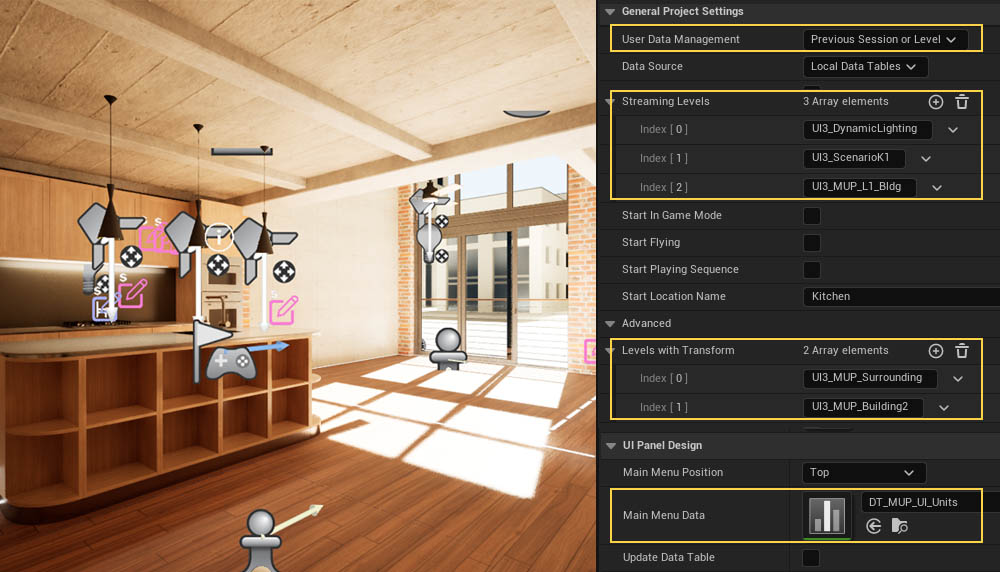
Unit Specific Levels
The user may be able to see parts of the building from the unit windows or when on a balcony or in a courtyard. To simulate this is a bit more difficult and depends on what can be seen and from where.
Courtyards or Balconies
the building front can be seen from the courtyards.
- The upper floors can move like the environment and be added to the Levels with Transform list.
- The neighboring units can be seen from the courtyard depending on
which courtyard the user is in. The user would see one unit on each
side from the middle.
These parts of the building need to go into the Unit Specific Level.
Blocking Access
An easy solution is to place blocking volumes on balconies or outdoor areas.
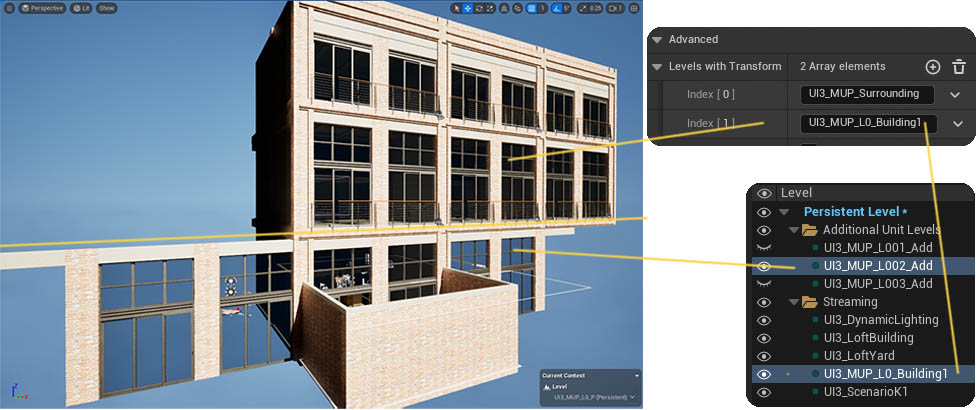
Editor Data Table Units
The level offset for the surrounding buildings as well as the name of any additional levels are stored in the editor data table for units.
The level has to be loaded from the overview level. The offset is not applied if the unit type level is played directly while editing. The level will look as if located at ground level instead.
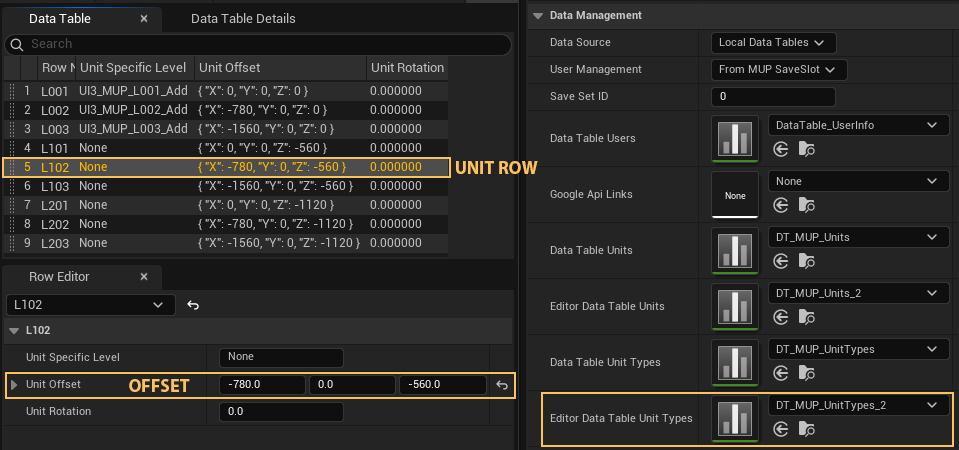
Save Slots
User Choices can be saved per user name in the 5 available save slots. The last used save slot is loaded with the user name from the MUP Save Game. Choices can be re-applied in another unit under these conditions:
- The Save Set ID set in the Info Map of all levels is the same
- A Designer is used. Designers use Tags to link objects
- Features with Preview can be used if they use the same data table in the Info Map
Edit Mode does not work. The actors are linked directly and are not the same in another level.

 Top of page