Table Of Content

New in 2026
Quick Guide
Video Guides
Getting Started
UI Design
Var Actor
Edit Scene
Designer
Feat. w. Preview
Other Features
Modes
Blueprints
Cost Reports
Multi-Unit-Prj
Google Sheets
FAQ & Tips
Fix Bugs
Updating
Version History
How To Update UI3
Best way to update the UI3 to a new feature version or a new Unreal Engine version.
General advice: Do not fix what is not broken! There is usually no need to update if you are happy with the project and you are nearing the end of it. An update may revert some of your work or it could introduce a new error. There is always a risk.
Content:
Updating to another Engine Version
Download the UI3 project
UI3 is a Project and not a plugin.
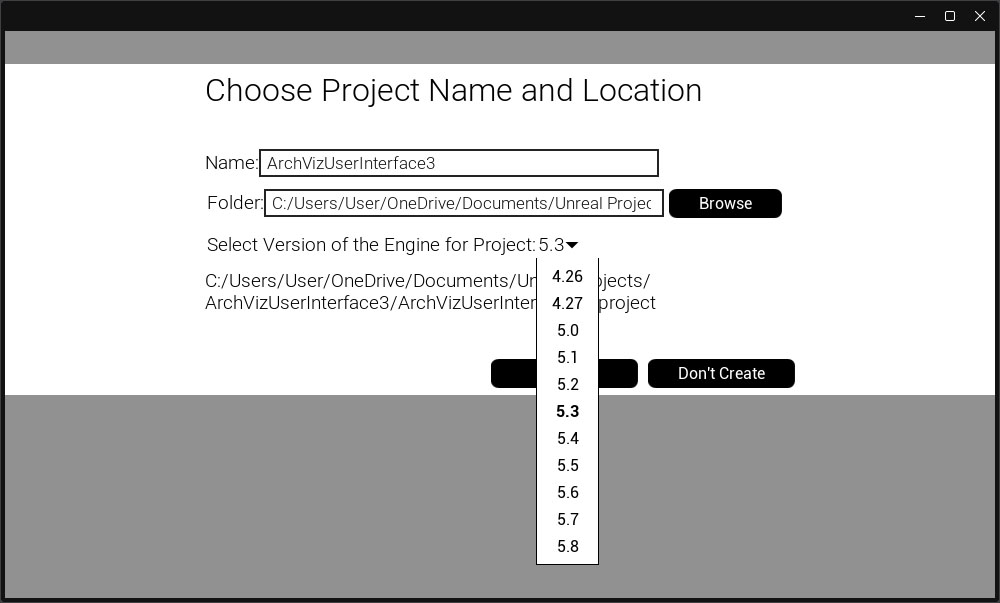
You will need to make a new project each time you update The ArchViz User Interface 3 has different versions for the following
engine version groups:
The versions within these groups are the same. The version for 5.5 is exactly
the same as the one for 5.8 for example. To update from 5.5 to 5.8 you could use
the method below.
However - You may want to check if there is a new UI3 version available and
create a new project before moving to a new engine version.
Updating to another Engine Version
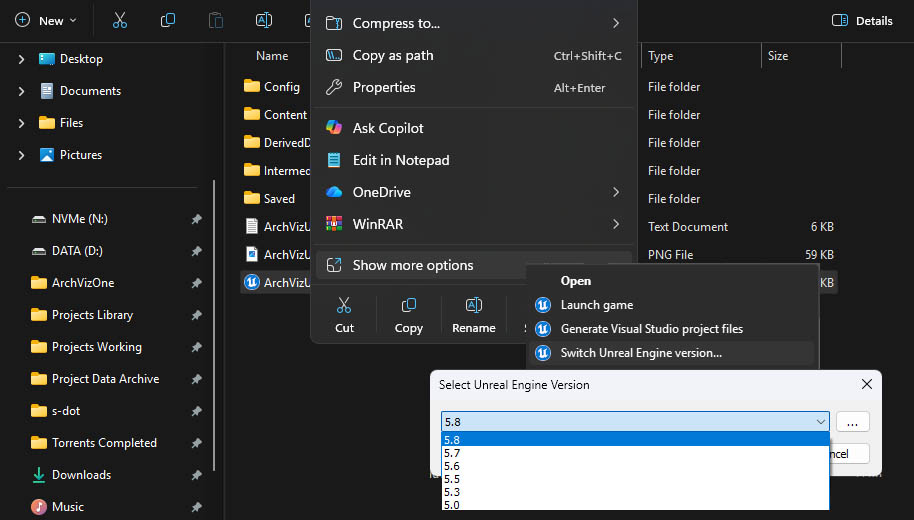
Switching to another engine version within a version group is easy and should not cause any problems in the project.
- Close the editor
- Open the Windows Explorer and navigate to your project folder
- Right click the *.uproject file
- Select More Options
- Select Switch Unreal Engine Version
- Change the version if necessary
You may not be able to go back to an older version once you made any changes in the project.
Backup Your Project
Always create a backup of your project before you update.
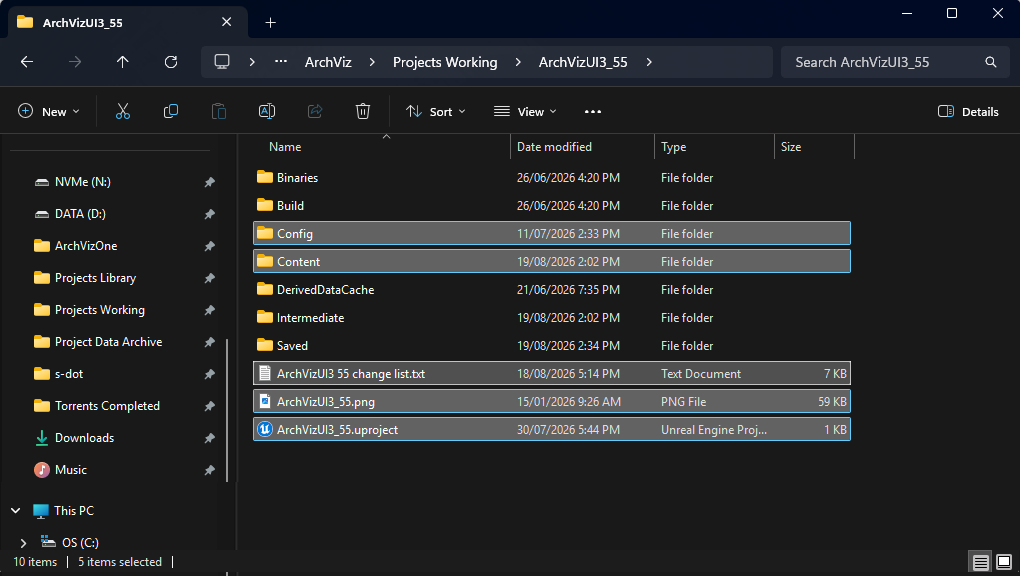
You only need to update the following files and folders. These are the files you get from FAB.
- Config - the configuration files
- Content - the project specific content is in this folder
- *.uproject - the main project file
All other folders and files are specific to the PC that you are using. There are also log files, packaging files and other temporary files.
The folders will be recreated when opening the project by executing the main project file.
The files marked are also the ones to share if you want another person to work on the same project. All other files should not be used on a different PC. Let Unreal create them instead.

Will My Work Be Undone?
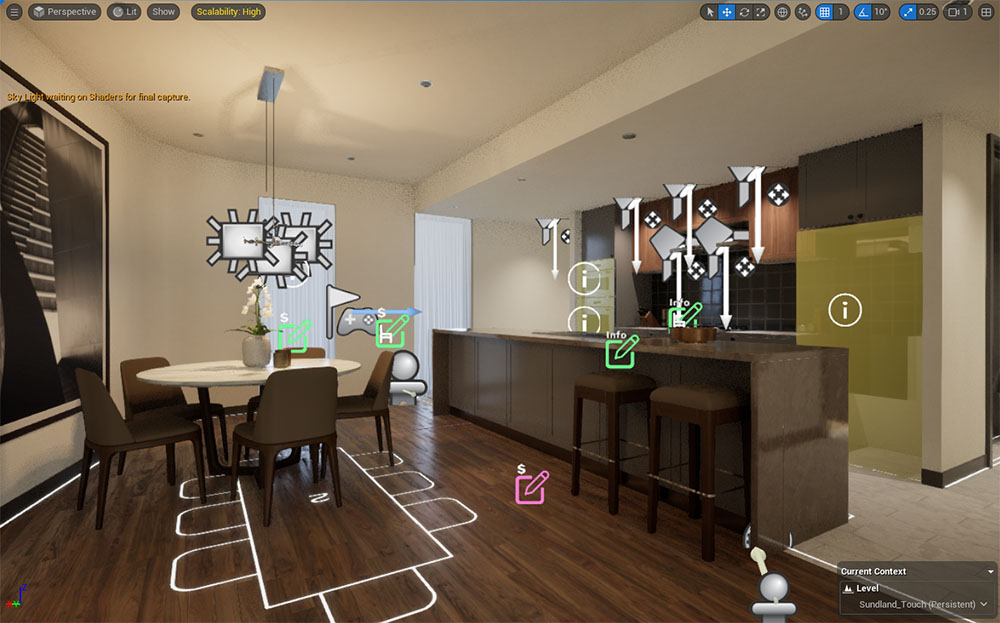
Standard Demo Levels
Those levels that come with the UI3 project will be reset.
Custom Project Levels
Any custom levels that were created for the project will not be touched. Actors placed in those levels will stay where they are.
Data Entered into Actors
Settings that have been modified in actors placed in custom levels will not be changed.
Some updates will move settings to a different category or rename them. This should not affect the data set in those variables.
New settings that didn't exist in the previous version will use the default.
Data Tables
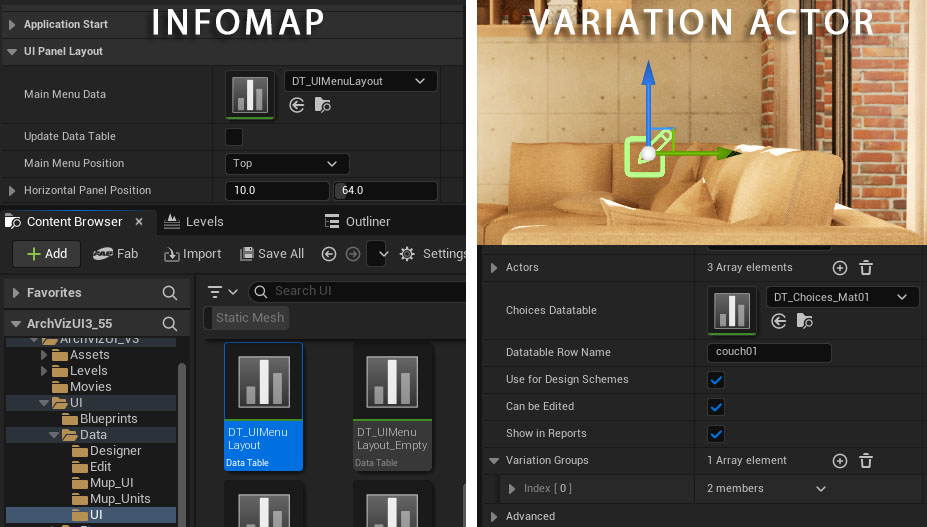
Data Tables live in the content browser and not in the scene. Any Data Tables that come with the UI3 project will be reset and all modifications will be lost.
That's why you should make a copy of the Data Table and modify the copy instead of the default one.
Recover Data Tables from backup
All Data Tables are located in ArchVizUI_V3 / UI / Data and could be
recovered from there. Just copy them in windows explorer with the editor being
closed.
This should only be a last resort! - Sometimes the data structure has
been changed so check the data table after the recovery.
Which Version Do I Currently Have?
Check The Changelist Text File
Open your project folder on your PC. There should be a file called changelist in the main directory.
ArchVizUI3 55 change list.txt or similar
The latest entry at the top will give you the version of the project.
2026-07.1
- 2026 - the year of the release
- -07 - the month of the release
- .1 - this means it is a minor update or bug fix
Version History
Find more information about the version releases on the history page
 Version History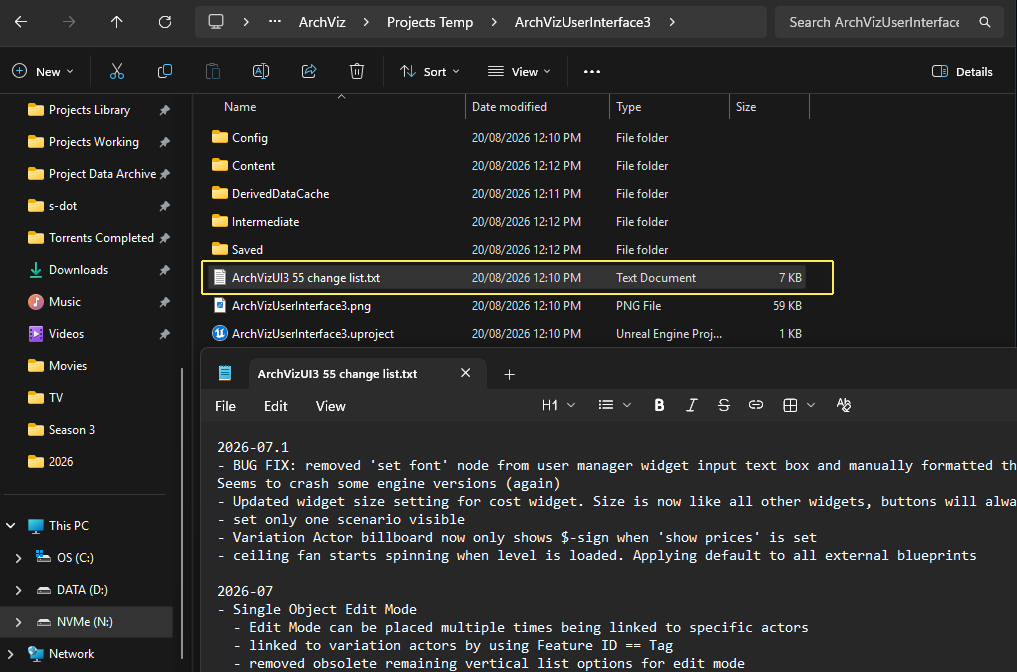
Migrate Content To Your Project
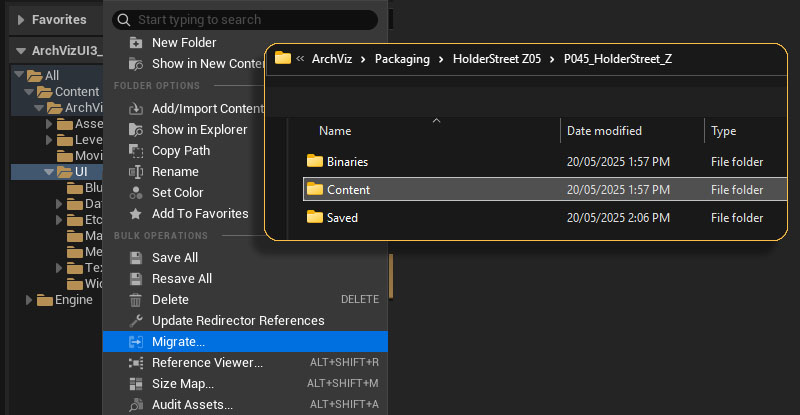
Migrate the Content folder from the downloaded UI3 project to your working project's Content folder as usual.
You'll be presented with a list of files that will be migrated. You can untick some files but that may break the update.
 Top of page