
ArchViz UI3 Documentation 2026

Table of Content
Table Of Content
../images/architecture/0033/quick26/thumbs/01.jpg
New in 2026
../images/architecture/0033/quick/thumbs/00.jpg
Quick Guide
../images/architecture/0033/videos/thumbs/01.jpg
Video Guides
../images/architecture/0033/start/thumbs/00.jpg
Getting Started
../images/architecture/0033/uidesign/thumbs/00.jpg
UI Layout
../images/architecture/0033/var26/thumbs/00.jpg
Var Actor
../images/architecture/0033/edit26/thumbs/00.jpg
Edit Scene
../images/architecture/0033/designer26/thumbs/00.jpg
Designer
../images/architecture/0033/features26/thumbs/00.jpg
Other Features
../images/architecture/0033/gamemode/thumbs/00.jpg
Modes
../images/architecture/0033/other/thumbs/00.jpg
Blueprints
../images/architecture/0033/cost26/thumbs/00.jpg
Cost Tracking
../images/architecture/0033/mup/thumbs/00.jpg
Multi-Unit-Prj
../images/architecture/0033/csv_export/thumbs/04a.jpg
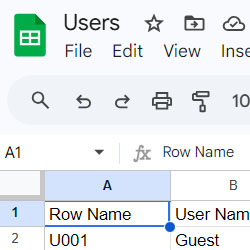
Google Data Sheets
../images/architecture/0033/faq26/thumbs/00.jpg
FAQ
../images/architecture/0033/bugs26/thumbs/00.jpg
Fix Bugs
../images/architecture/0033/history/thumbs/00.jpg
Version History

Editing Scene Objects

Editing scene Objects or gathering Information

  • Edit and Info Mode
  • Designer
  • Design Schemes and Scenarios

Content:

Info and Edit Mode

Features With Preview

Visit Documentation Archive for archived pages from previous UI3 versions.

Documentation Archive 2025

image

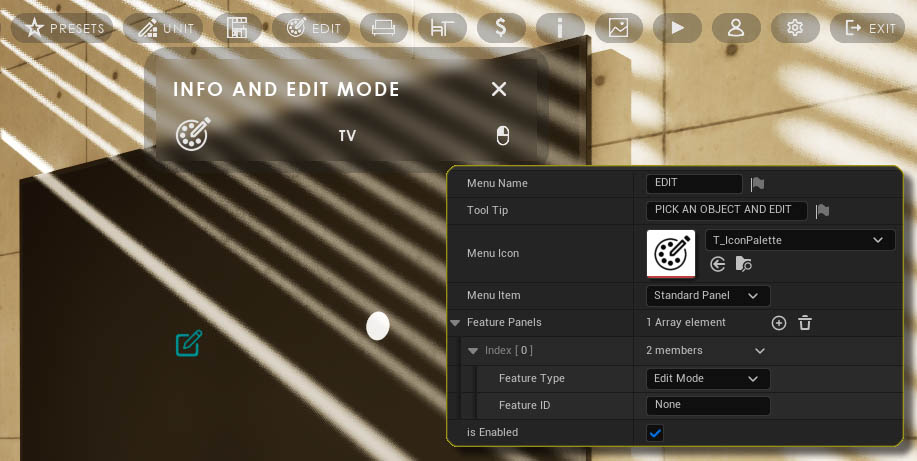
Info and Edit Mode

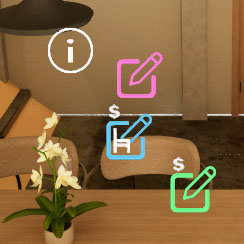
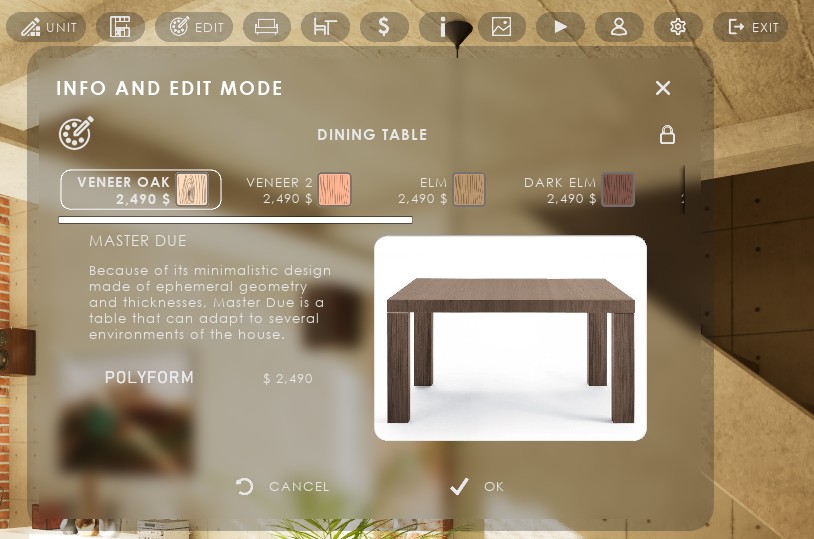
The Info and Edit Mode lets the user select objects in the scene for editing or to gather information about it.

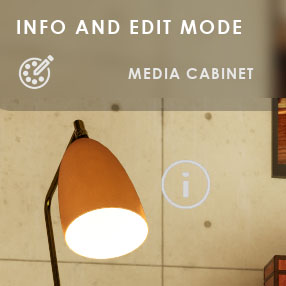
A little dot will appear marking the selected object. The name of the object will appear in the widget if the object is editable.

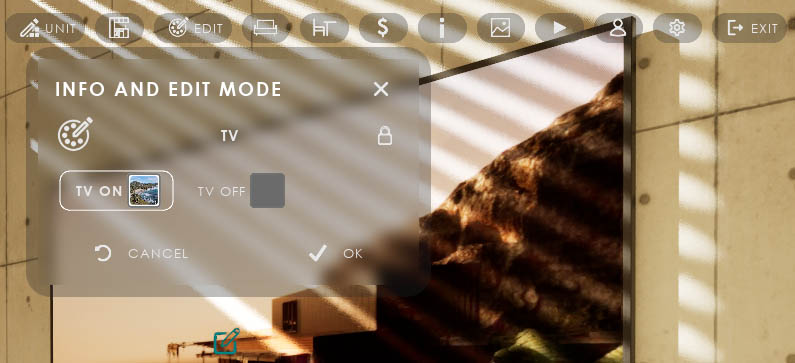
The object becomes Locked when the user presses the selection key or clicks on it with the mouse button.

image

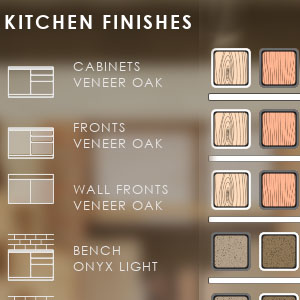
The list of choices and some information will appear in the widget and the user can select one of the choice buttons.

OK will confirm the user choice
CANCEL will reset the object to the previous choice

The object will become Unlocked and another object can be selected.

image

Variation Actor

The widget will show the choices that are set up in the Variation Actor.

Preview Buttons or Object Info are all set and activated in the Variation Actor. Refer to the documentation page about this actor.

Variation Actor Documentation

image

Features With Preview

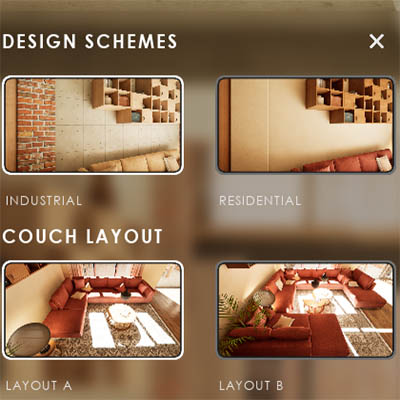
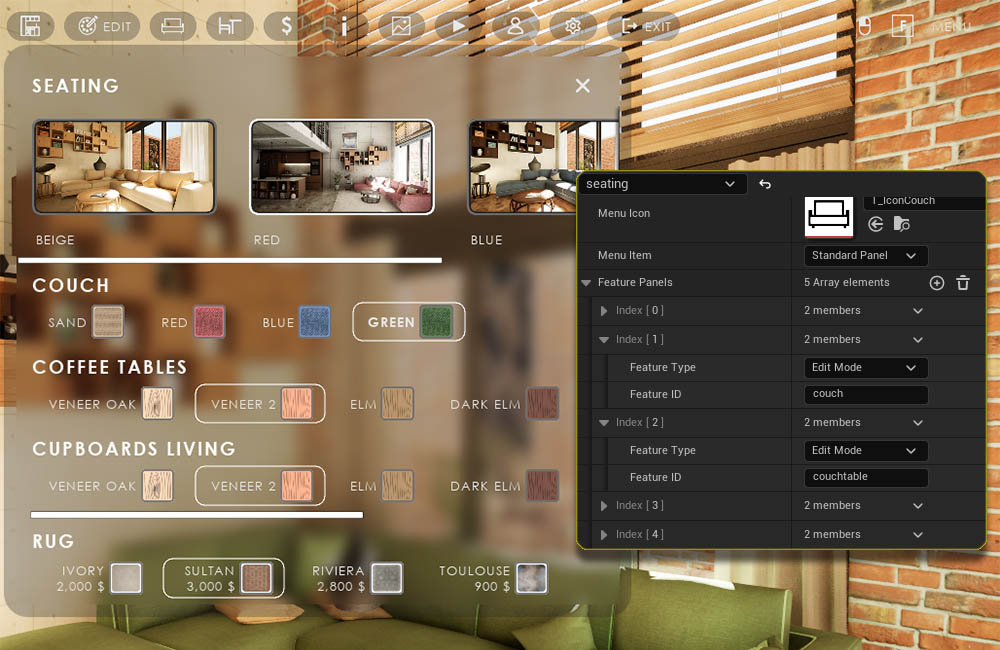
This widget type contains a group of features that all have preview images as choice buttons.

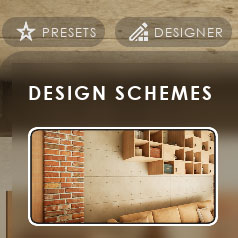
Design Scheme

A design scheme will send its choice to every Variation Actor in the scene having Use With Design Schemes ticked. The Variation Actor will then change to the choice ID sent from the scheme.

Scenario (Group)

A scenario will swap one or more levels with another level or group. This can be used to demonstrate different furniture layouts in a room or similar.

Variation Group

Variation Group is a more specific type of design scheme. It can be used to change a group of Variation Actors at once. Like the seating, tables and rug in the living area.

image
Features W Preview Data

The data table assigned here contains a set of features with preview used in the UI3 demo project.

Row Name

Every row in the data table represents one feature. The Row Name is used as the Feature ID.

Feature Header

Will be used as the header text for the feature

Options

Each array element represents a choice.

The Option is the ID of the choice in the Variation Actor for Design Schemes

image
Scenario

The Option for a standard Scenario is the name of the level that should be streamed in. The existing level will streamed out.

Multi-level Scenario

This streams a group of levels in or out. The Option is the row name of the level group defined in the Scenario Level Group Data datatable.

image
Variation Group

A Variation Actor needs to have an entry in its Variation Groups array.

Feature ID

The Feature ID in the Variation Actor needs to be the same as the Variation Group's.

Variation ID

  • The option in the Features w Preview datatable row will be taken if the array in the Variation Actor is empty.
  • Otherwise the value set as the array element with the same ID is taken. (re-routed)

image
Top of page