Table Of Content
New in 2026
Quick Guide
Video Guides
Getting Started
UI Design
Var Actor
Edit Scene
Designer
Feat. w. Preview
Other Features
Modes
Blueprints
Cost Reports
Multi-Unit-Prj
Google Sheets
FAQ & Tips
Fix Bugs
Updating
Version History
Editing: Designer
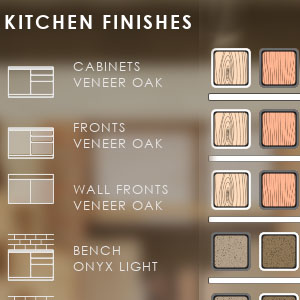
The Designer shows object choice buttons in a table like widget.
- A quick way to change related objects
- For objects that are difficult to select
- For external blueprint tools like the Modular Kitchen Builder or the Interactive Doors Blueprint
Content:
 Documentation Archive 2025
Overview Video
A short video guide about the Designer.Slightly out of date. Designers, Designer Elements and Element Choices are now stored in Data Tables. The Feature ID is the Row Name in the data table.
Introduction
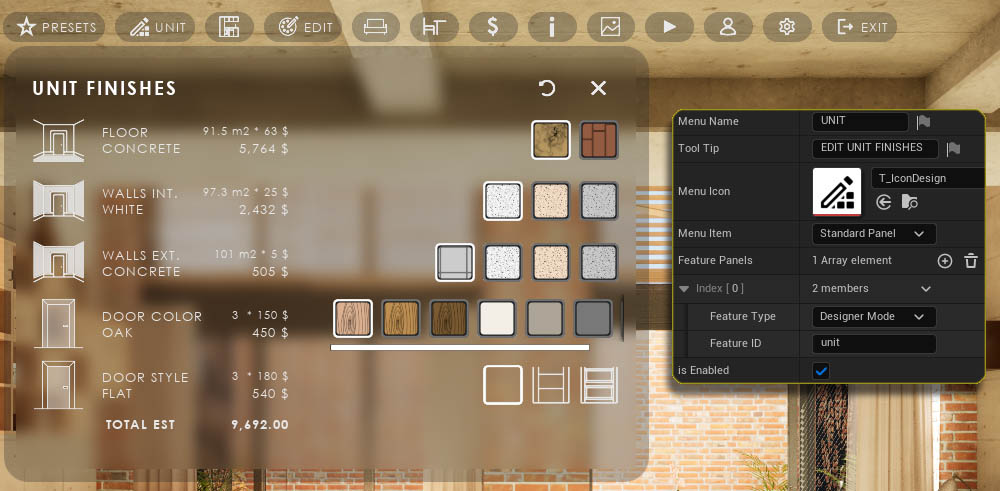
The designer feature can be added multiple times to the Main Menu.Feature Type
Use Designer as the Feature Type.
Feature ID
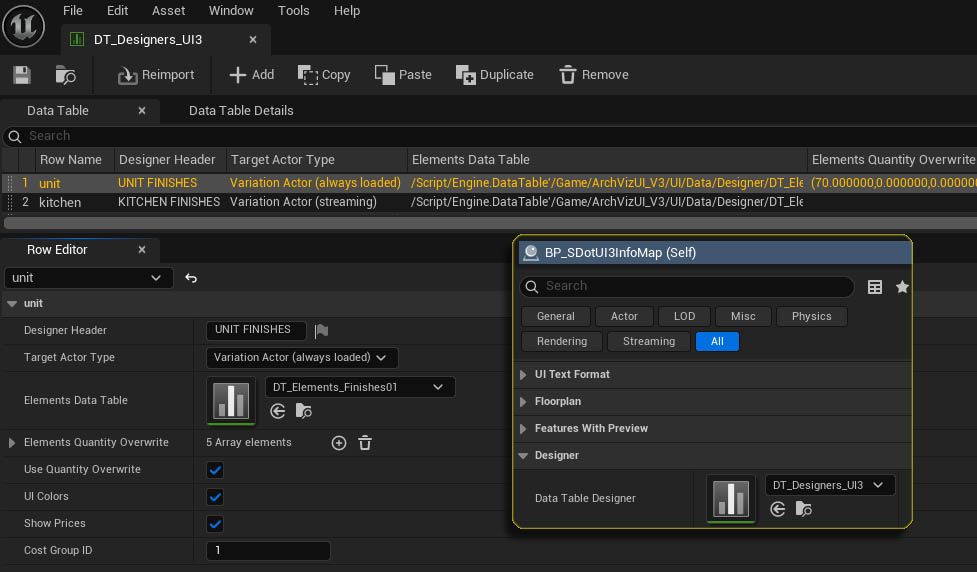
Feature ID is the Row Name of the designer in the Data Table Designer that is assigned in the Info Map.
Info Map Settings
Data Table DesignerAll designers need to have a row in the data table that is assigned to the Designer section in the Info Map.
+ Add a new row to create a new designer. Then use the Row Name as the Feature ID in the Main Menu layout. You can rename the Row Name but it needs to be unique.
Icon Sizes
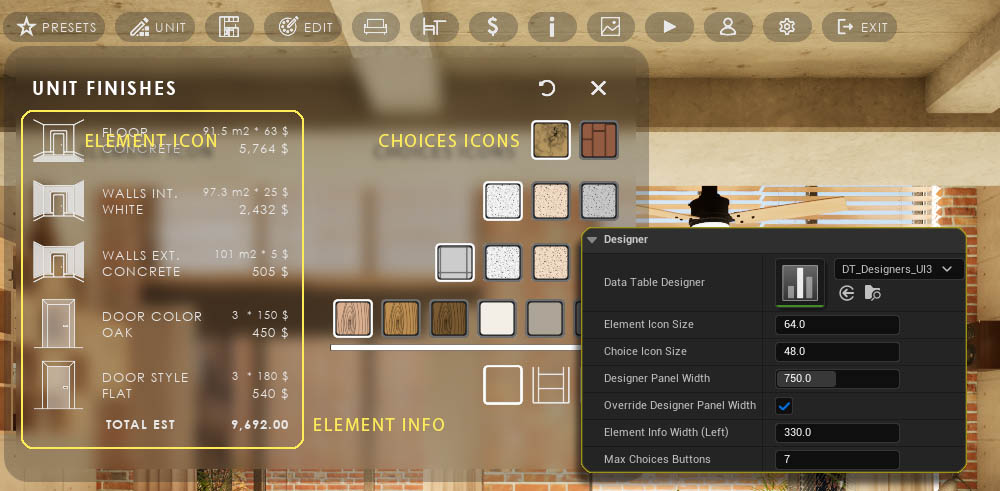
- Element Icon is on the left side.
- Choices Icons - Allows to set a separate size for choice buttons in Designers.
Widget Size
- Designer Panel Width - A larger width than the standard width can be set.
- Override Designer Panel Width - Will use above width if ticked
- Element Info Width - Constrains the width of info section on the left
- Max Choices Buttons - Limits the amount of buttons before they start scrolling.
Designer Data Table
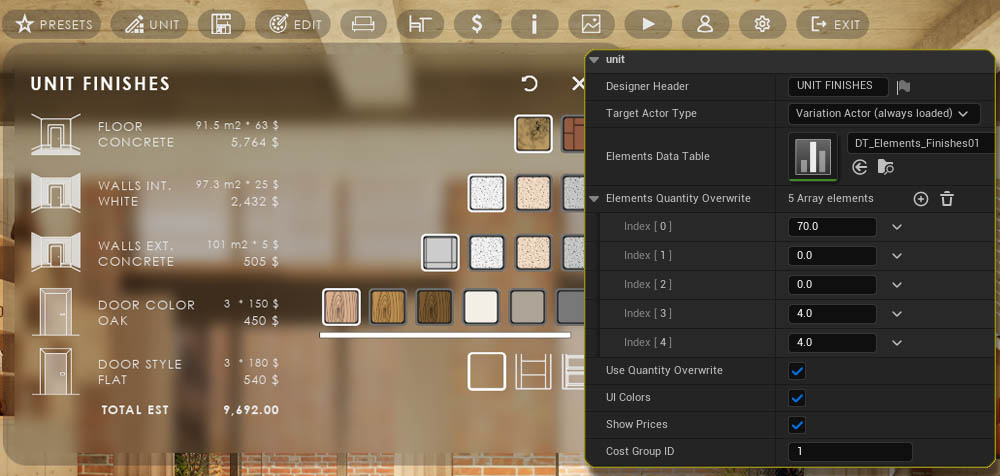
Designer Header
Name appearing as header in the widget
Target Actor Type
- Linked Variation Variation Actor in the scene
- External Blueprint - A blueprint like the Universal Doors BP
(Use) Element Quantity Override
Can be used if the Elements has a different quantity but is otherwise the same as another element. Use * has to be ticked
UI Colors
If ticked the Element Icon will use the UI text color and hide the white parts of the icon image.
Elements Data Table
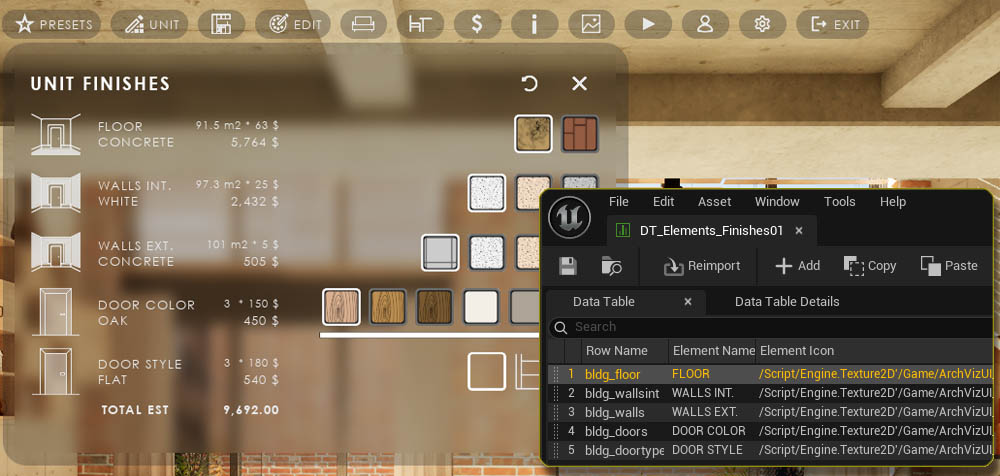
The data for the elements or rows in the widget are stored in the Elements Data Table
Every row is a row in the widget. You can use the :: dots in front of the row to move, duplicate, or delete rows.
Back up your data tables before you update the UI3 project. The update will reset all data tables and you will loose your changes. Best to make a copy of the UI3 data table and assign the copy to the Info Map. Updating will be save that way.
Designer Elements
The info section of the Elements Data Table shows
- Element Name
- Element Icon - (Optional) there are some icons in the folder UI / Tex / Design
- Default Choice - The id of the choice that is loaded when the app starts.
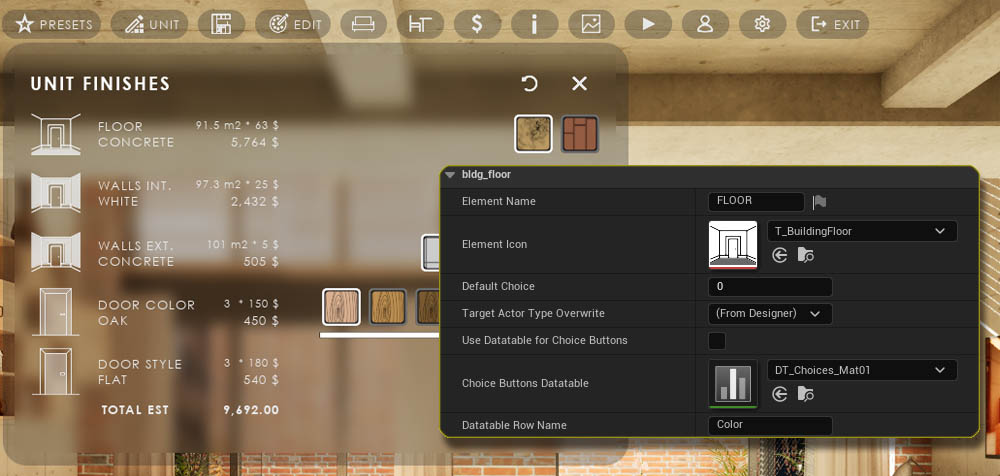
Target Actor Override
This is set for all elements in the Designer data but can be overwritten per element here.
Use Datatable for Choice Buttons
Buttons can be set up manually or be taken from a Choice Buttons Datatable from a specified Datatable Row Name. This can be the same data that is used for Variation Actors
If ticked, the data will be copied into the Choice Button array.
Choice Buttons
The choice buttons can be manually added here or they can be modified if Use Datatable for Choice Buttons is unticked.
Read more about how to setup choice buttons in Variation Actor
 Variation Actor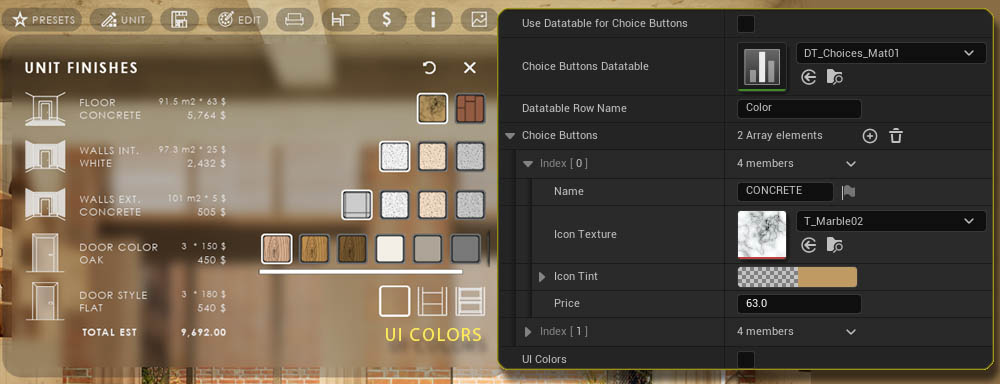
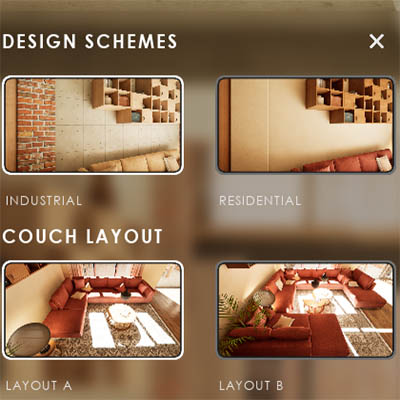
Designers and Design Schemes
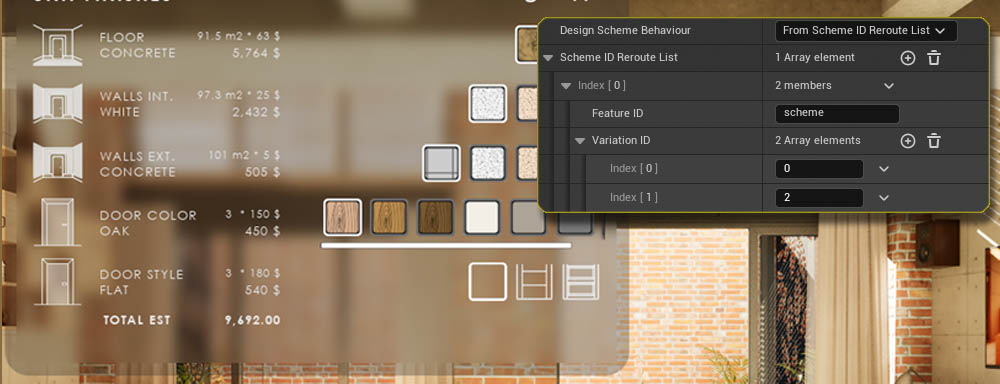
Design Scheme Behaviour
How the Designer reacts to any Design Scheme changes in the scene.
- Ignore Design Schemes - No action
- Element ID = Design Scheme ID - The Element changes the choice to the ID sent from the Design Scheme
- From Scheme ID Reroute List - The Element changes the choice to the ID that is set in the Reroute List with the same ID that is received by the Design Scheme.
Linking Variation Actor To Designer
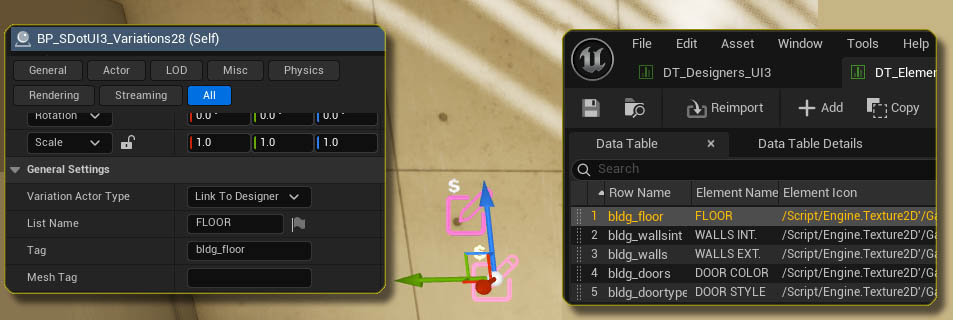
Variation Actor TypeLinked Variation Actors need to have its type set to Linked to Designer. The actor billboard will turn pink.
Tag == Row Name
The Tag in the Variation Actor needs to be set to the Row Name of the Designer Element Row.
External Actors
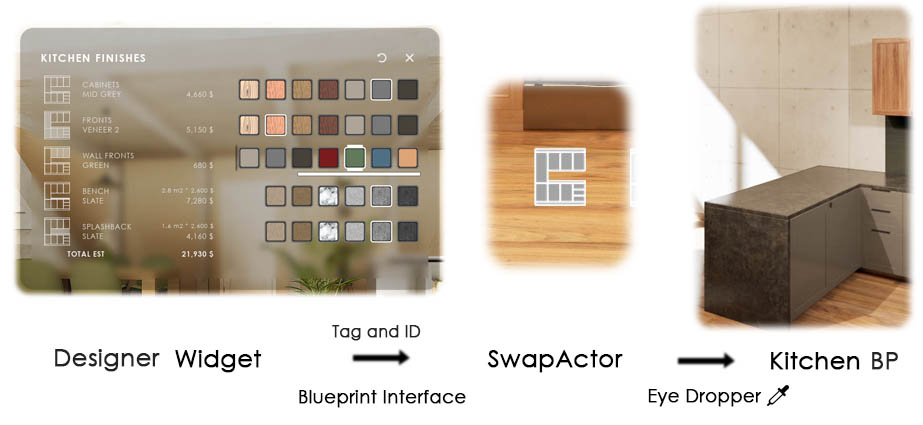
The Designer works with external blueprints, like- Modular Kitchen Builder
- Interactive Doors Blueprint
Target Actor Type (Override) == External Actor
External Blueprint Actor
External blueprints can be linked with the blueprint interface BPI_UI3_Interaction.
The Designer Element Row Name will be used as the Tag together with the choice button ID.
 Top of page