Pages in Documentation

Settings

UI3 Overview

[old] Doors UE5
Quick Guide 2026
Quick Start
Swap Actor
Custom Assets
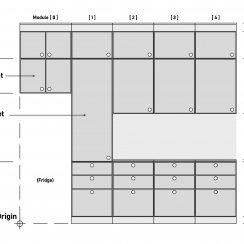
System Drawings
Guide 2022

Tips & FAQ
Guide 2024
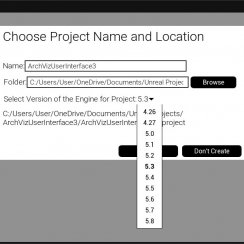
Updating
Feat. w. Preview
Fix Bugs

FAQ & Tips

Cost Reports

Modes
Other Features
Designer

Edit Scene

Var Actor

New in 2026
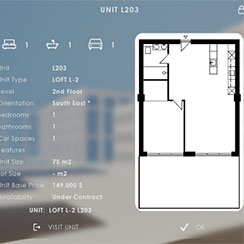
Multi-Unit-Prj
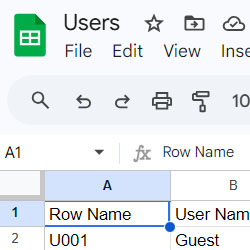
Google Sheets
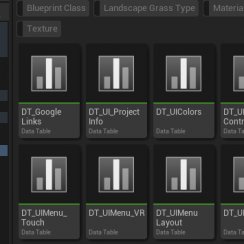
Data Tables

Video Guides
Quick Videos
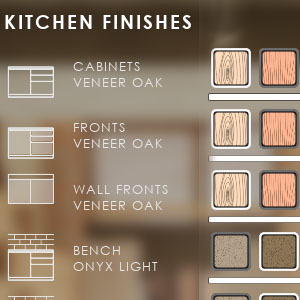
Designer

Cost Tracking
Widget Panels
Quick Guide
Scene Settings
Connect BP

VR projects
Version History
F. w. Preview
Fix Known Bugs
UI Settings
UI Layout
Gamemode

FAQ + TIPS

Quick Guide
V4 Functions 2
V4 Functions P1
V4 Quick Guide
Ver History
V3 Placements
V3 Mesh Def.
V3 Segments
V3 Quick Start

Books V2

Books V1
Custom Assets
Additional Assets
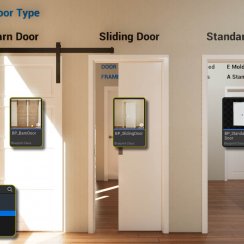
User Guide
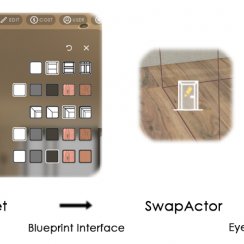
Swap Actor
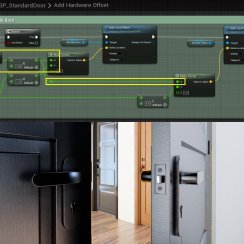
FAQ + TIPS

Doors UE4 (V1)

3.1 Bugs Fixes

Ver History

V2 Generic BP

V2 Examples
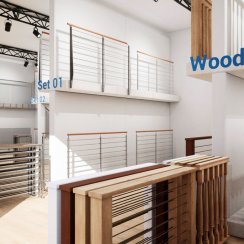
V1 Railings Fences

UI 1 - Part 1
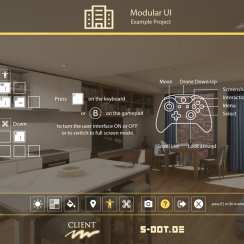
UI 1

Ui 1 - Part 2

1 Overview
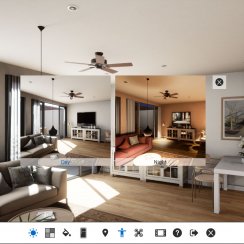
UI2 Features
UI2 Get Started
UI2 Info Map
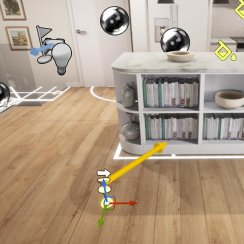
UI2 BP Actors
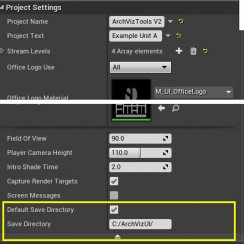
UI2 User Manager
UI2 FAQ
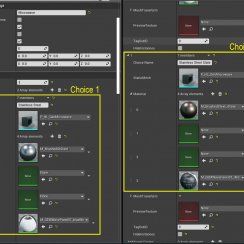
UI2 Tutorials

UI3 Overview
Getting Started

3.1 Info Map
Variation Actor
Blueprints
Variation And Object Info Actors
The Variation Actor is the link between the User Interface and the Assets in the scene, so they can be edited.
The Object Info displays information without editing.
Content:
Variation Actor - General Settings
Variation Actor - Variation Groups
Variation Actor - Choices Buttons
Variation Actor - Placement
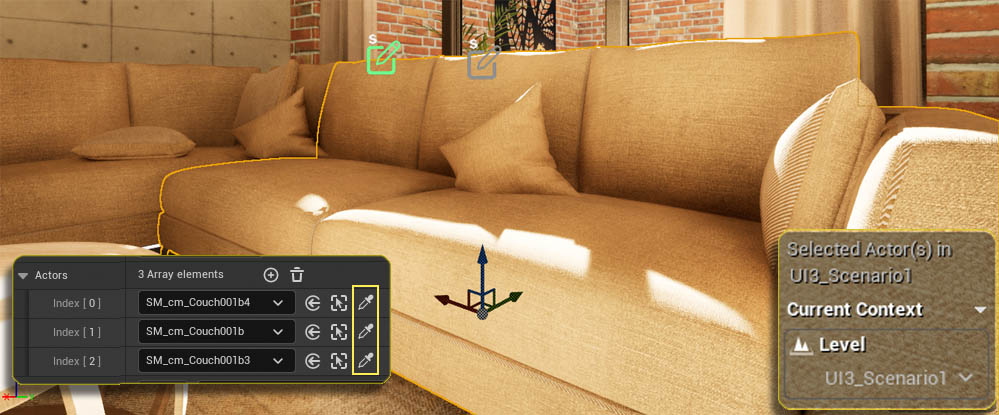
Select the scene object and then press the key [M]. This will make the level the object is in the current level. Variation Actor and scene object need to be in the same level.
Assign Scene Objects
Add an array element to the Actors array. Then use the eye-dropper icon to link the object to the Variation Actor.
Multiple objects can be linked if they share the same materials or mesh that the user should be able to change.
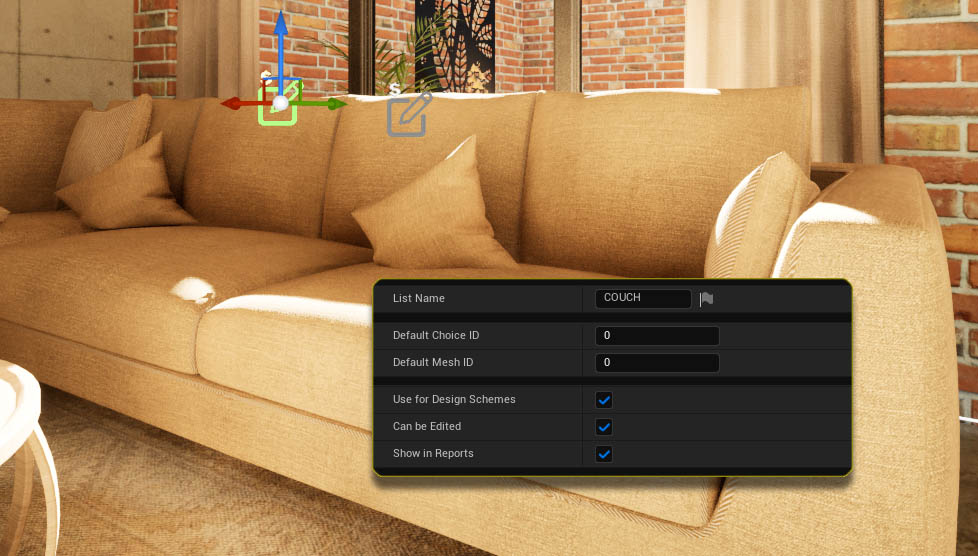
List Name
The name that identifies the assets in reports and widgets.
Default ID
The default IDs will be loaded at the app start.
- Default Choice ID will set the linked assets (material) choice.
- Default Mesh ID will set the linked assets mesh choice.
Usage Flags
- Use For Design Schemes Design Schemes will set choices of this actor
- Can be Edited Can be used in Edit Mode
- Show in Reports Choice will be printed in lists and reports
Variation Actor - Set Up Choices
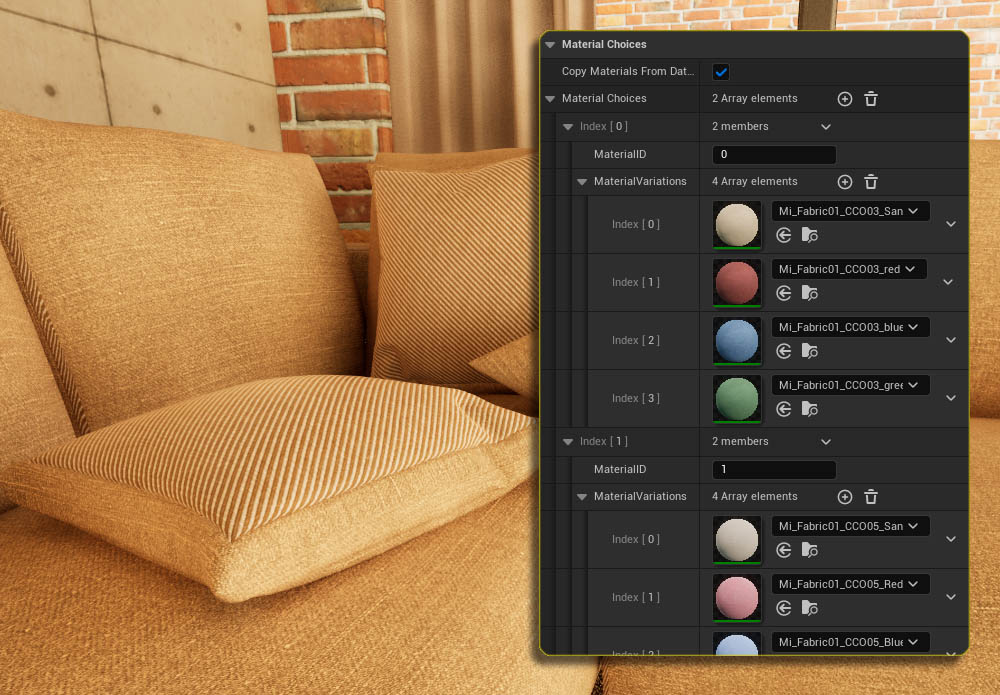
Material Choices Array
Add an array element for each material ID of the object in the scene that has choices.
- Set the Material ID to the object's material ID
- Then add an array element for each choice for that ID to the Material Variations array.
Do the same for another Material ID. In the example image the pillow's 2nd material ID is for the striped material choices.
Both materials will be changed to the choice buttons ID when the button is clicked.
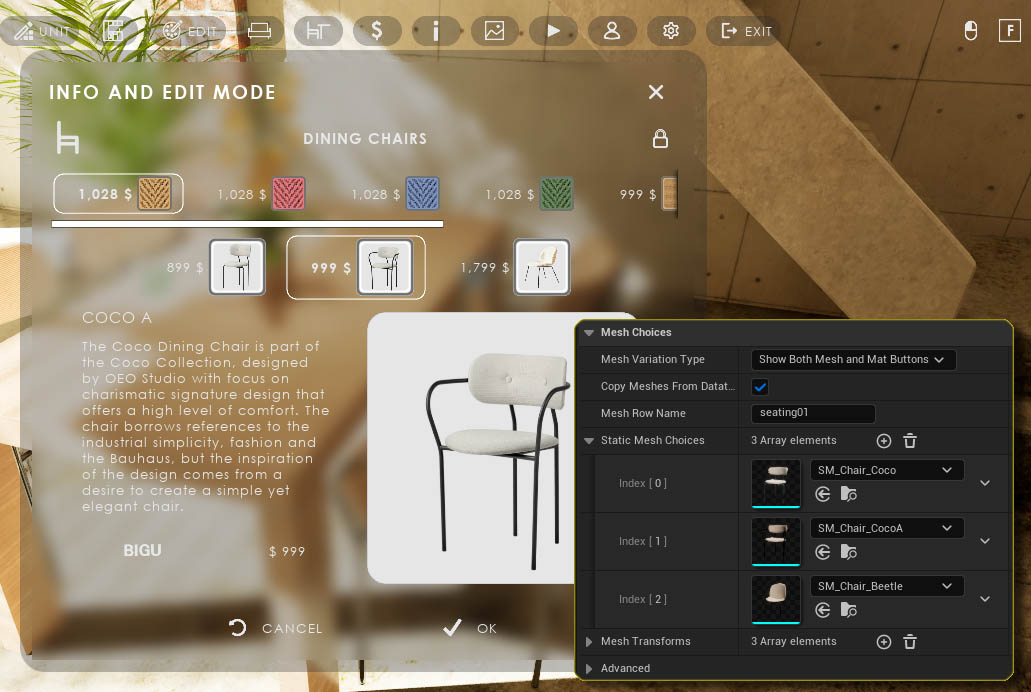
- Disabled The mesh will not change (default)
- Lock Mesh and Material ID The Choice Buttons will change both mesh and material to the selected choice ID.
- Show Both Mesh and Material Buttons This will create a 2nd row with buttons for mesh choices. The preview icon will be taken from the Object Info
Mesh Row Name
The row the data is taken when using a Datatable can be the same or different. This way you can use the same material choices with different mesh choices in the scene.
Mesh Transforms
Mesh Variations can be transformed to match each others position in the scene.
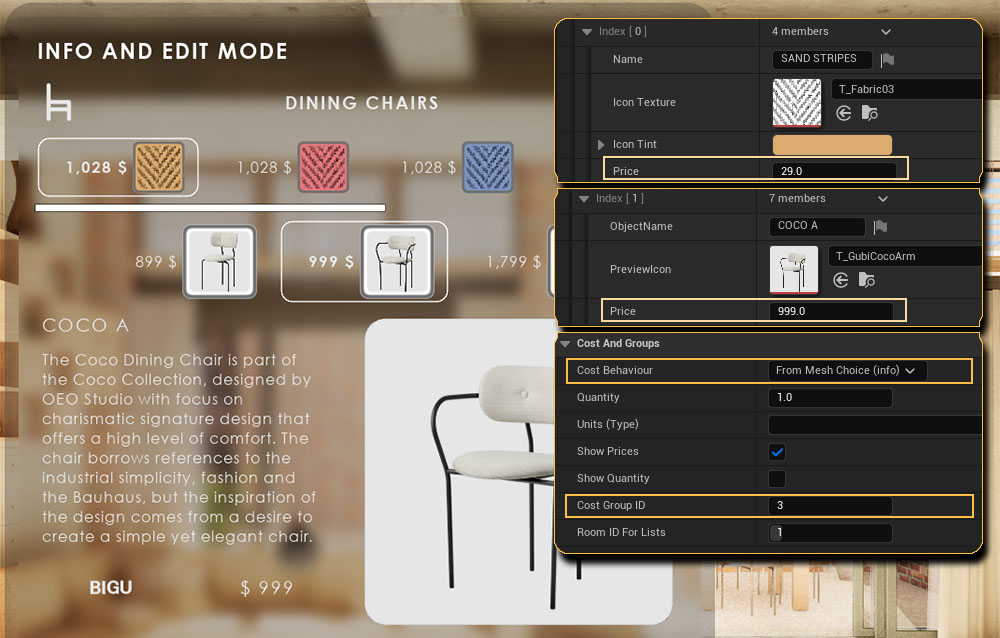
Cost and Groups
Cost BehaviourThe cost can be taken from the material or object info price slot. Or it can be a sum of both
Cost Group ID
The Cost Group ID is the array ID of the category which can be defined in the Info Map. It's used in cost reports and by the cost widget.
Room for List is used by inventory lists, not cost reports.
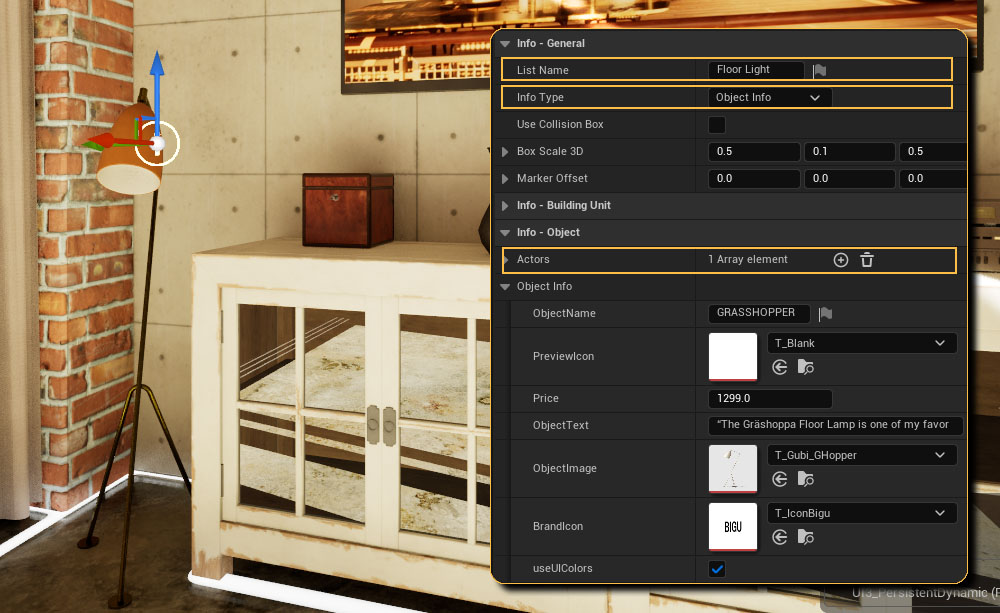
Object Info
The Object Info blueprint can display information about an object. It works similar to the Variation Actor.
Info Type
- Object Info displays information about an object
- Unit Info displays unit info in multi-unit projects
List Name
The name displayed in the Edit Widget and reports.
Object Info
The information for the object similar to the Variation Actor.


 Top of page