Pages in Documentation

Settings

UI3 Overview

[old] Doors UE5
Quick Guide 2026
Quick Start
Swap Actor
Custom Assets
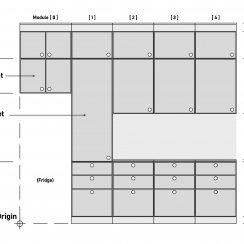
System Drawings
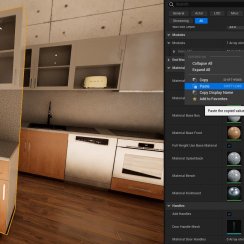
Guide 2022
Tips & FAQ
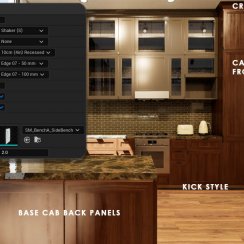
Guide 2024
Updating
Feat. w. Preview
Fix Bugs
FAQ & Tips
Cost Reports
Modes
Other Features
Designer
Edit Scene
Var Actor
New in 2026
Multi-Unit-Prj
Google Sheets
Data Tables
Video Guides
Quick Videos
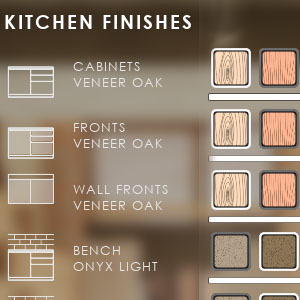
Designer
Cost Tracking
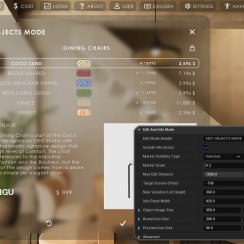
Widget Panels
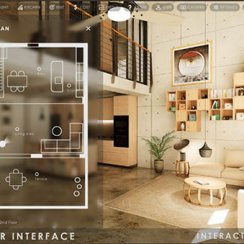
Quick Guide
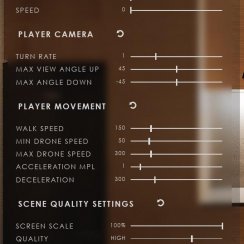
Scene Settings
Connect BP

VR projects
Version History
F. w. Preview
Fix Known Bugs
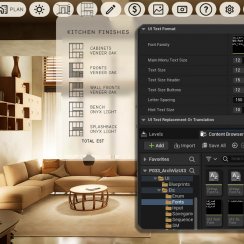
UI Settings
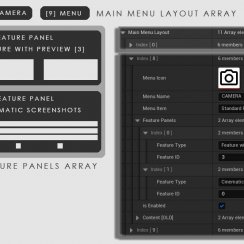
UI Layout
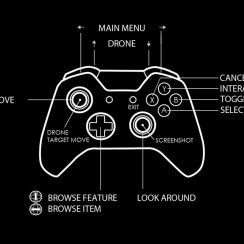
Gamemode
FAQ + TIPS
Quick Guide
V4 Functions 2
V4 Functions P1
V4 Quick Guide
Ver History
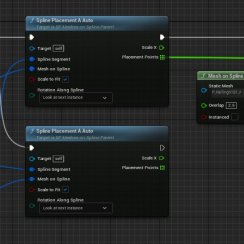
V3 Placements
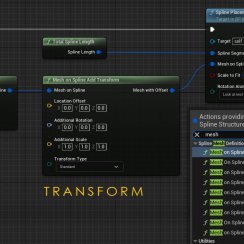
V3 Mesh Def.
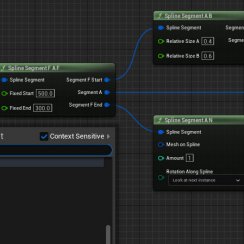
V3 Segments
V3 Quick Start
Books V2
Books V1
Custom Assets
Additional Assets
User Guide
Swap Actor
FAQ + TIPS
Doors UE4 (V1)

3.1 Bugs Fixes
Ver History
V2 Generic BP

V2 Examples
V1 Railings Fences

UI 1 - Part 1
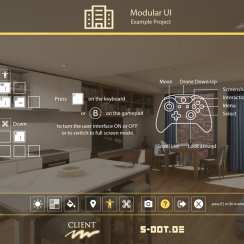
UI 1

Ui 1 - Part 2

1 Overview
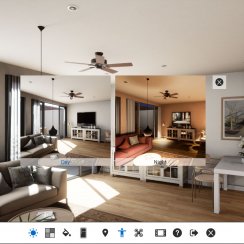
UI2 Features
UI2 Get Started
UI2 Info Map
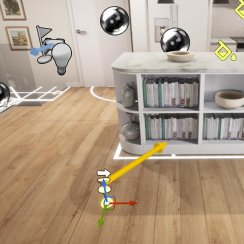
UI2 BP Actors
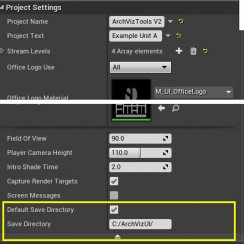
UI2 User Manager
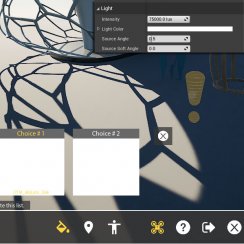
UI2 FAQ
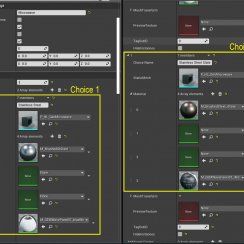
UI2 Tutorials

UI3 Overview
Getting Started

3.1 Info Map
Variation Actor
Blueprints
Editing Scene Objects
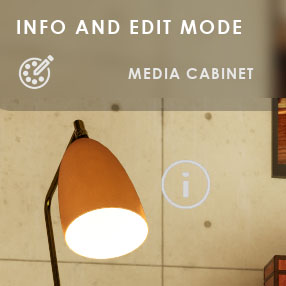
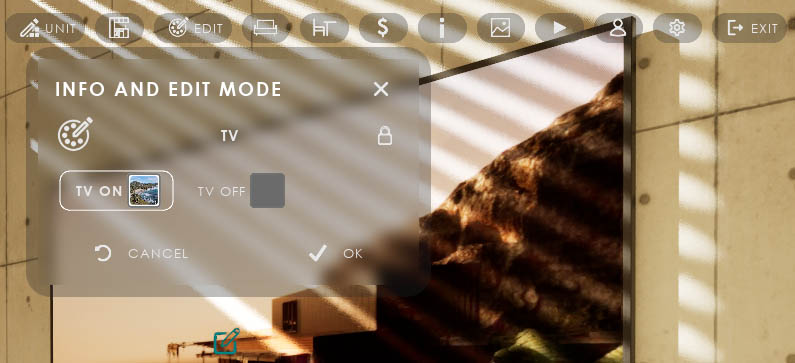
Edit mode can change materials or meshes of a scene object or display Information about an object.
Other widgets to change objects in the scene which have their own section are
- Designer
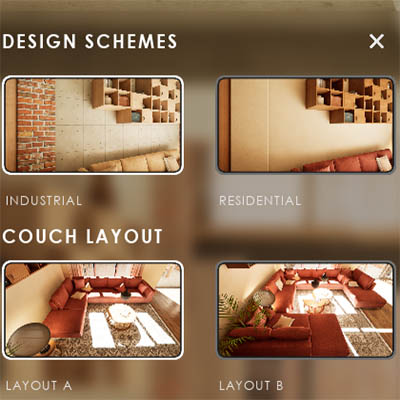
- Design Schemes and Scenarios (Feature with Preview)
Content:
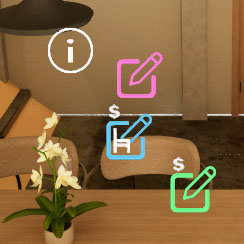
A little dot will appear on editable object and the name of the object will appear in the widget. The object becomes Locked after the user selects an object for editing.
A row of choice buttons appears. The user can change the object, like turning the TV on or OFF.
- OK will apply the choice
- CANCEL will revert to the previous choice
After clicking the button the widget will return to object selection mode.


 Top of page