Pages in Documentation

Settings

UI3 Overview

[old] Doors UE5
Quick Guide 2026
Quick Start
Swap Actor
Custom Assets
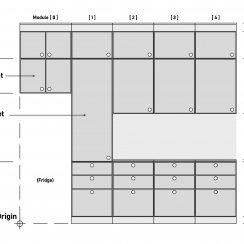
System Drawings
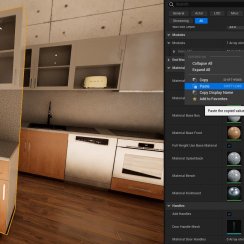
Guide 2022
Tips & FAQ
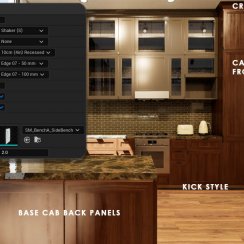
Guide 2024
Updating
Feat. w. Preview
Fix Bugs
FAQ & Tips
Cost Reports
Modes
Other Features
Designer
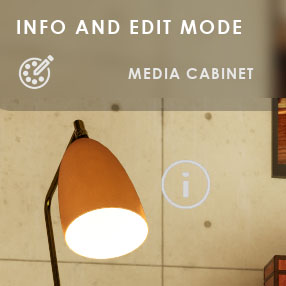
Edit Scene
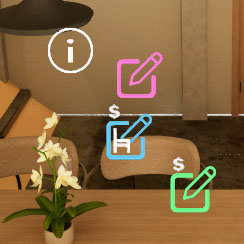
Var Actor
New in 2026
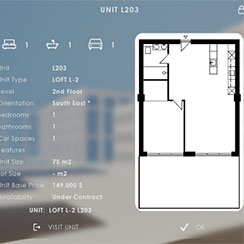
Multi-Unit-Prj
Google Sheets
Data Tables
Video Guides
Quick Videos
Designer
Cost Tracking
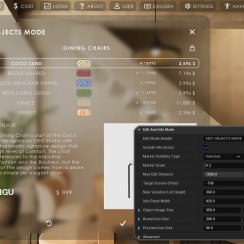
Widget Panels
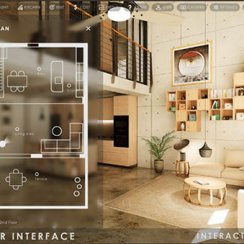
Quick Guide
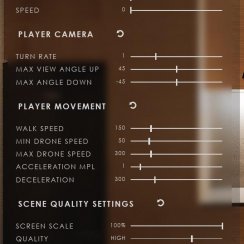
Scene Settings
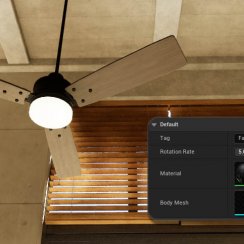
Connect BP
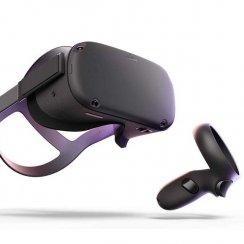
VR projects
Version History
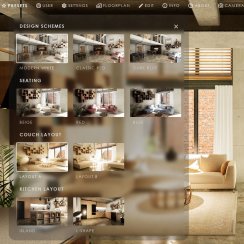
F. w. Preview
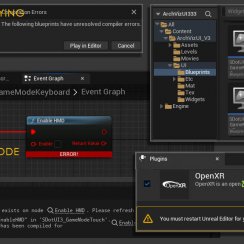
Fix Known Bugs
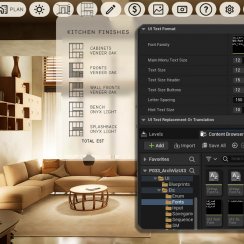
UI Settings
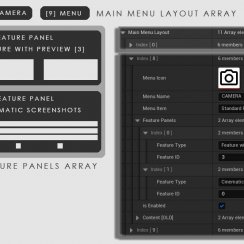
UI Layout
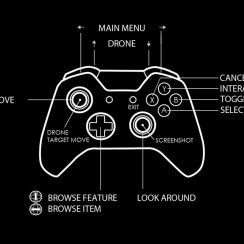
Gamemode
FAQ + TIPS
Quick Guide
V4 Functions 2
V4 Functions P1
V4 Quick Guide
Ver History
V3 Placements
V3 Mesh Def.
V3 Segments
V3 Quick Start
Books V2
Books V1
Custom Assets
Additional Assets
User Guide
Swap Actor
FAQ + TIPS
Doors UE4 (V1)

3.1 Bugs Fixes
Ver History
V2 Generic BP
V2 Examples
V1 Railings Fences

UI 1 - Part 1
UI 1

Ui 1 - Part 2

1 Overview
UI2 Features
UI2 Get Started
UI2 Info Map
UI2 BP Actors
UI2 User Manager
UI2 FAQ
UI2 Tutorials

UI3 Overview
Getting Started

3.1 Info Map
Variation Actor
Blueprints
Non-Editing Features And Settings
All features and widgets that are not mentioned in the Editing section.
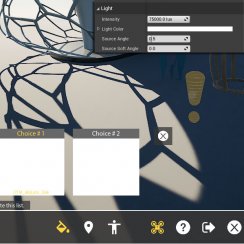
Scene and App Settings are driven by Settings Features and their sliders. The slider defaults are set when the app starts.
Content:
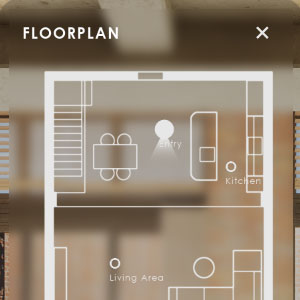
Floorplan Widget
Drawings
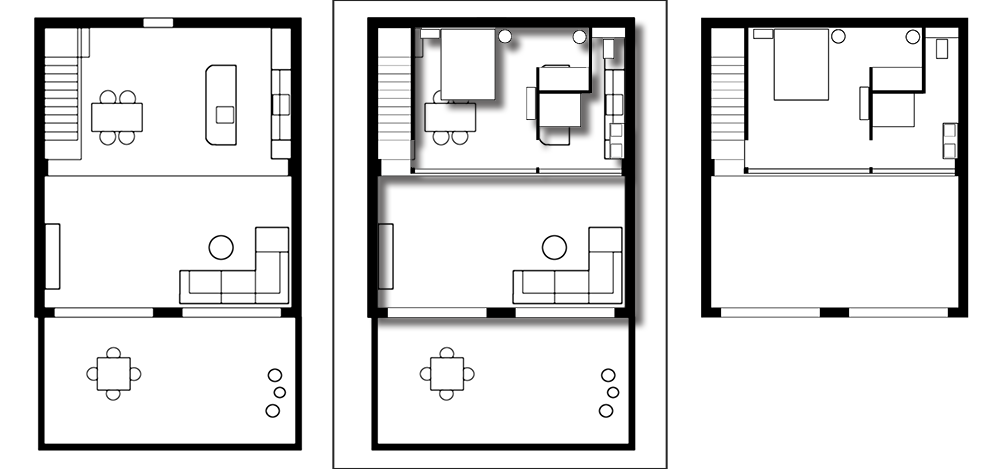
The drawings should be black on a white background. The UI will blend it into the UI Color Scheme.
Multiple Floors
The Paper size of the drawings need to be the same for all floors. They need to be placed with the walls aligned. They can't be offset in UI3.
Import Settings
Import the drawing from *.png. Use a size roughly twice the pixels of your monitor resolution.
Set all textures only used in the UI to Texture Group: UI and Compression Settings: UserInterface.
Project Info and Media
Info Map Settings
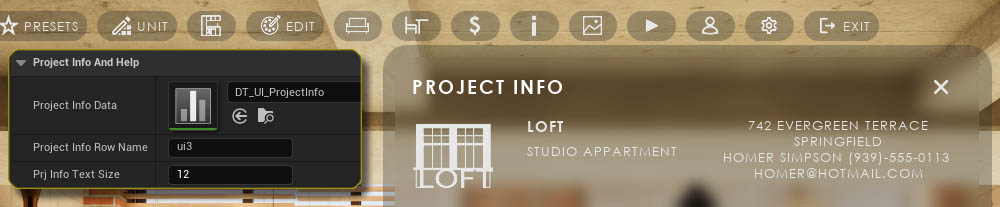
- Project Info Data - The data table assigned here contains all marketing information for the project
- Project Info Row Name - The row name where the data is taken from (by default ui3 is the only row)
- Prj Info Text Size - The text size of the contact information
Controller and Button Help
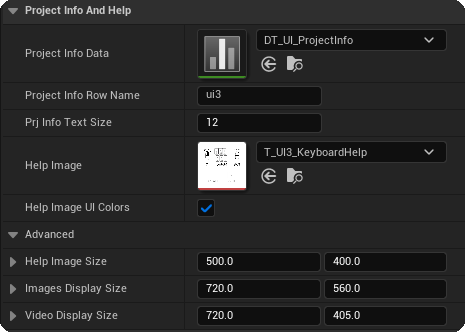
The Help Image will be set when choosing a Use Preset in the General Settings of the Info Map. It can be manually changed here.
Image Sizes
Image sizes can be set in the Project Info And Help - Advanced section.
The sizes are maximum sizes for both height and width. The actual size displayed is also limited by the Max Panel Size.
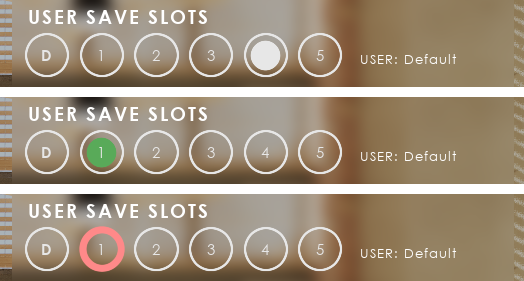
Save Slot State
- A white dot indicates an empty slot.
- A green dot indicates a slot that contains a save.
- Clicking the red ring will save (override) the current choices to the slot.
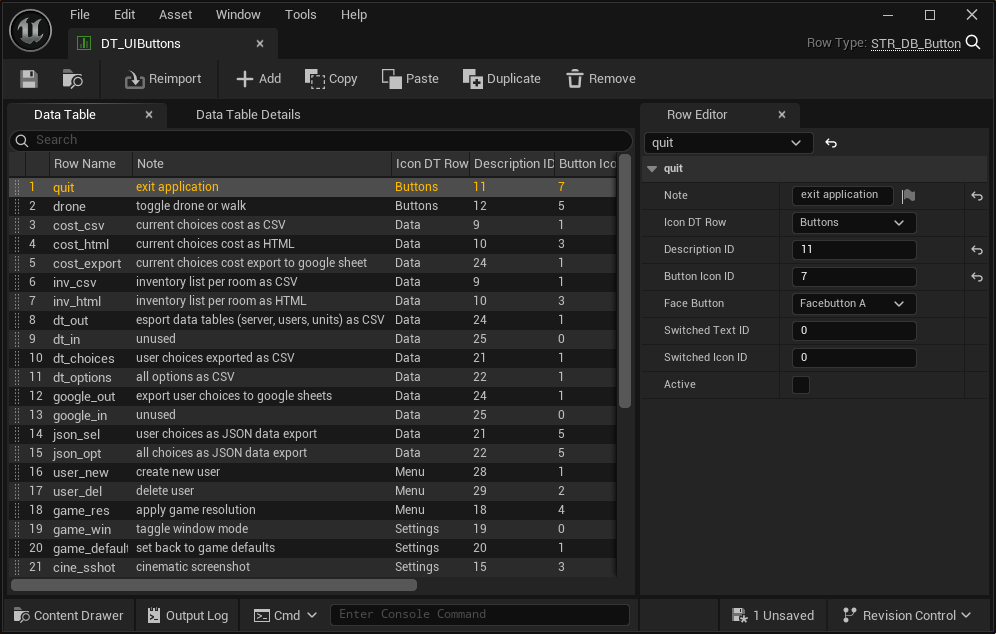
DT Button Details
Every Icon Button in the UI has an entry here. The Row Name is the identifier of the button within the UI.
Button Appearance
- Icon DT Row - the row name of the Icons Data table (UI Panel Design - Advanced)
- Button Icon ID - the ID of the Icon
- Description ID - the ID of the button text (UI Text Format - UI Text *)
- Switched * ID - appearance when the button has been switched on
- Face Button - Gamepad button
- Active - If the button is marked as in focus
This is just information for you do understand how buttons are created. You don't have to change anything here.
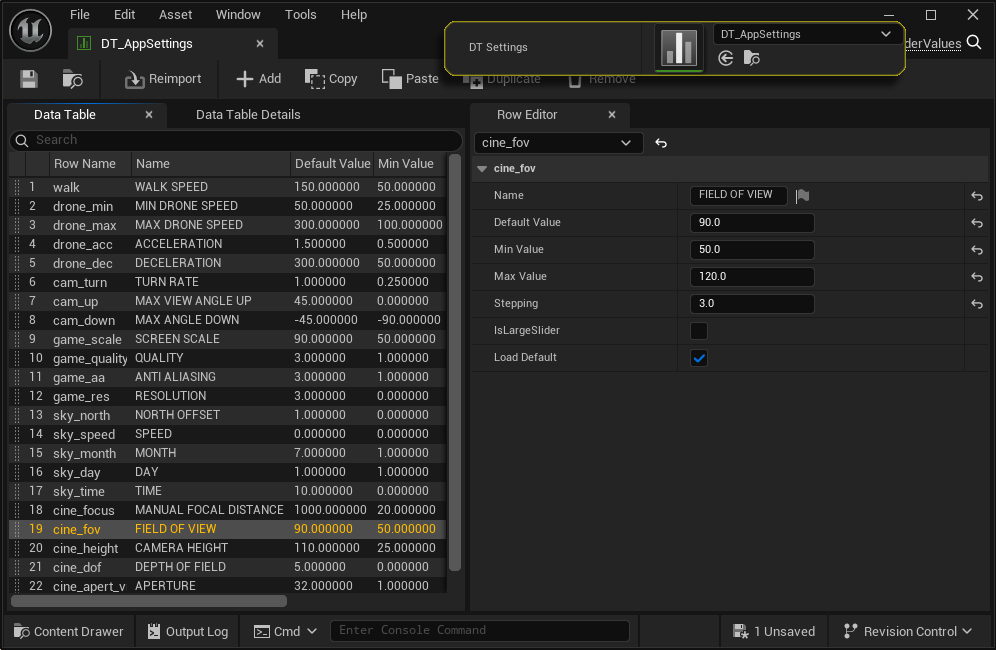
Slider Datatable
- Name the name of the slider.
- Default Value this value will be applied to the scene at app start if
Use Default is ticked. - Min Max Value defines the slider range.
- Stepping one step (+/- value) when using a game controller.
- is Large Slider The slider will span the entire widget width.
The slider is identified by the UI through the Row Name. This name can't be changed or the UI won't find the slider anymore.
.


 Top of page