Pages in Documentation

Settings

UI3 Overview

[old] Doors UE5
Quick Guide 2026
Quick Start
Swap Actor
Custom Assets
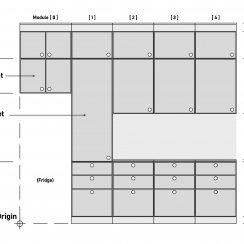
System Drawings
Guide 2022
Tips & FAQ
Guide 2024
Updating
Feat. w. Preview
Fix Bugs
FAQ & Tips
Cost Reports
Modes
Other Features
Designer
Edit Scene
Var Actor
New in 2026
Multi-Unit-Prj
Google Sheets
Data Tables
Video Guides
Quick Videos
Designer
Cost Tracking
Widget Panels
Quick Guide
Scene Settings
Connect BP
VR projects
Version History
F. w. Preview
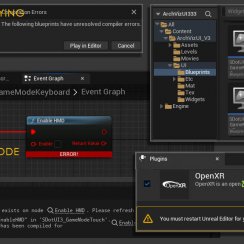
Fix Known Bugs
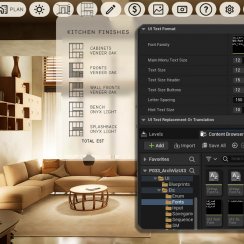
UI Settings
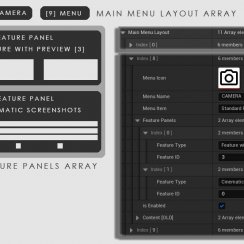
UI Layout
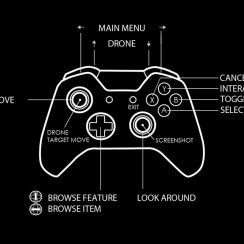
Gamemode
FAQ + TIPS
Quick Guide
V4 Functions 2
V4 Functions P1
V4 Quick Guide
Ver History
V3 Placements
V3 Mesh Def.
V3 Segments
V3 Quick Start
Books V2
Books V1
Custom Assets
Additional Assets
User Guide
Swap Actor
FAQ + TIPS
Doors UE4 (V1)

3.1 Bugs Fixes
Ver History
V2 Generic BP
V2 Examples
V1 Railings Fences

UI 1 - Part 1
UI 1

Ui 1 - Part 2

1 Overview
UI2 Features
UI2 Get Started
UI2 Info Map
UI2 BP Actors
UI2 User Manager
UI2 FAQ
UI2 Tutorials

UI3 Overview
Getting Started

3.1 Info Map
Variation Actor
Blueprints
Game Modes, Controls, VR
This section covers
- UI Presets
- Game Modes including VR
as well as a short explanation of how controller and character work together to control the UI and the player movement.
Content:
UI Presets
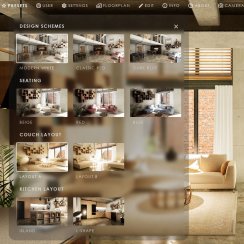
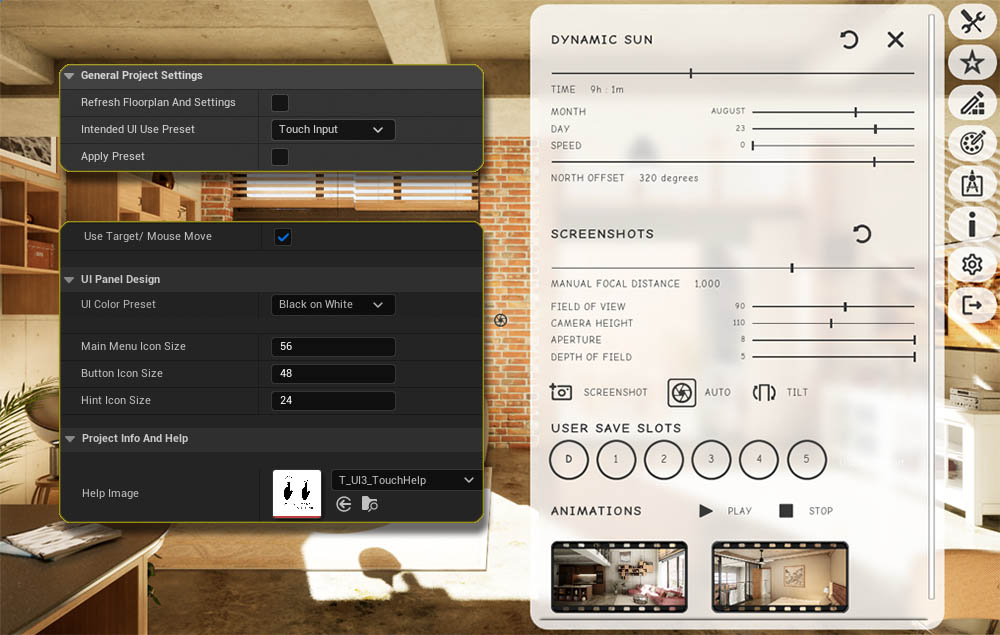
A UI3 project is by default set to work well for keyboard and mouse input on a PC or Windows laptop. Presets will change some of the common settings to work better with other modes, like touch or VR.
Intended UI Use Preset
- Select one of the Use Presets from the list.
- Click on Apply Preset. Changes are applied to the Info Map.
- The tick box will immediately get unticked again.
Some settings have been adjusted to better work for the selected mode, like
- Target Move
- UI Color Preset
- Controller Button Row Name
- Icon or Text sizes
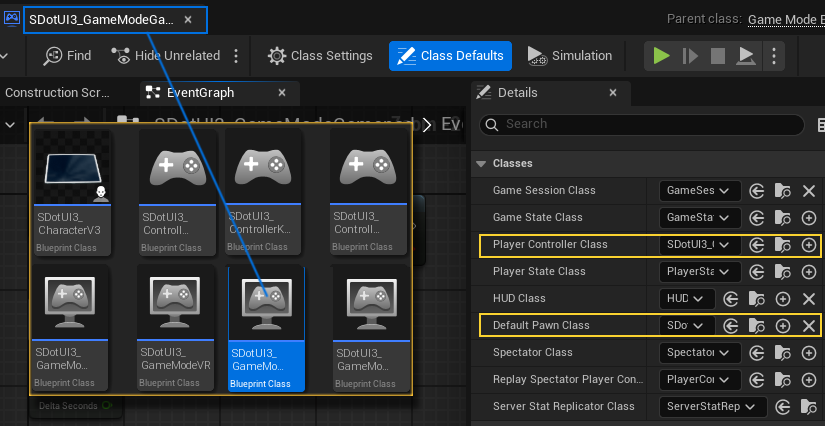
SDotUI3_CharacterV3
All UI3 game modes use this Character blueprint. Most blueprint code is either in the Character or in the Main Menu Widget.
Controller
Controller blueprints contain nodes that allow the selection of objects in the scene.
The * Gamepad controller has nodes for the navigation within the menu. The user can't click on an item without navigating to it first.
The * Touch controller has nodes to check if the user has clicked on something or wants to move the camera.
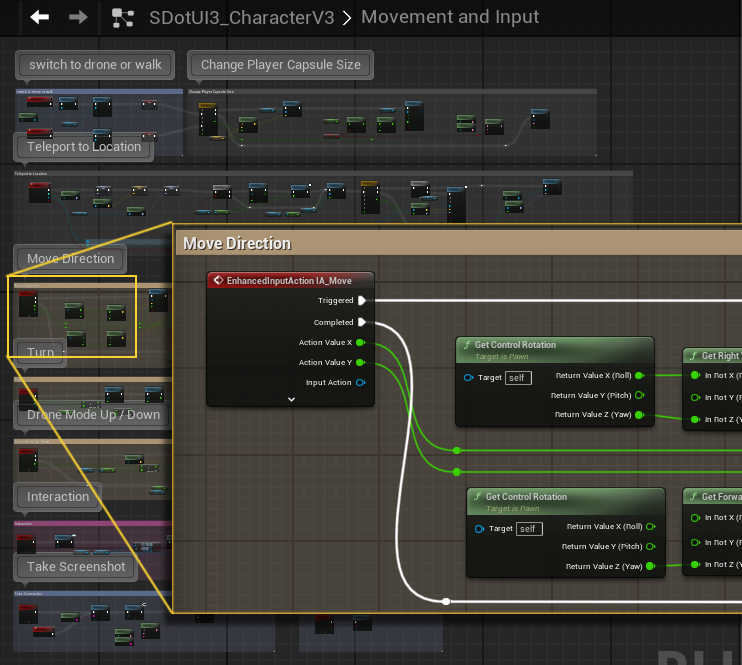
Graph Movement and Input
Most input action nodes are in a separate node graph in the Character and not in the Controller.
The blueprint nodes would be the same for gamepad and keyboard use and therefor are in the Character blueprint as this blueprint is shared in the Game Modes.

VR Game Mode
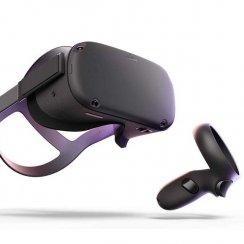
UI3 offers a limited support for VR projects. VR projects can run in PC-VR mode, where the headset is just used as a monitor.
UI3 does not support native Android projects that run on the headset without custom modifications.
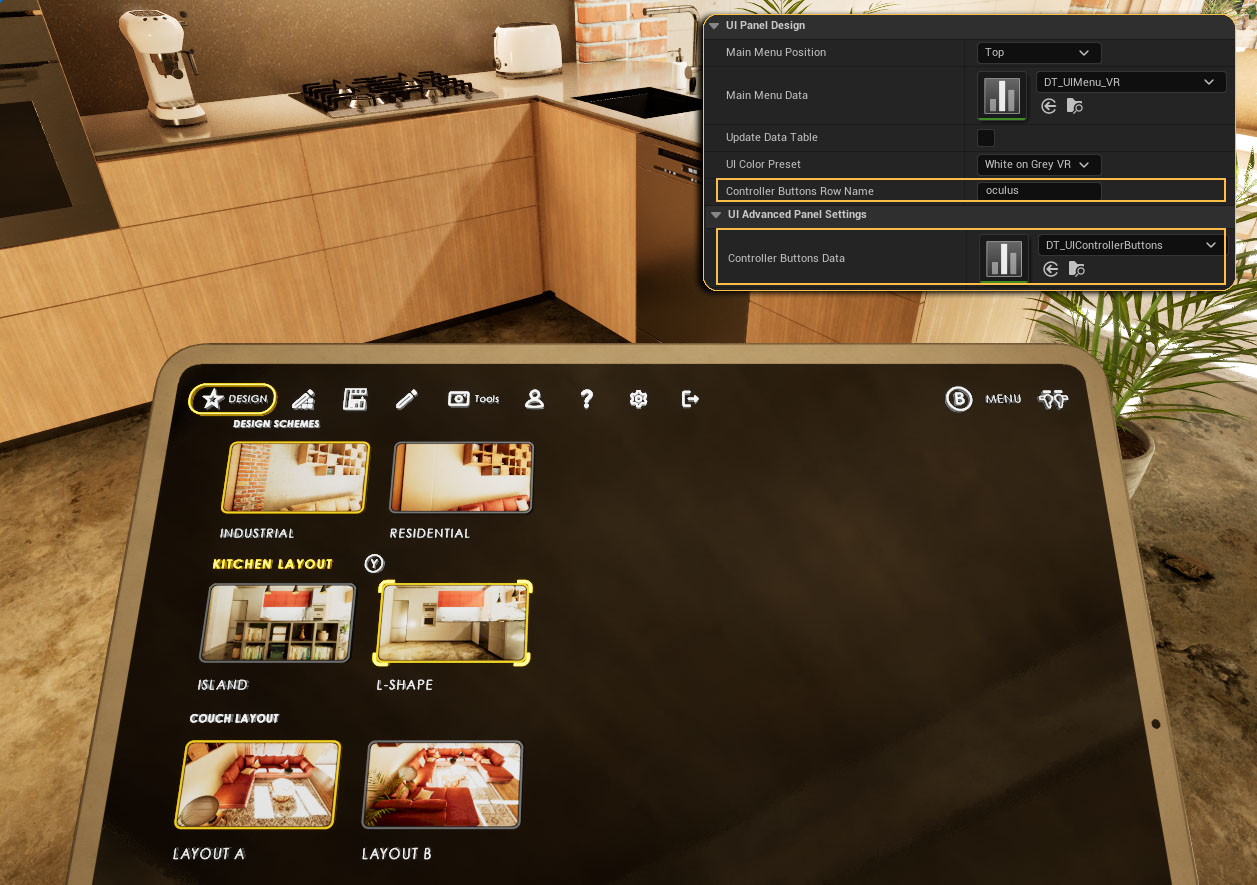
VR Virtual Tablet
The standard UI3 menu is displayed onto a virtual tablet mesh in 3D space.
Input Controls
Oculus, Steam or VIVE controllers are mapped to be used with UI3. Controls can be changed in asset MC_ArchVizUI3 (Mapping Context).
A standard XBOX controller can also be used for VR projects.
Controller Button Icons can be changed in the UI Panel Settings (Advanced) by changing the Controller Icons Row Name.


 Top of page